Showcase
Every screenshot below is generated by driving a real instance with Playwright
(bun run screenshots): a blank database, a real sign-up, the onboarding
wizard, then a stack with three services, two of them actually deployed as
containers on the host's Docker socket, and real HTTPS traffic sent through a
real Traefik to one of them. No demo instance to keep alive and no
hand-retouched marketing shot: if a screen stops rendering, the run fails rather
than publishing it.
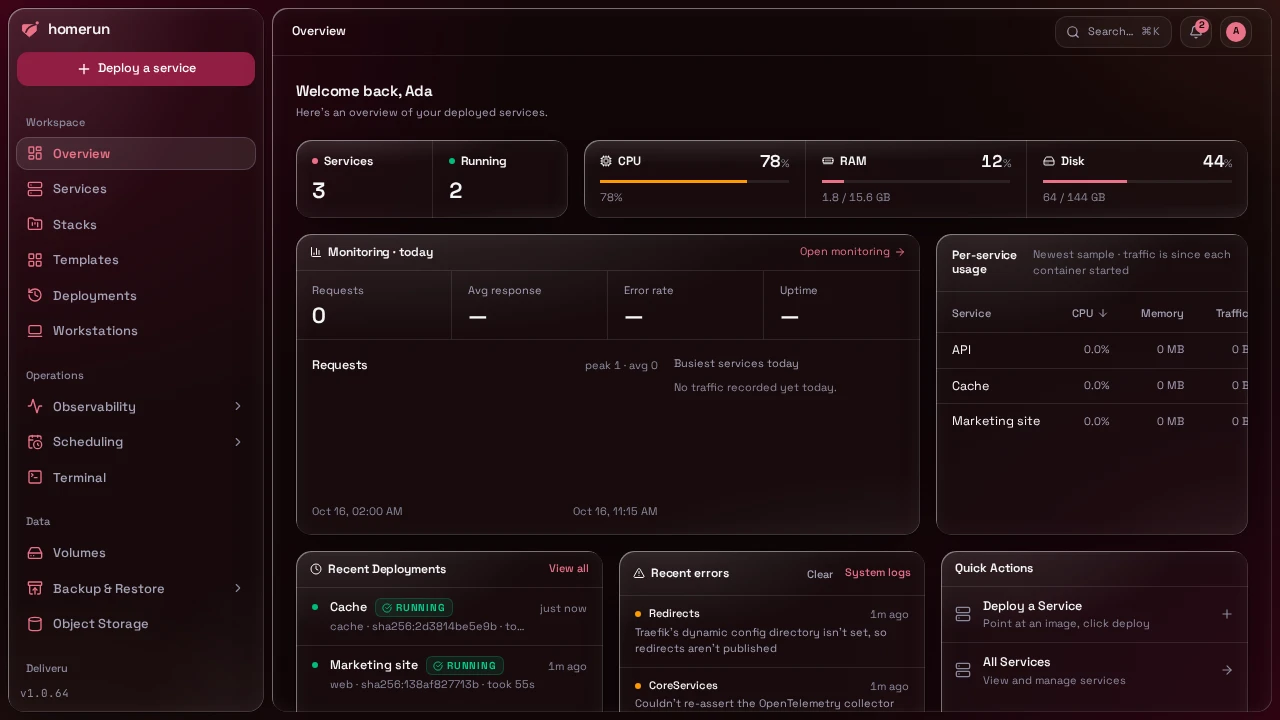
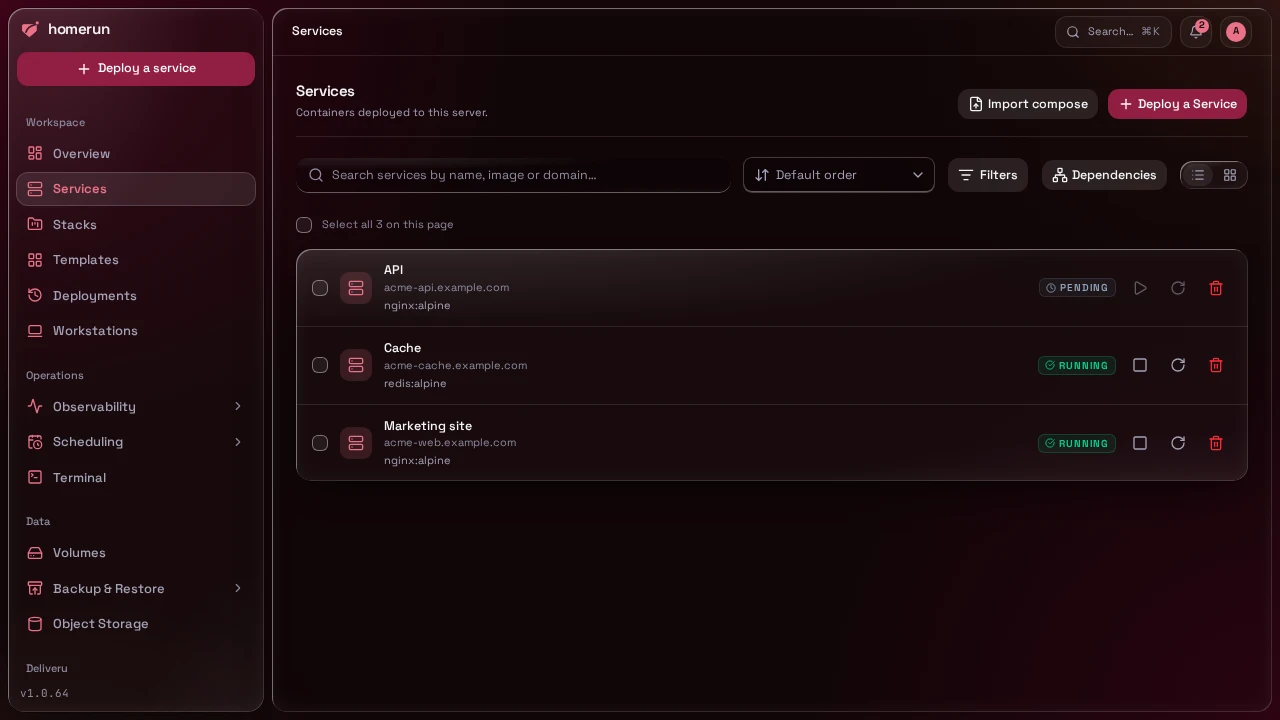
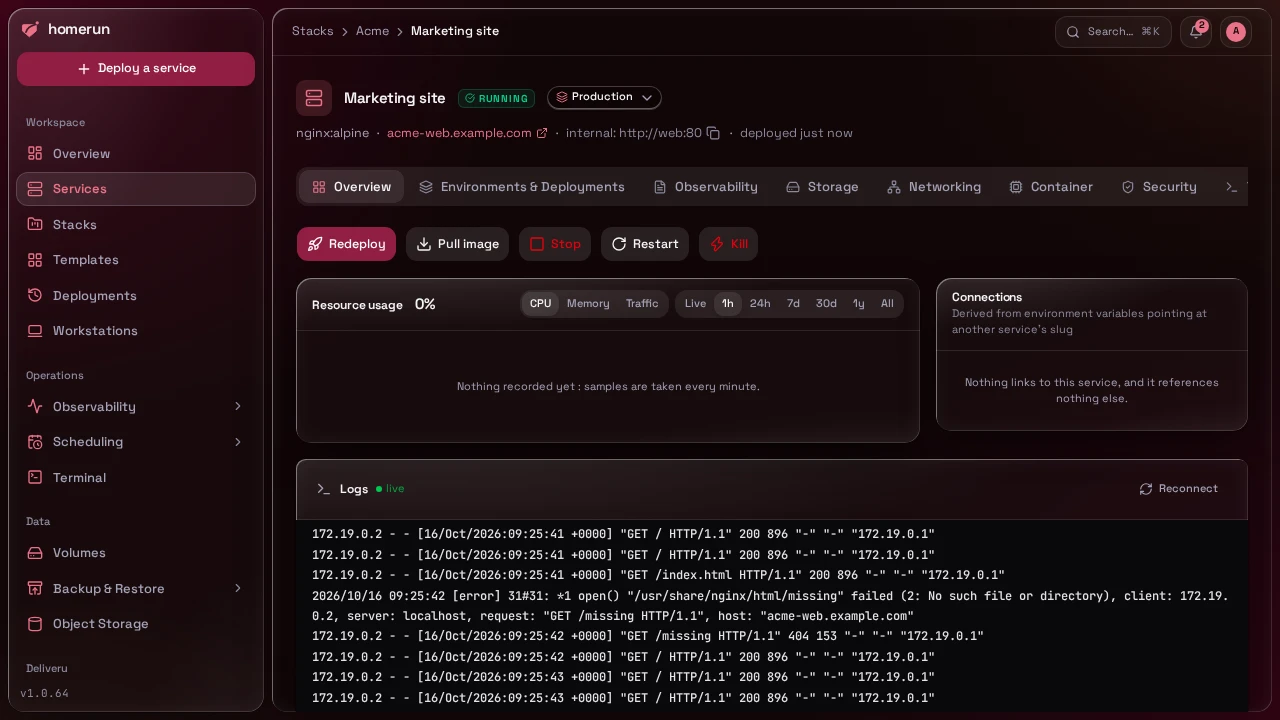
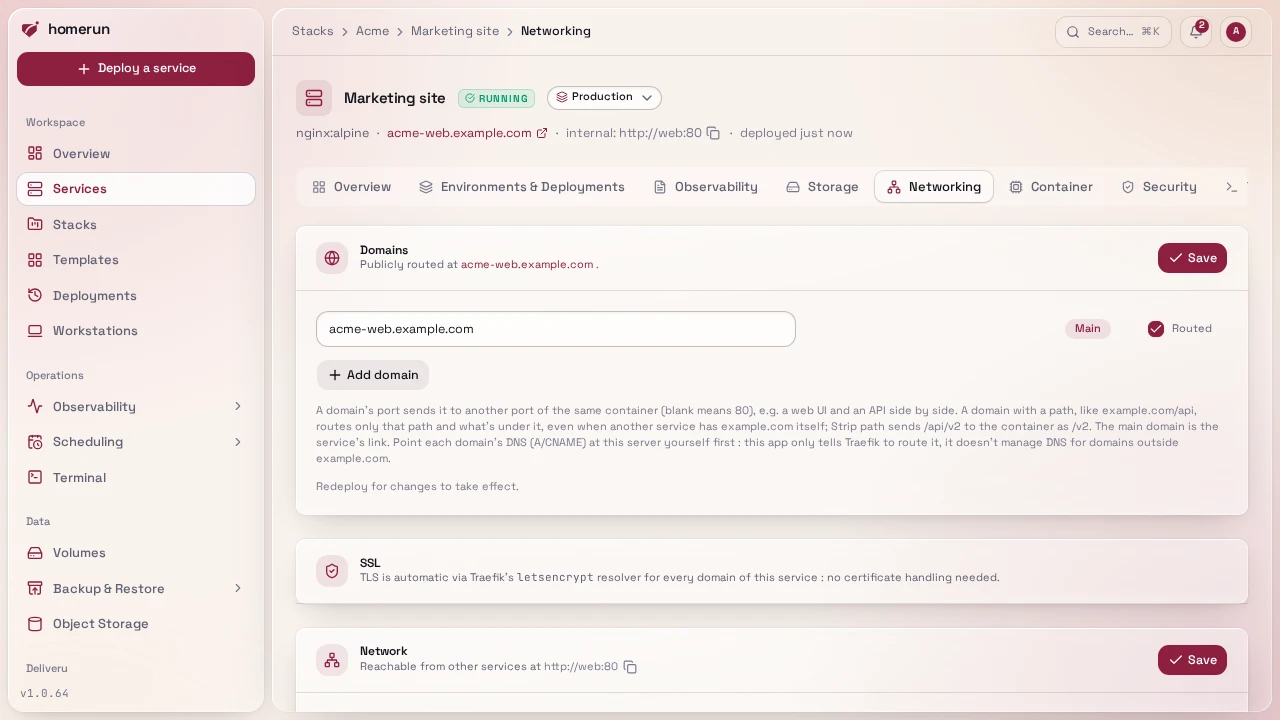
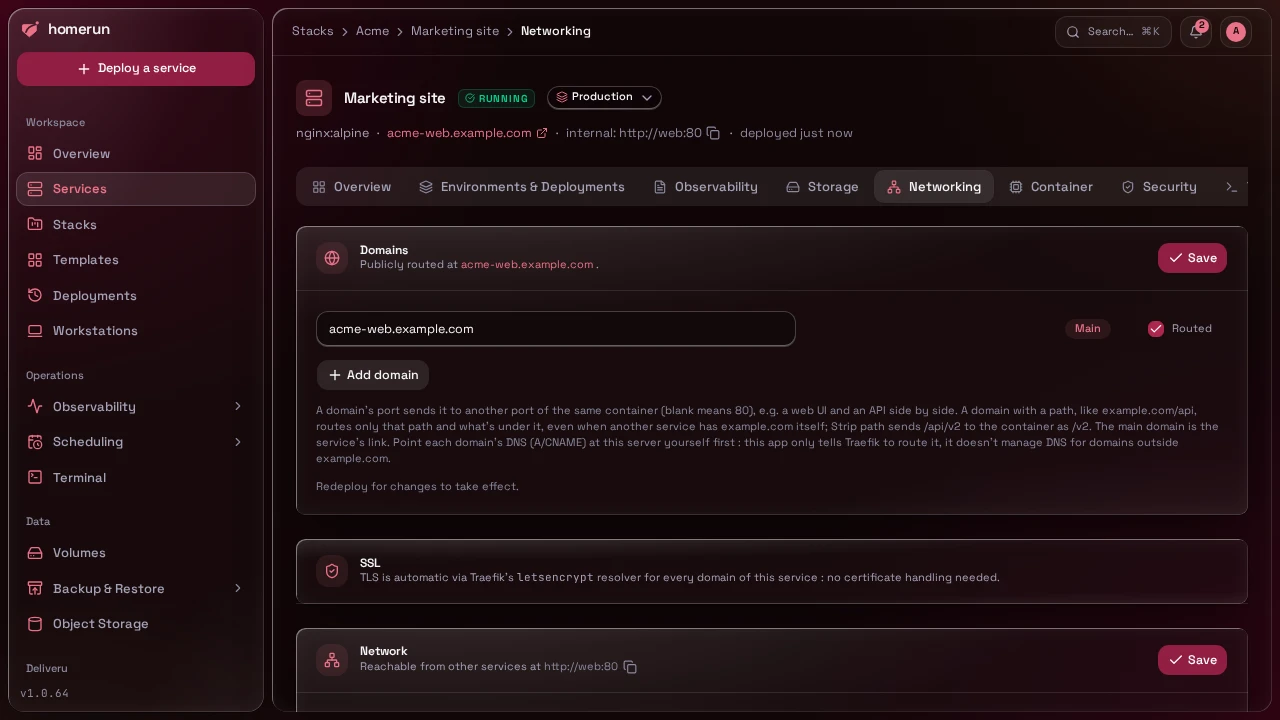
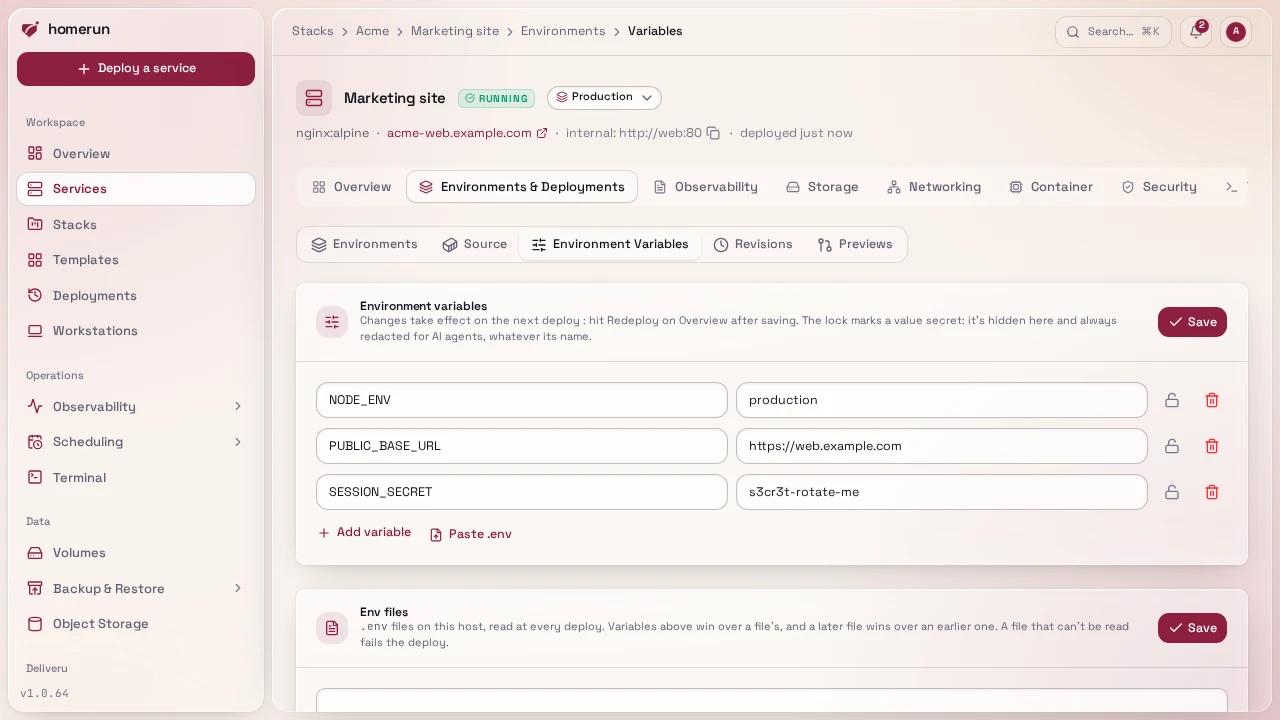
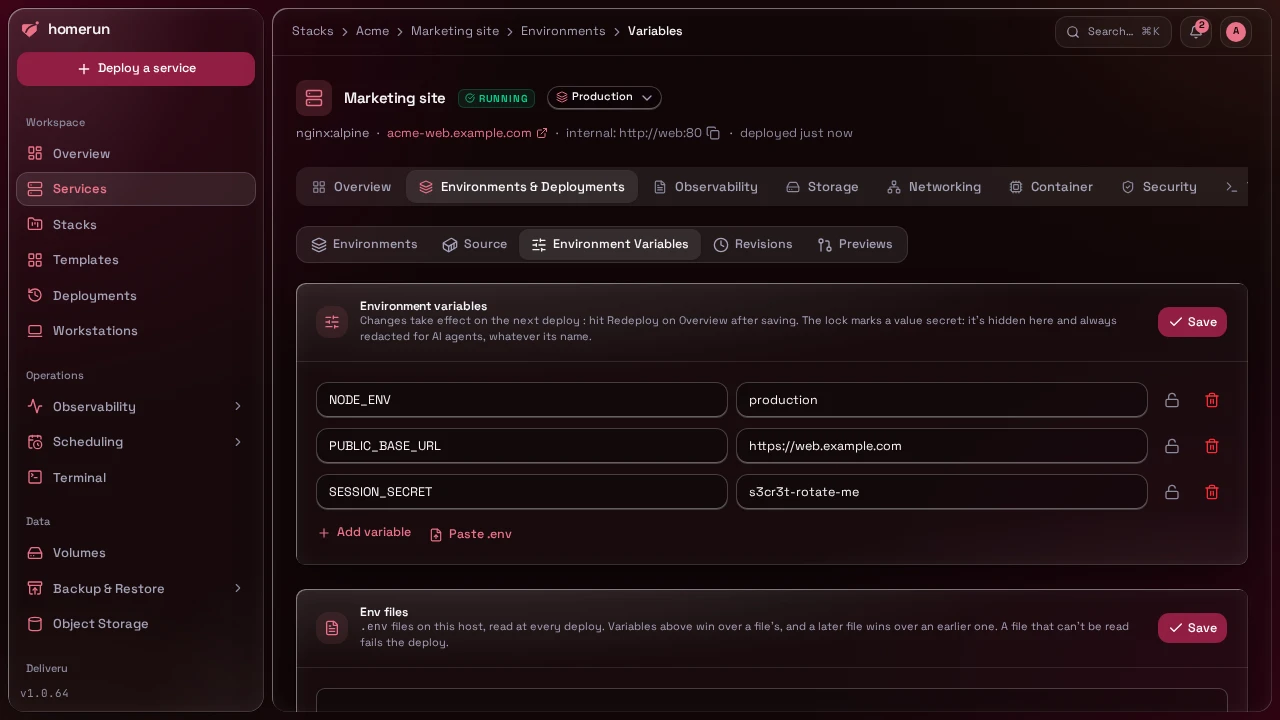
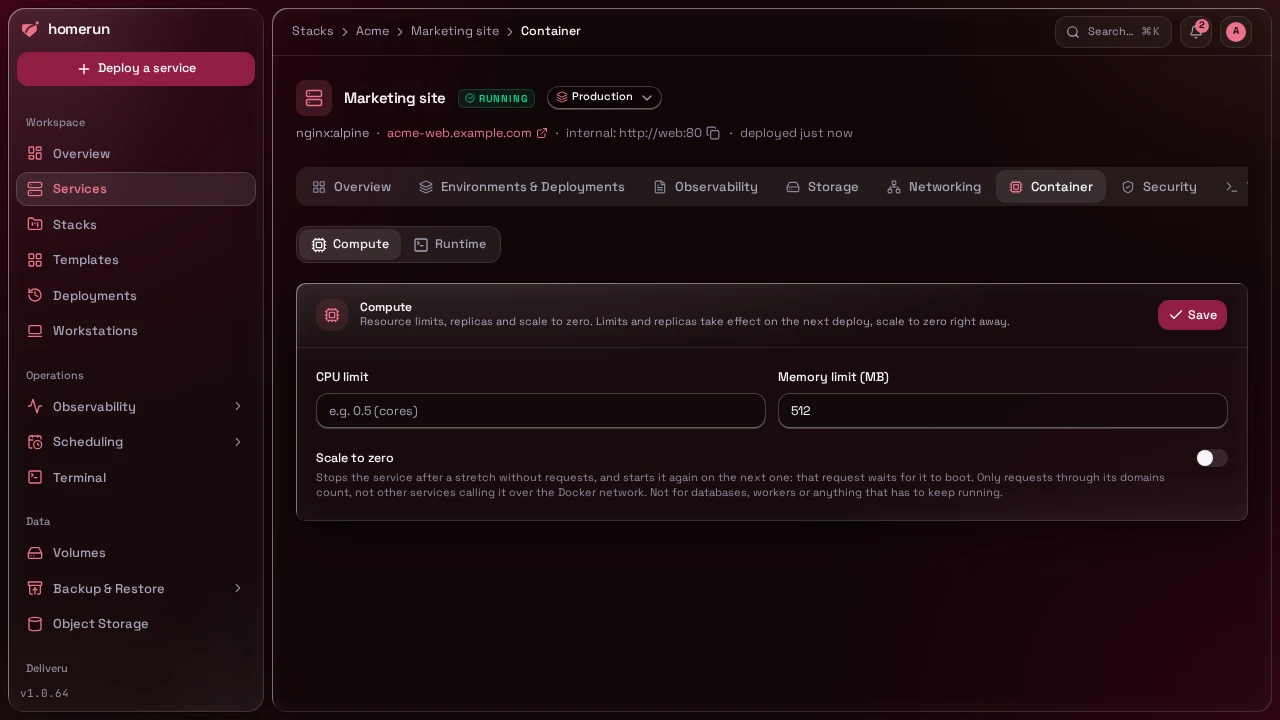
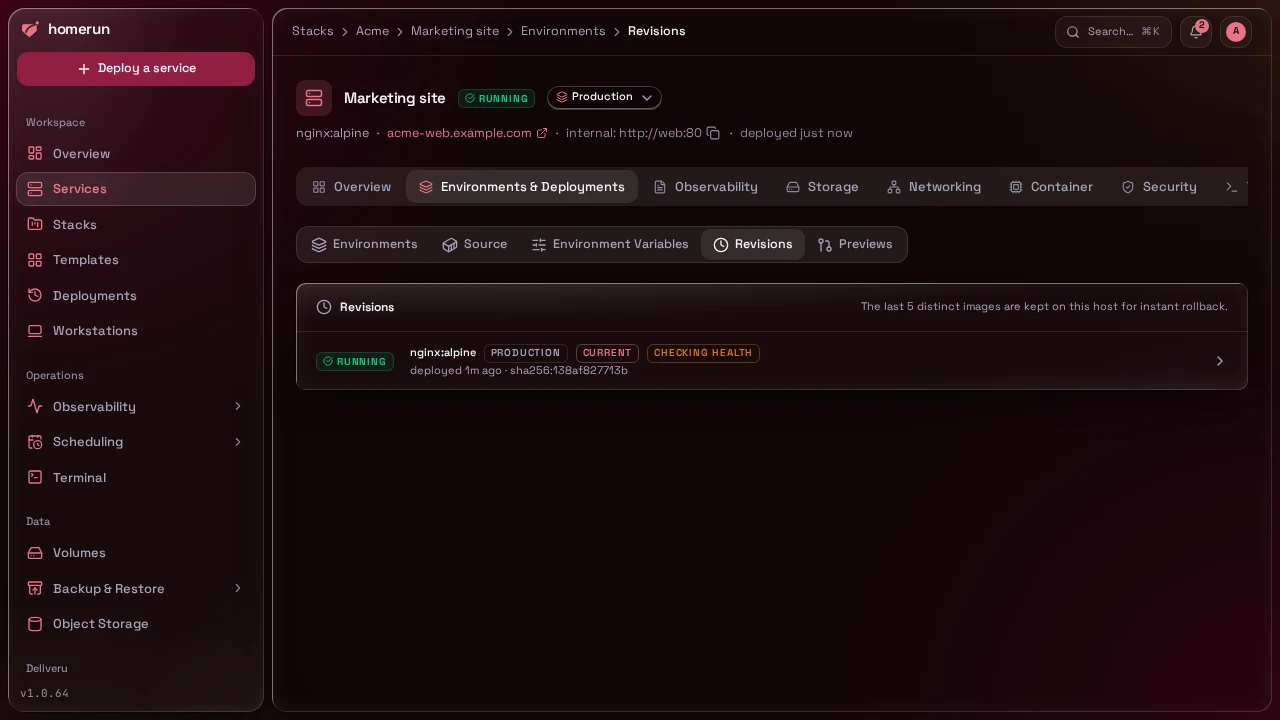
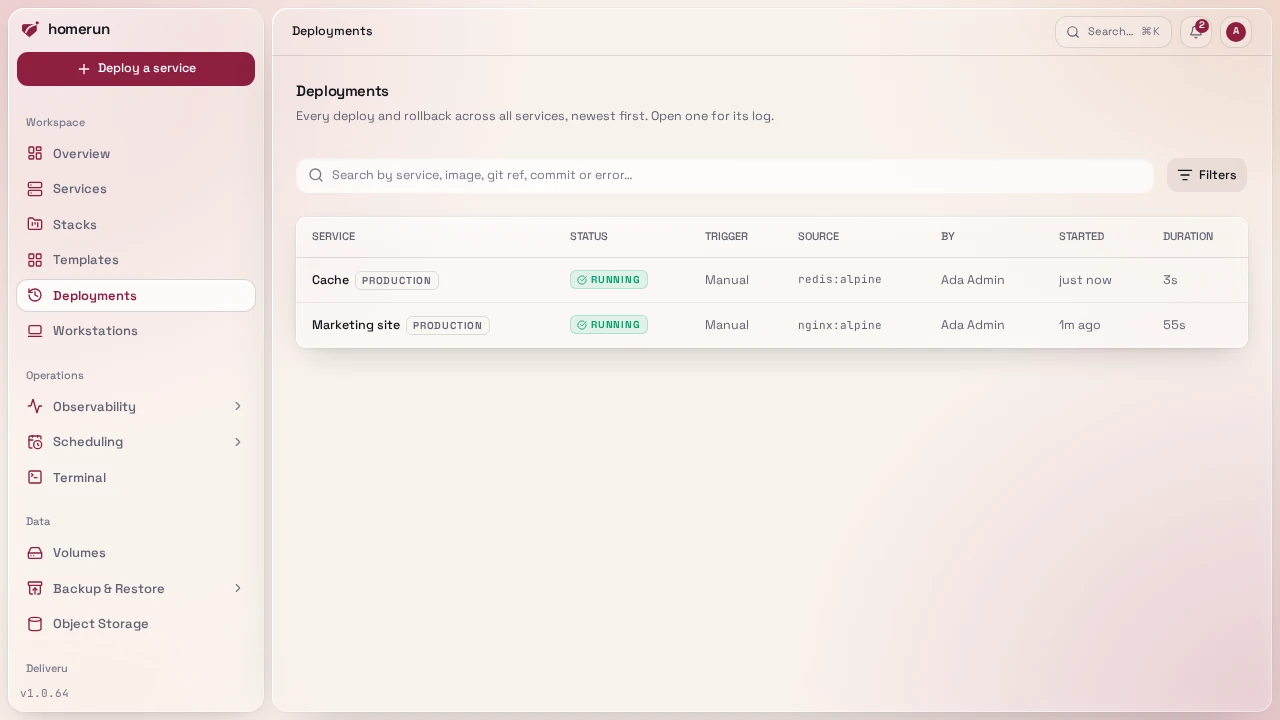
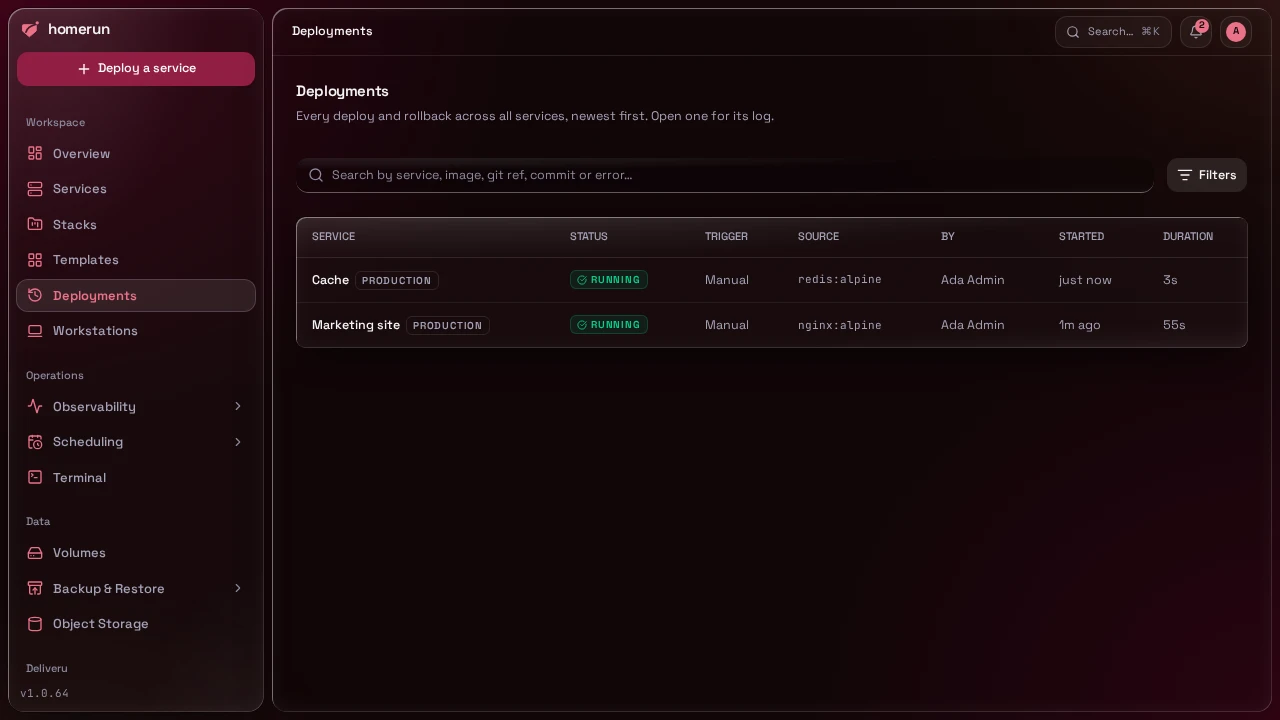
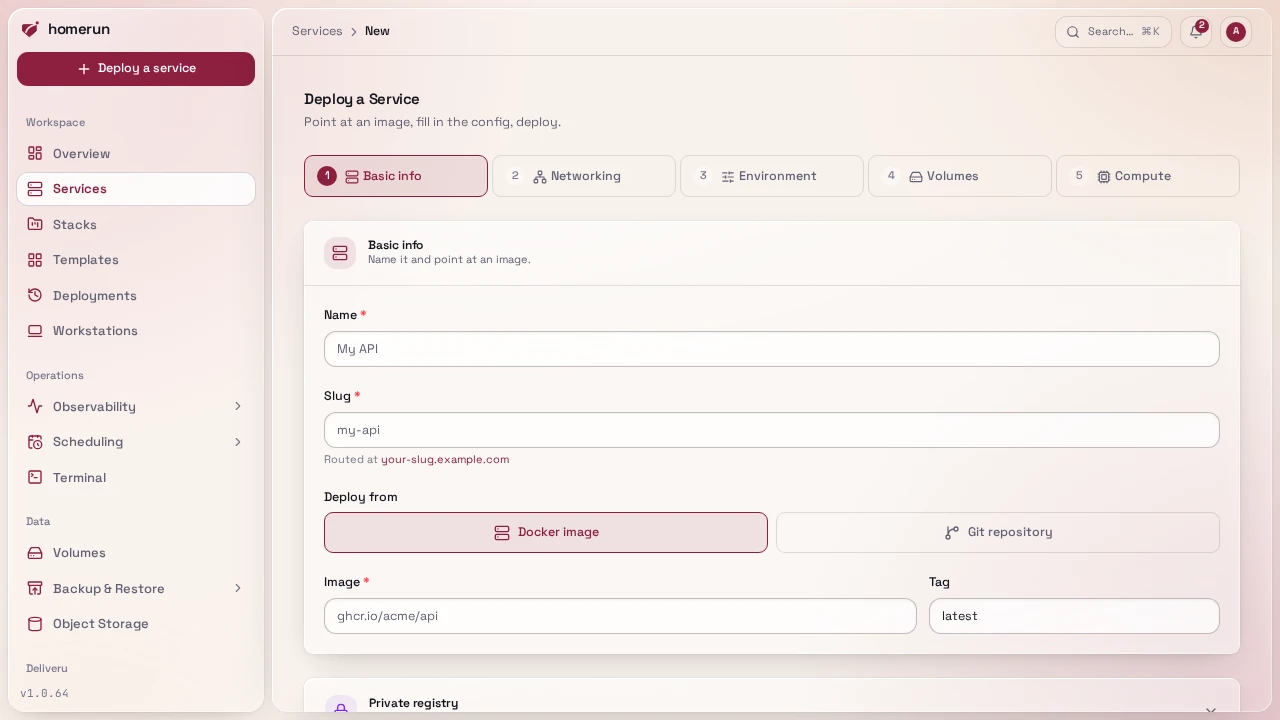
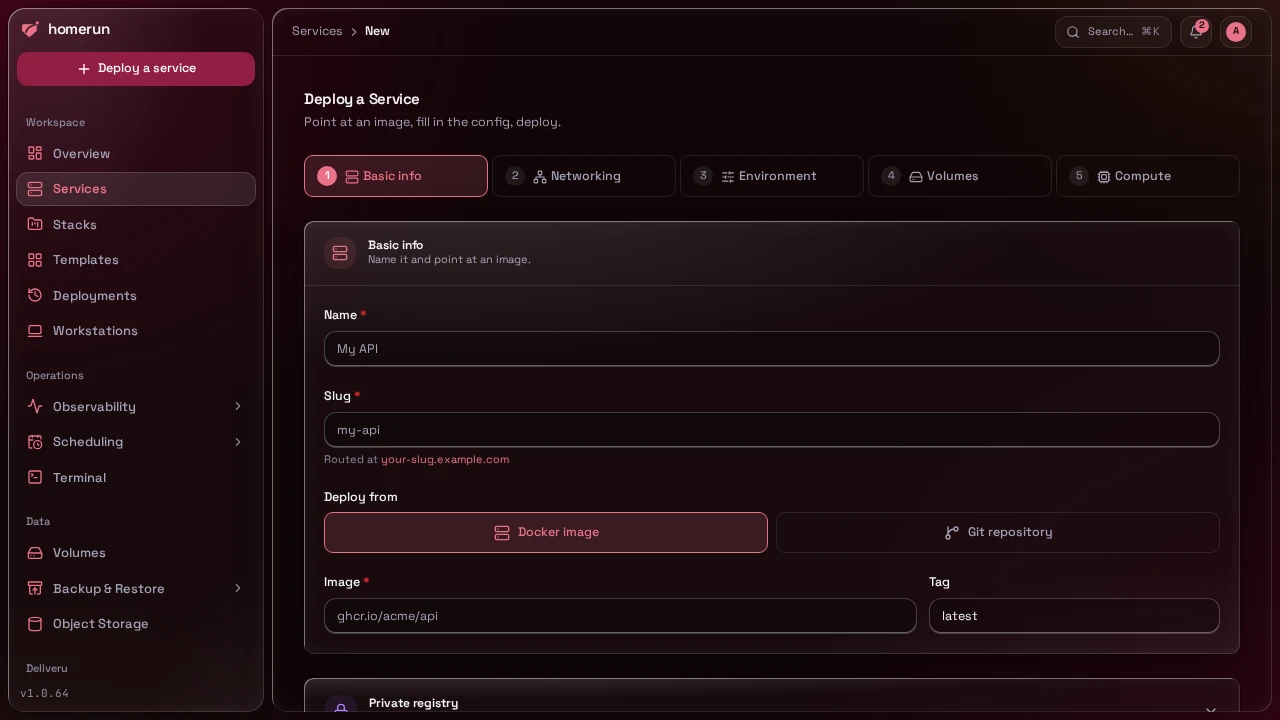
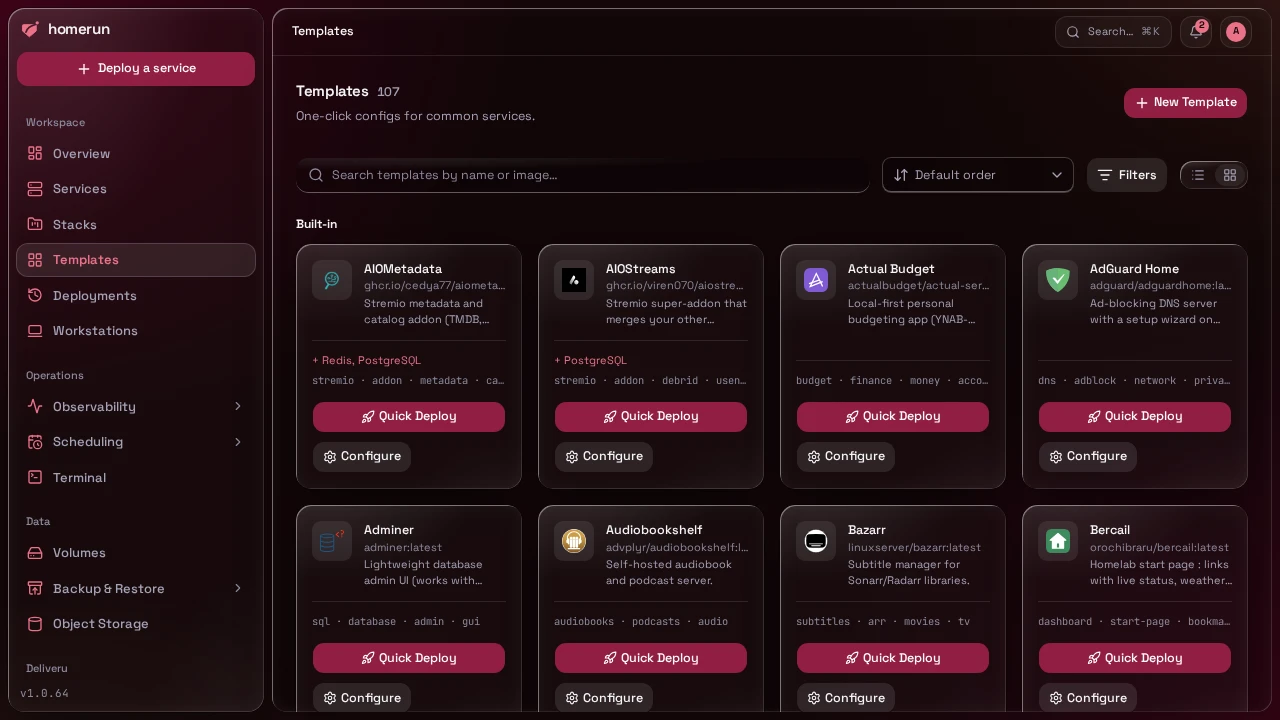
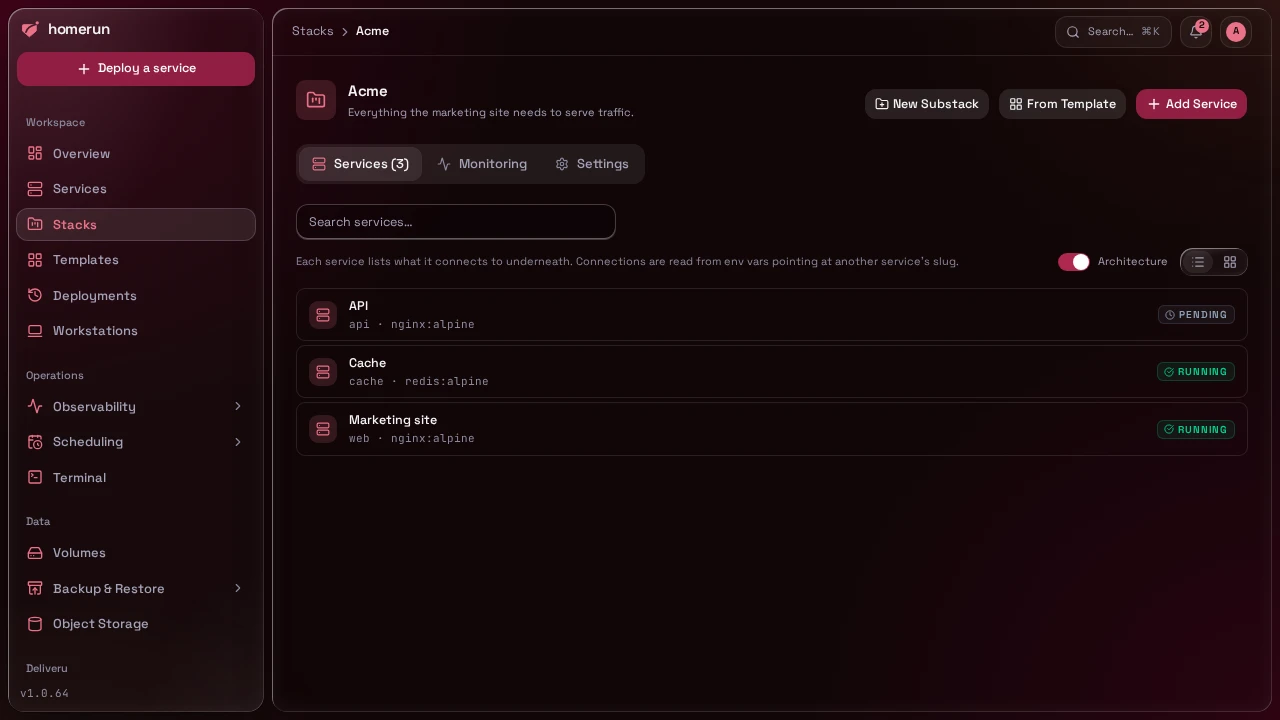
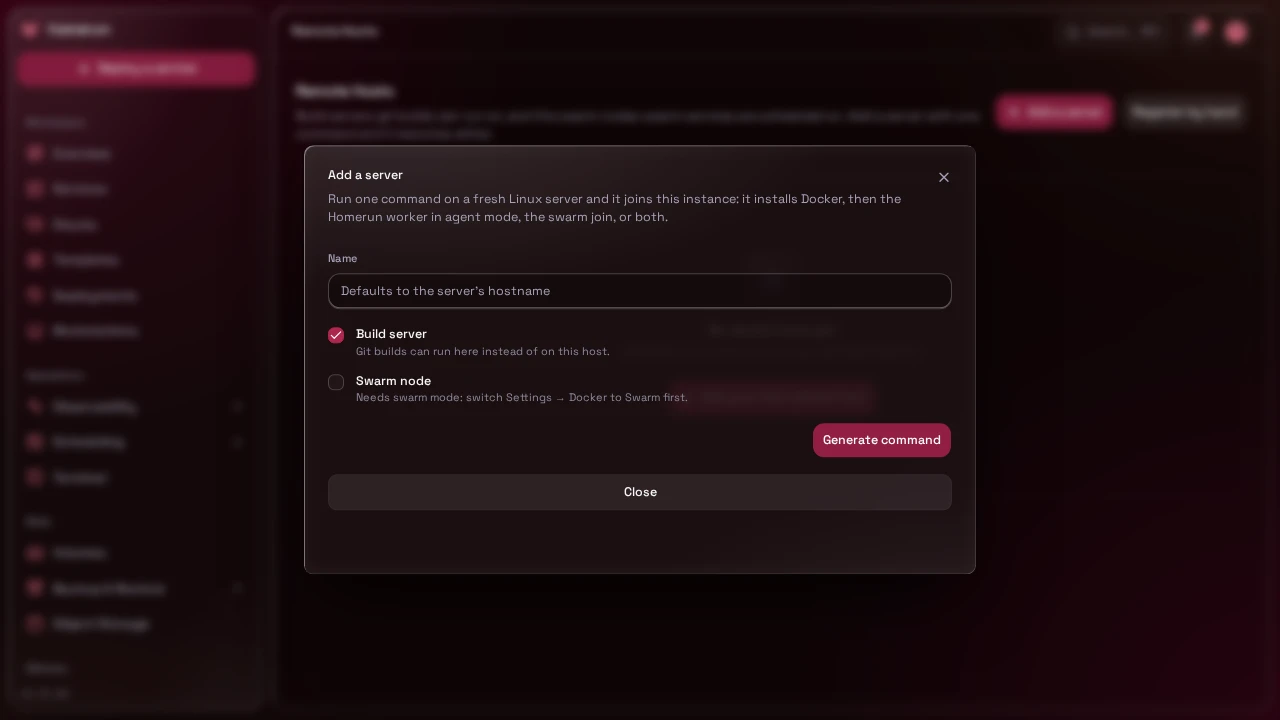
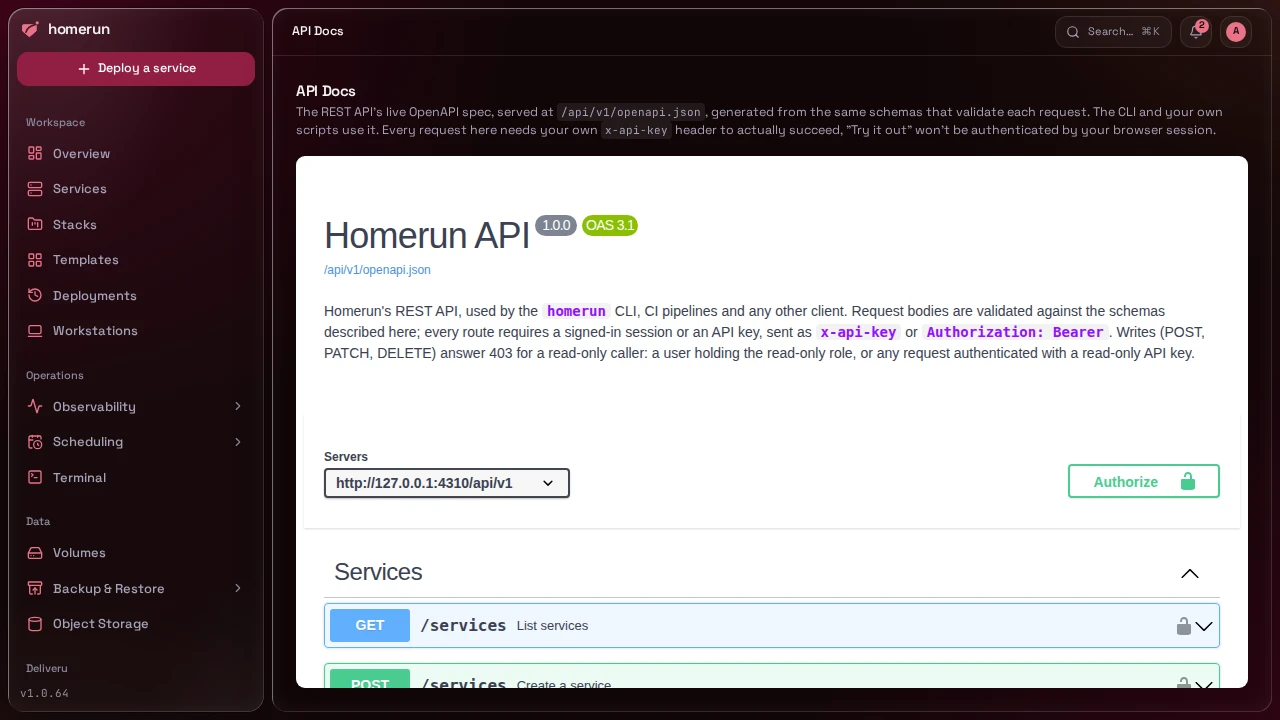
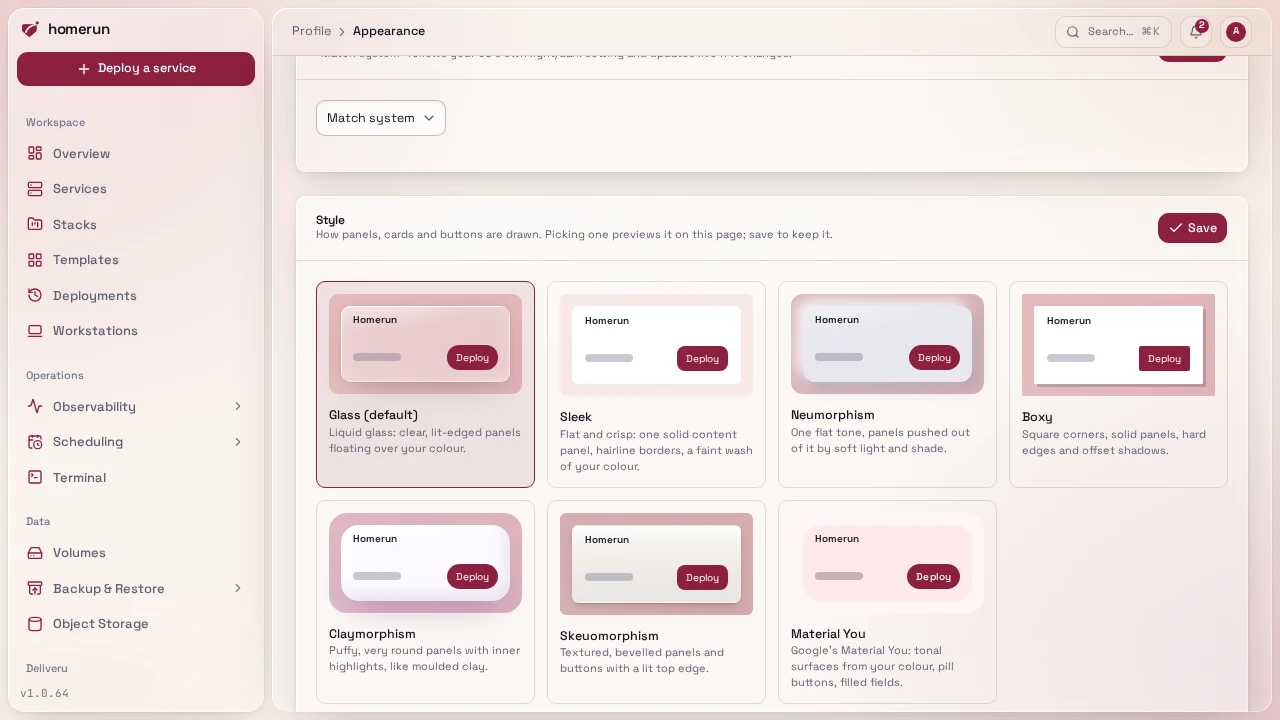
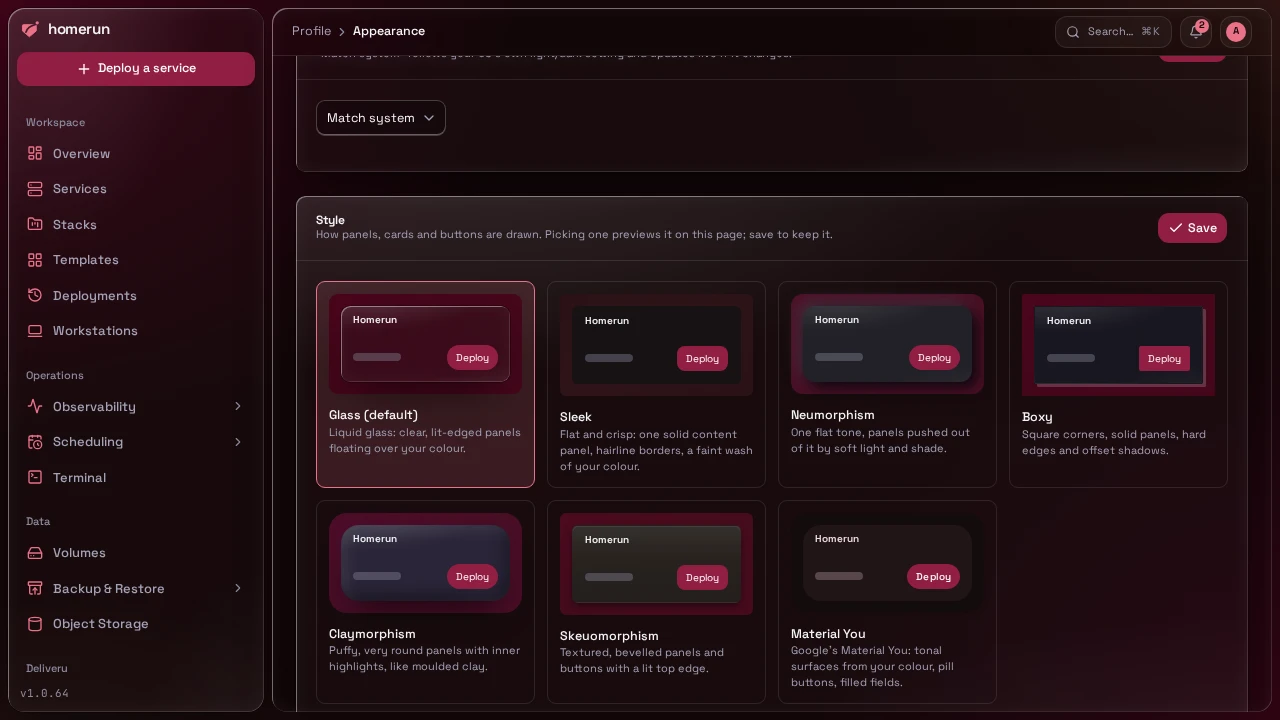
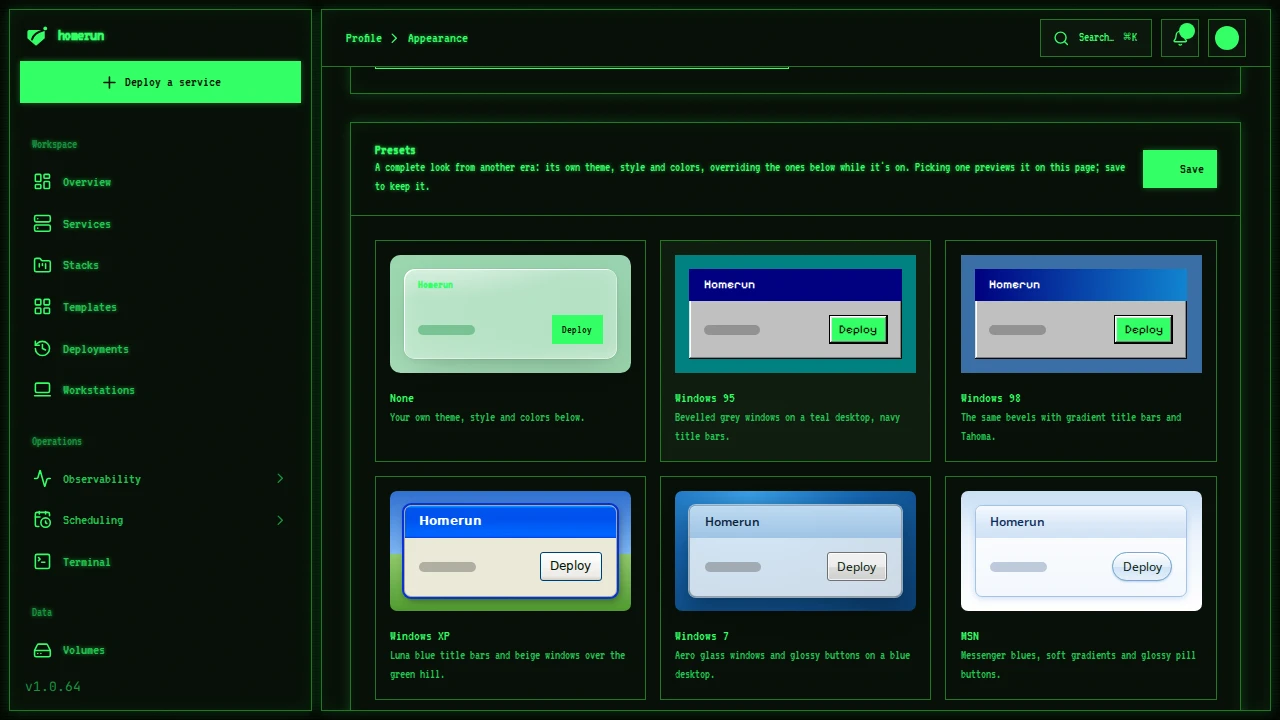
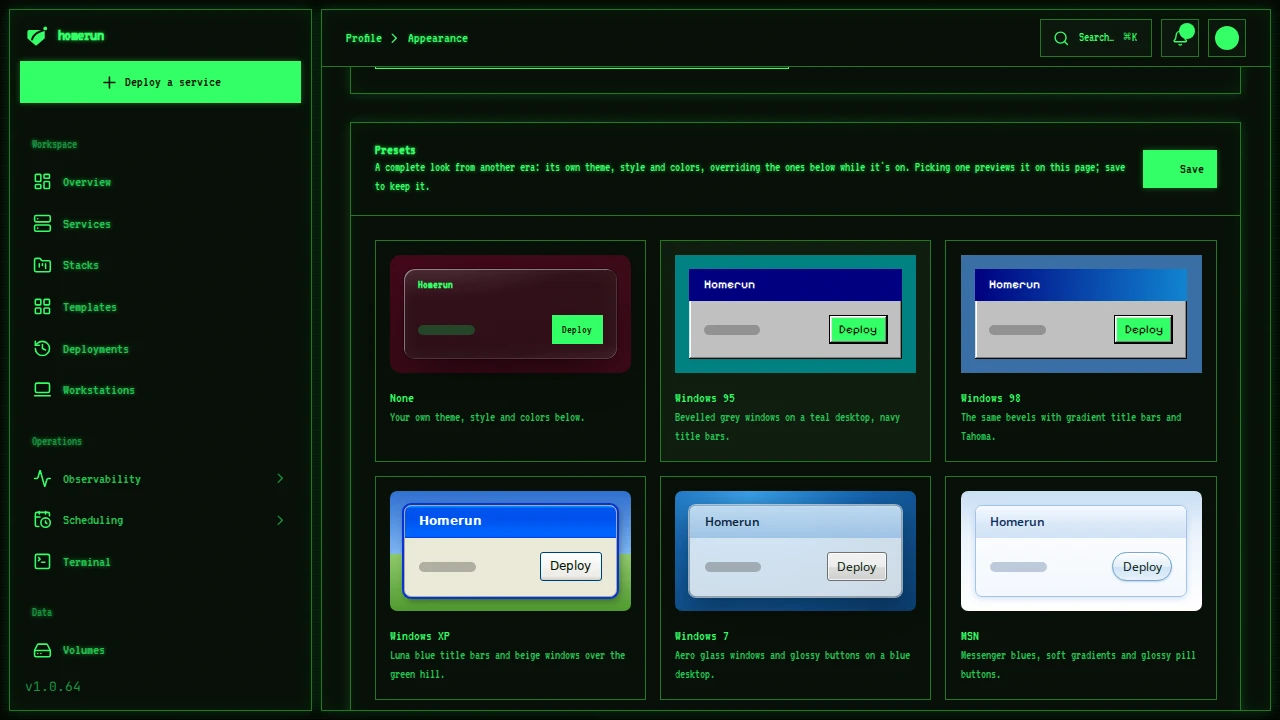
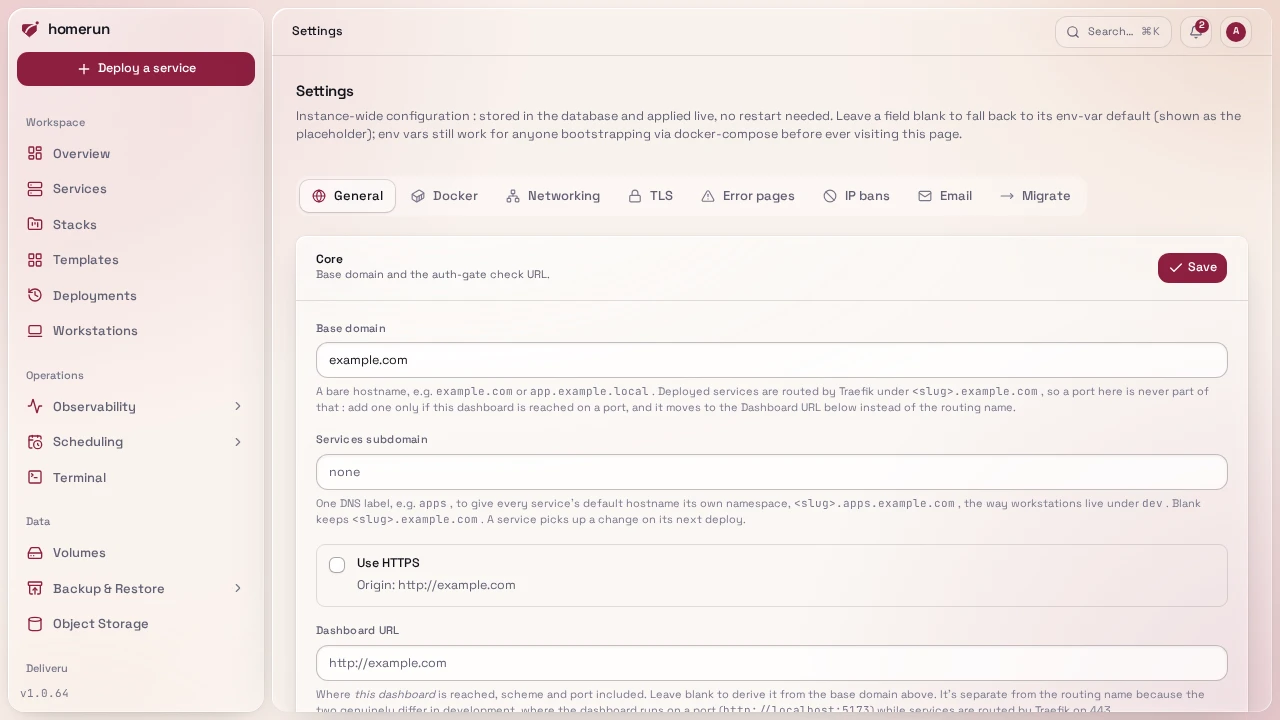
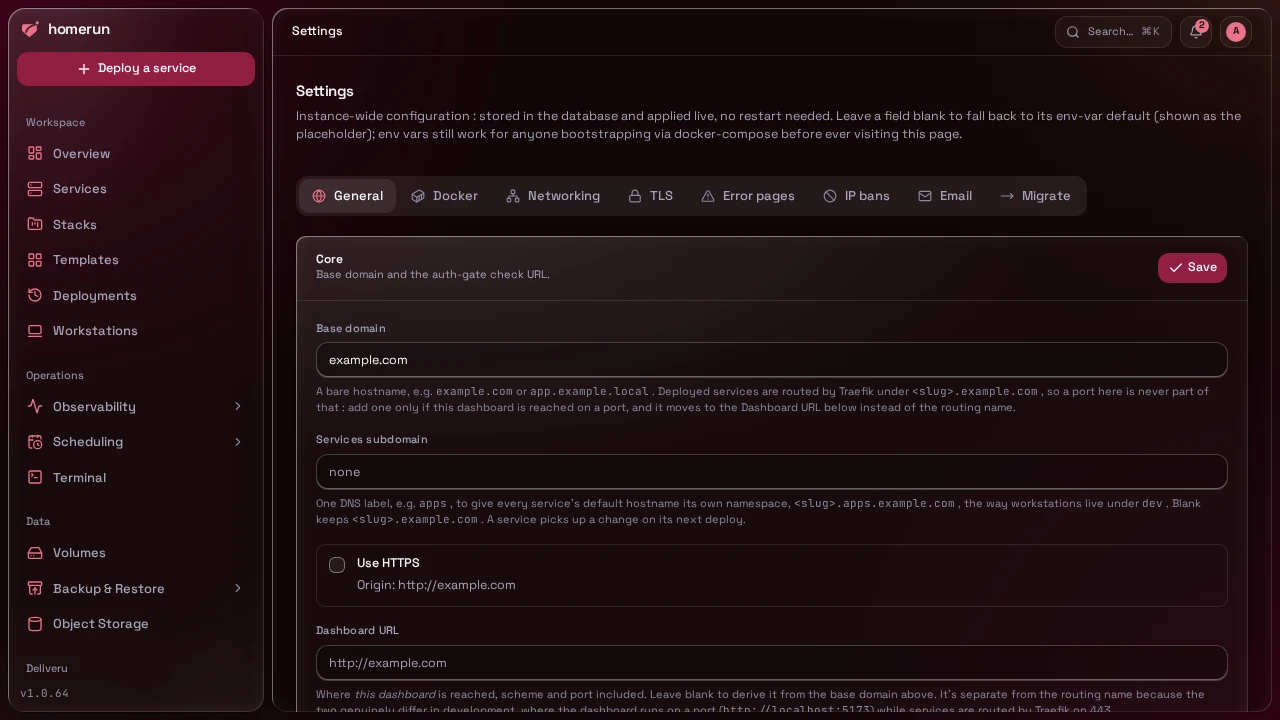
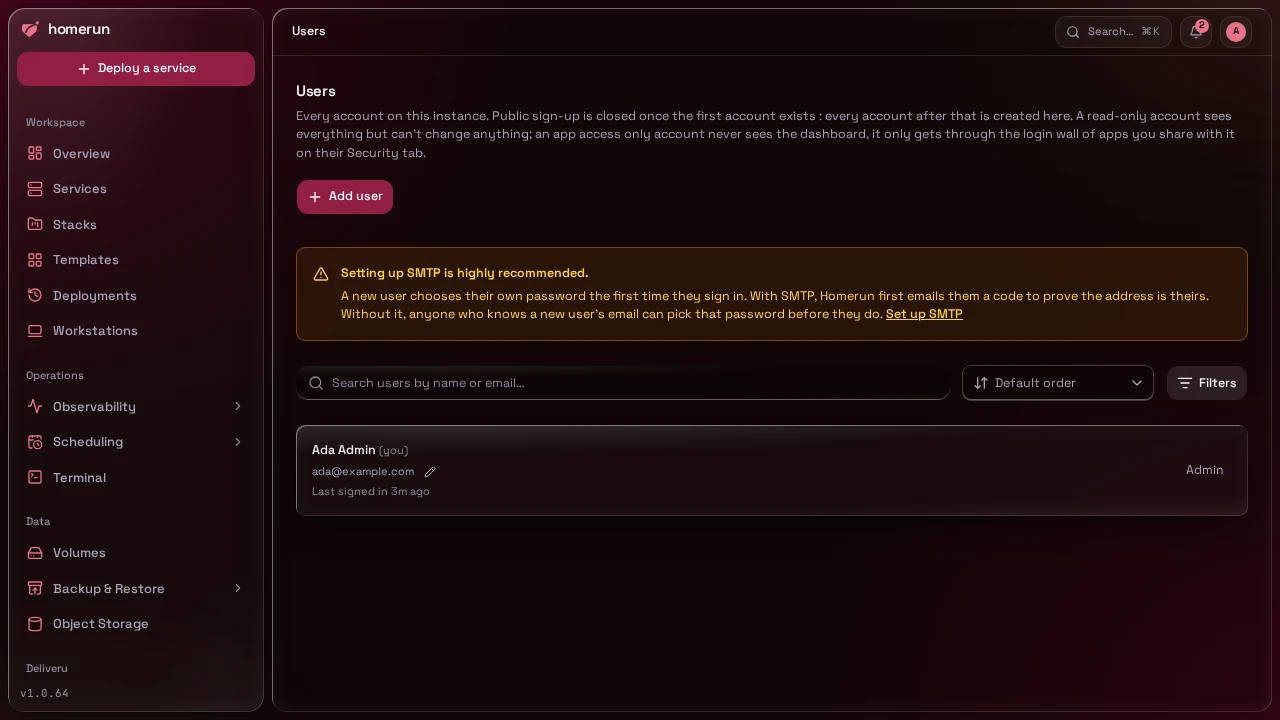
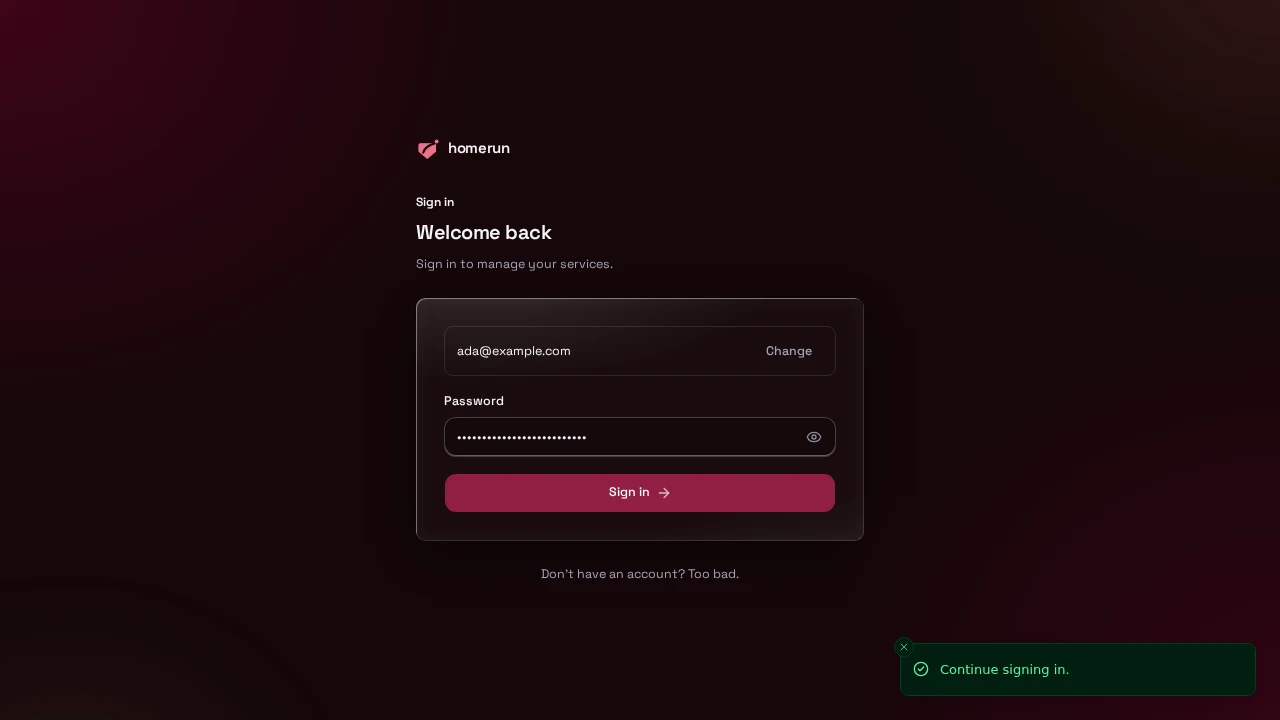
Each pair is light and dark. Appearance is a per-account setting, so both are the real thing.
#The dashboard
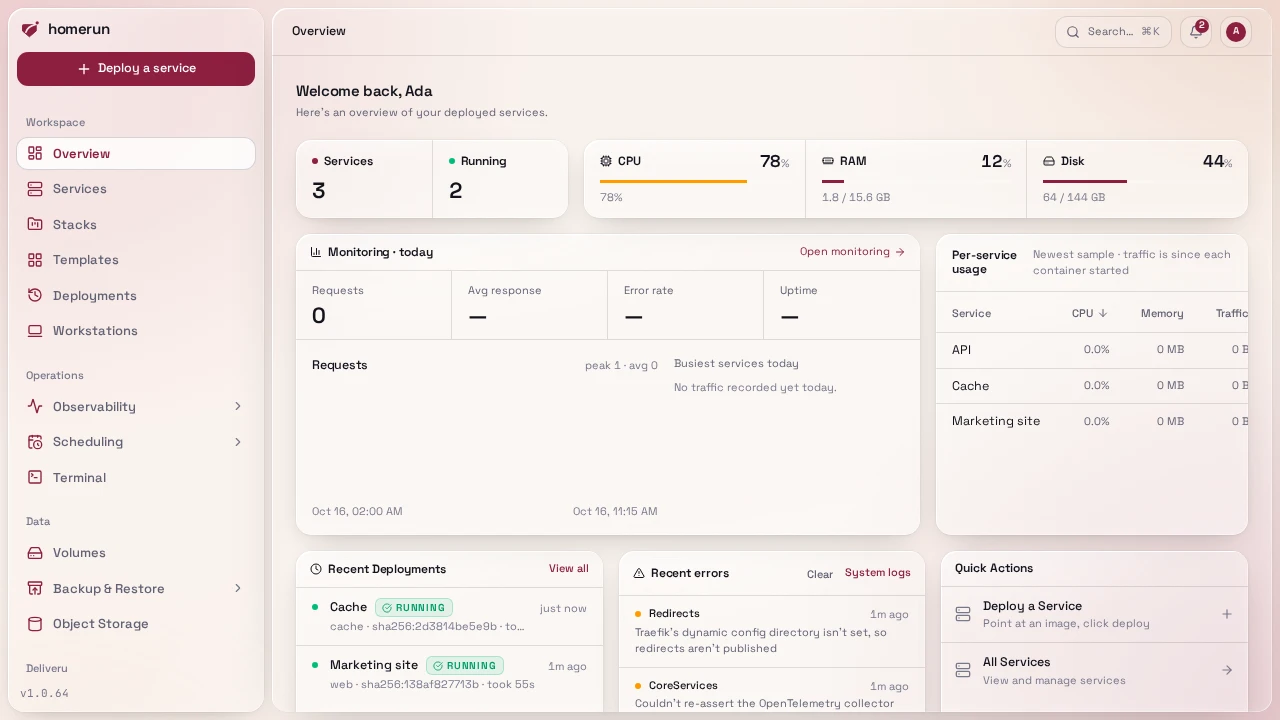
Service counts, live host CPU/RAM/disk, the deployments that just ran, and the jump-off points for the next one.
#Search everything
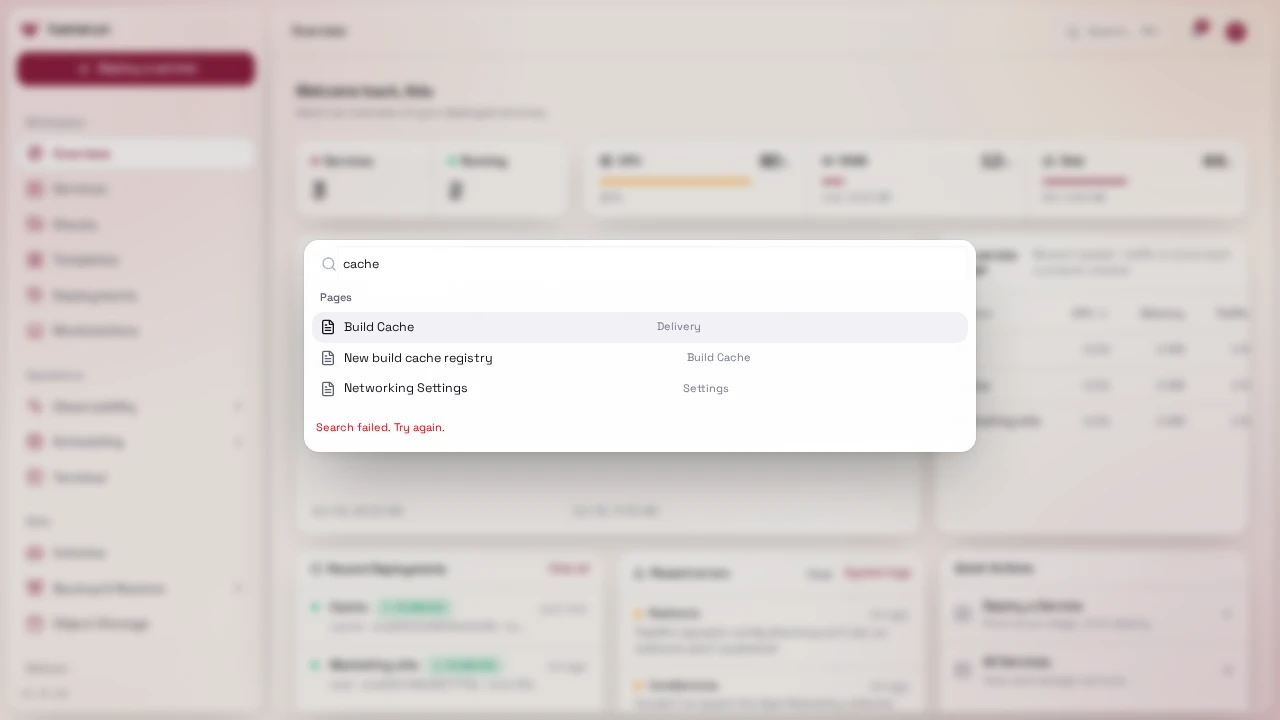
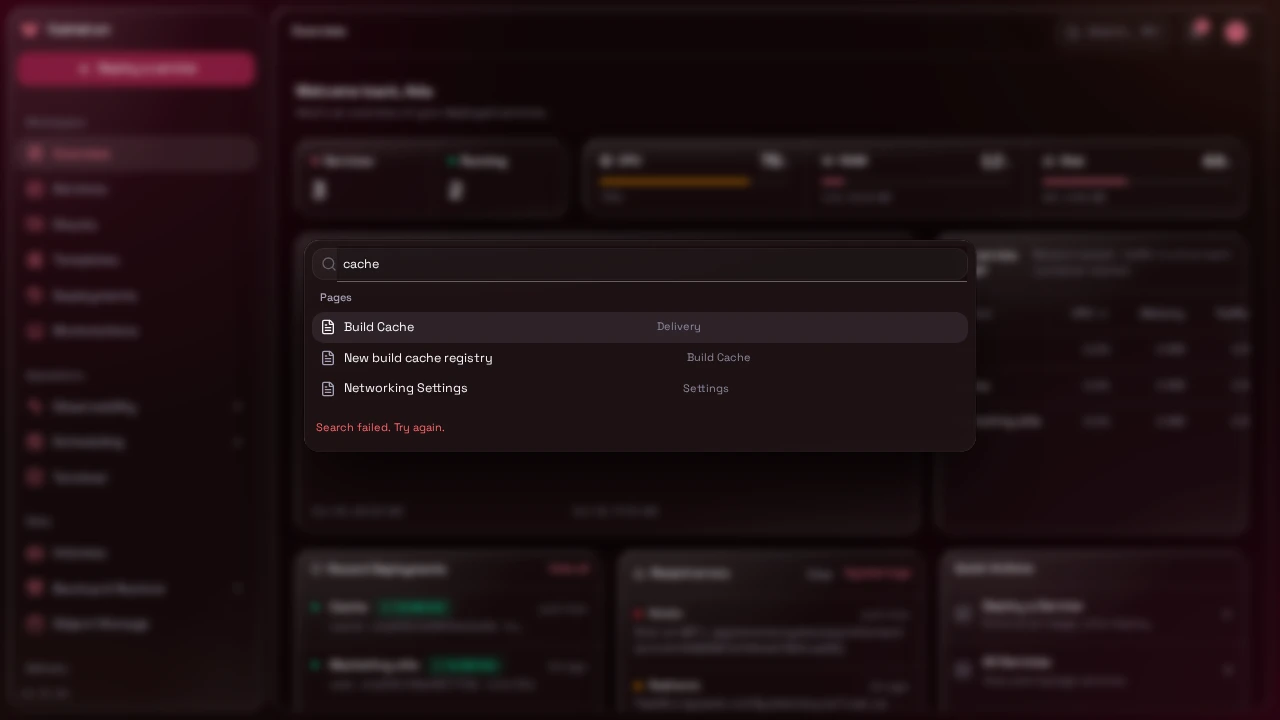
Ctrl+K (⌘K on a Mac) from any page: pages, settings, services, stacks,
templates and volumes in one list.
#Services
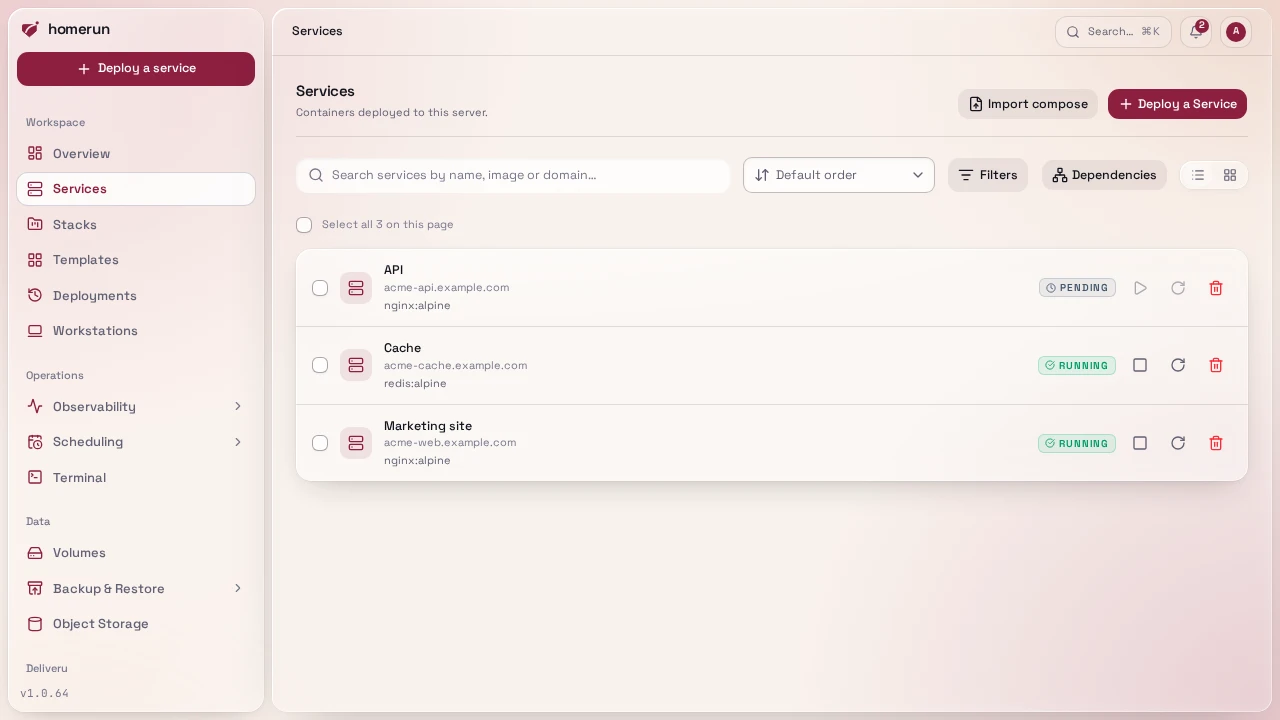
Every service on the instance, with its status, image and stack. Search, filters and paging are server-side, and the checkboxes drive Start/Stop/Restart/Delete in bulk.
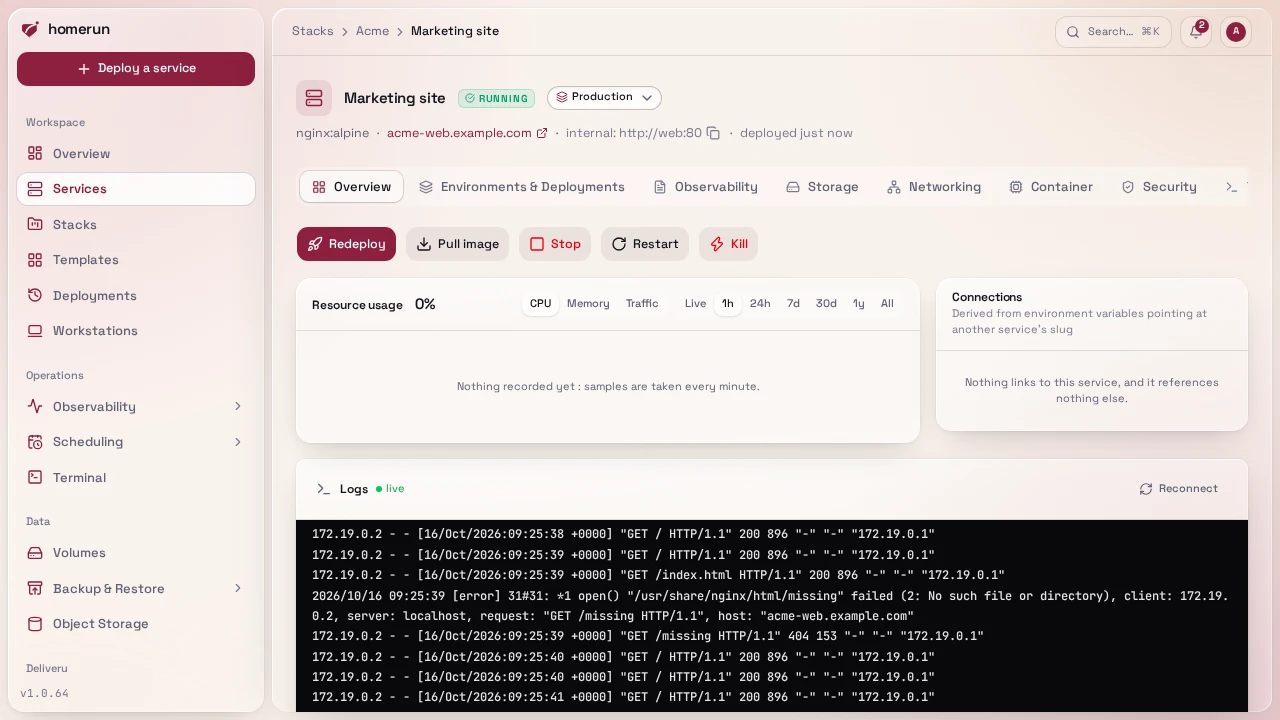
A single service: its live status, the hostname Traefik routes to it, the actions that matter, its resource usage over time, the services it connects to, and its log tail.
#Monitoring
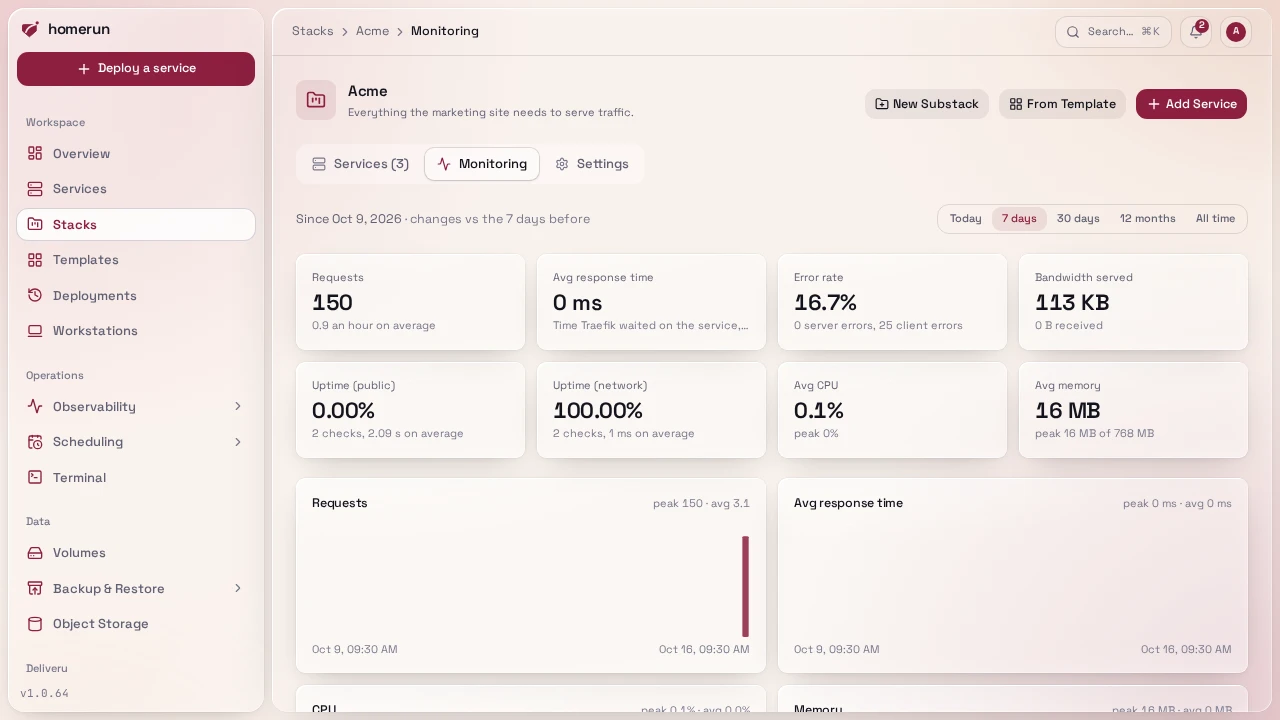
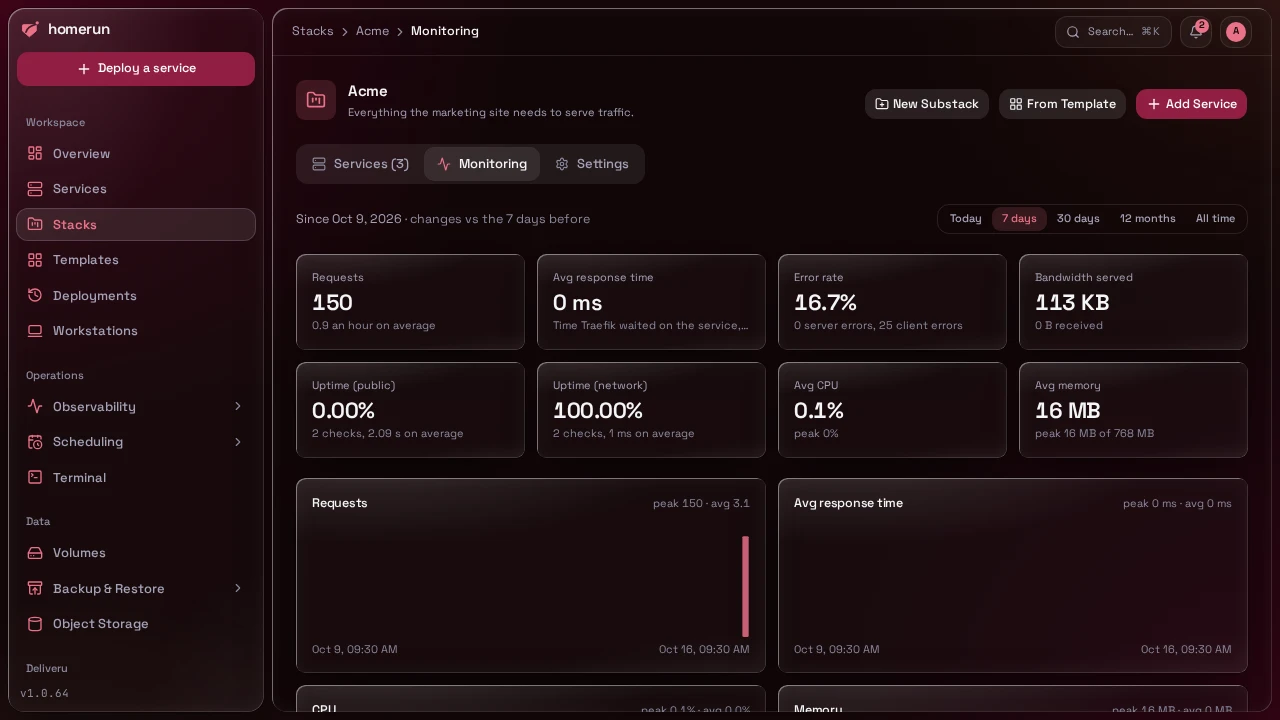
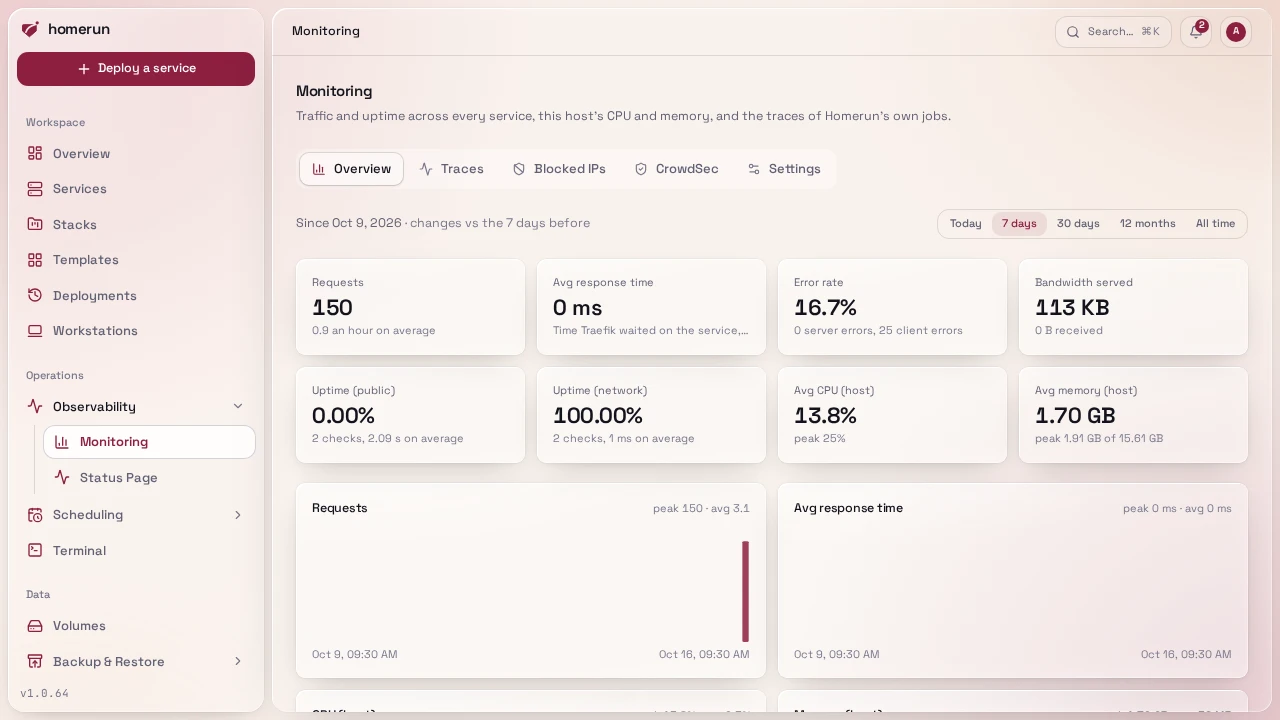
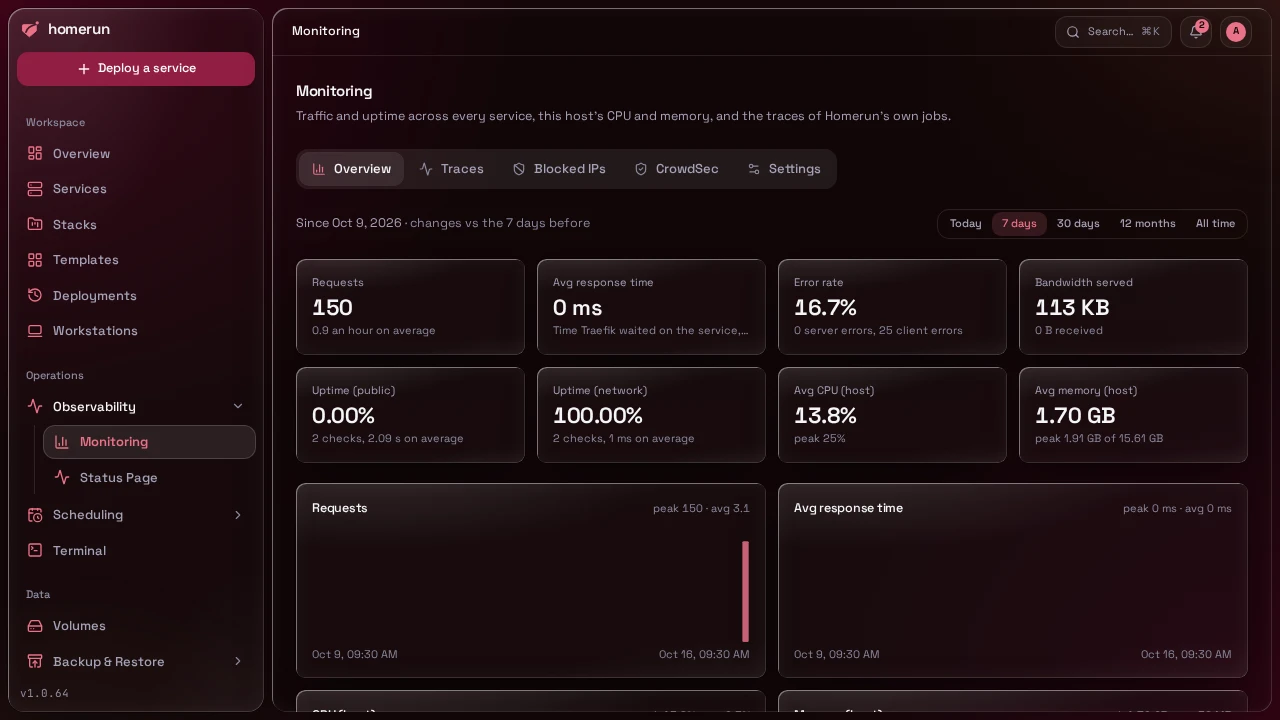
A service's traffic and health over today, the last week, month or year, or all time: requests, average response time, error rate and bandwidth read from Traefik's metrics every minute, uptime from the probes, and CPU and memory from the resource samples, with a chart for each.
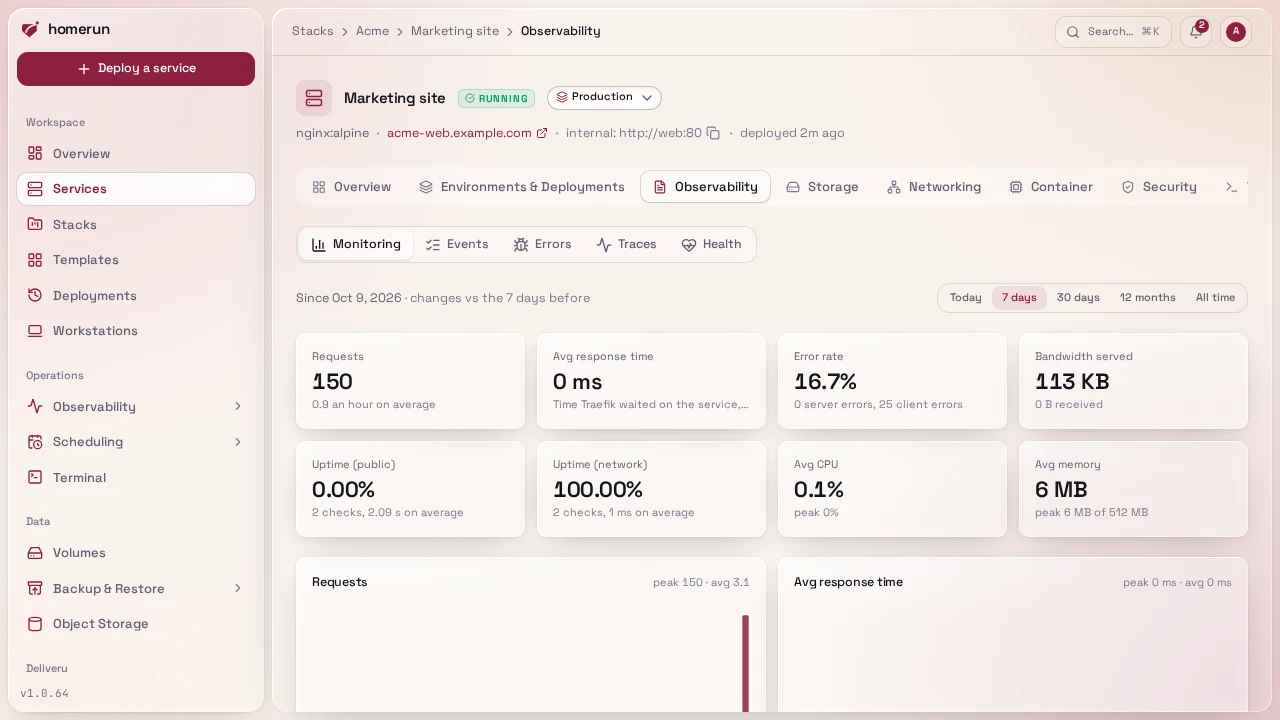
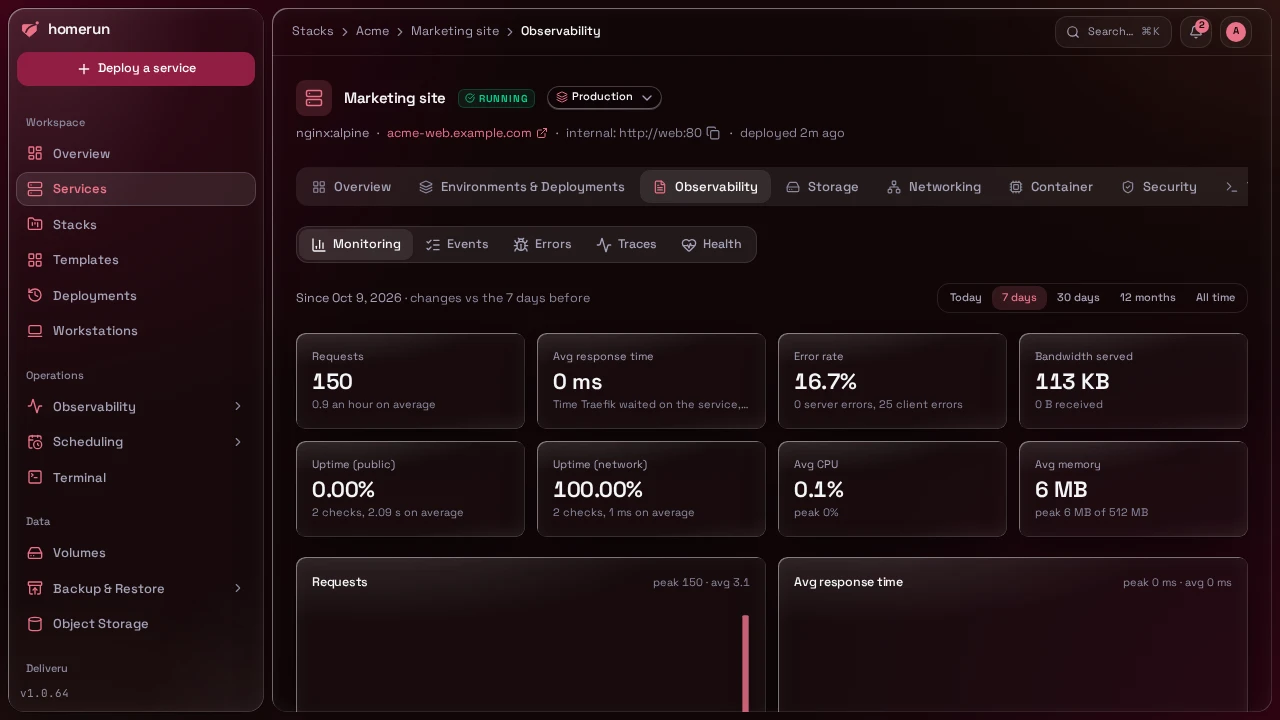
The same for a whole stack, its substacks included, and for the instance, with a table of every service in it, busiest first:
#Live logs
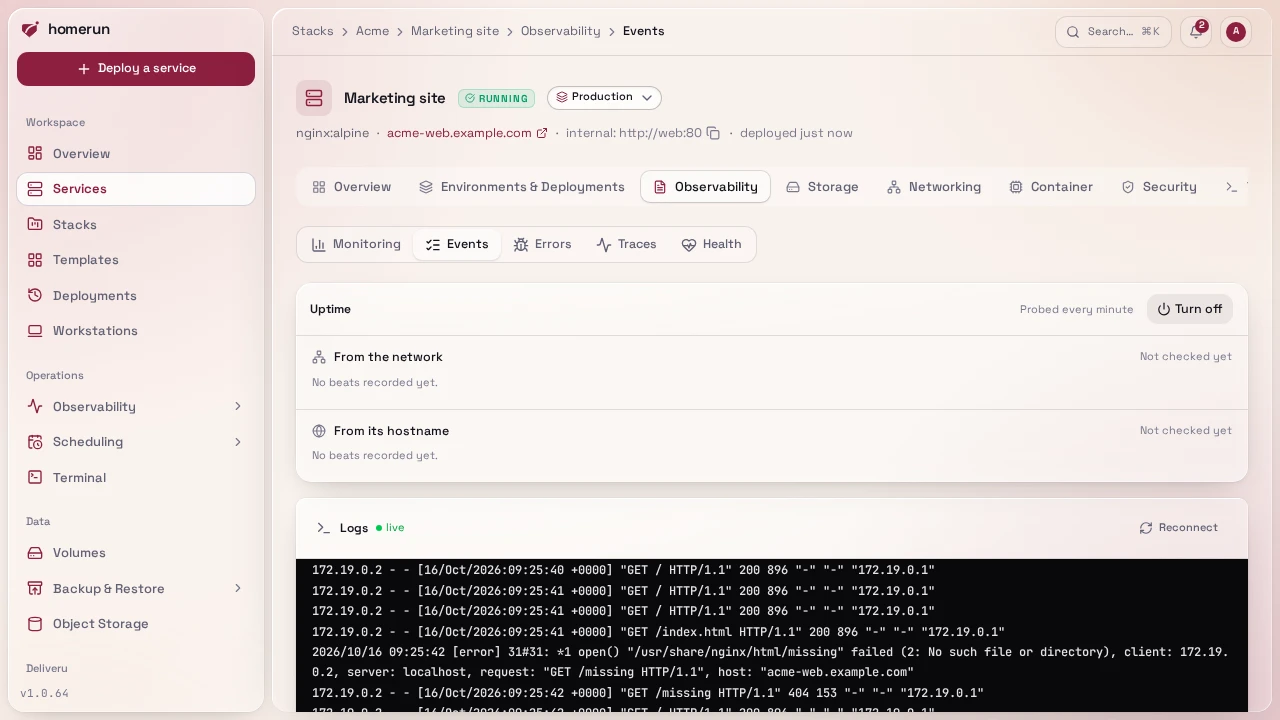
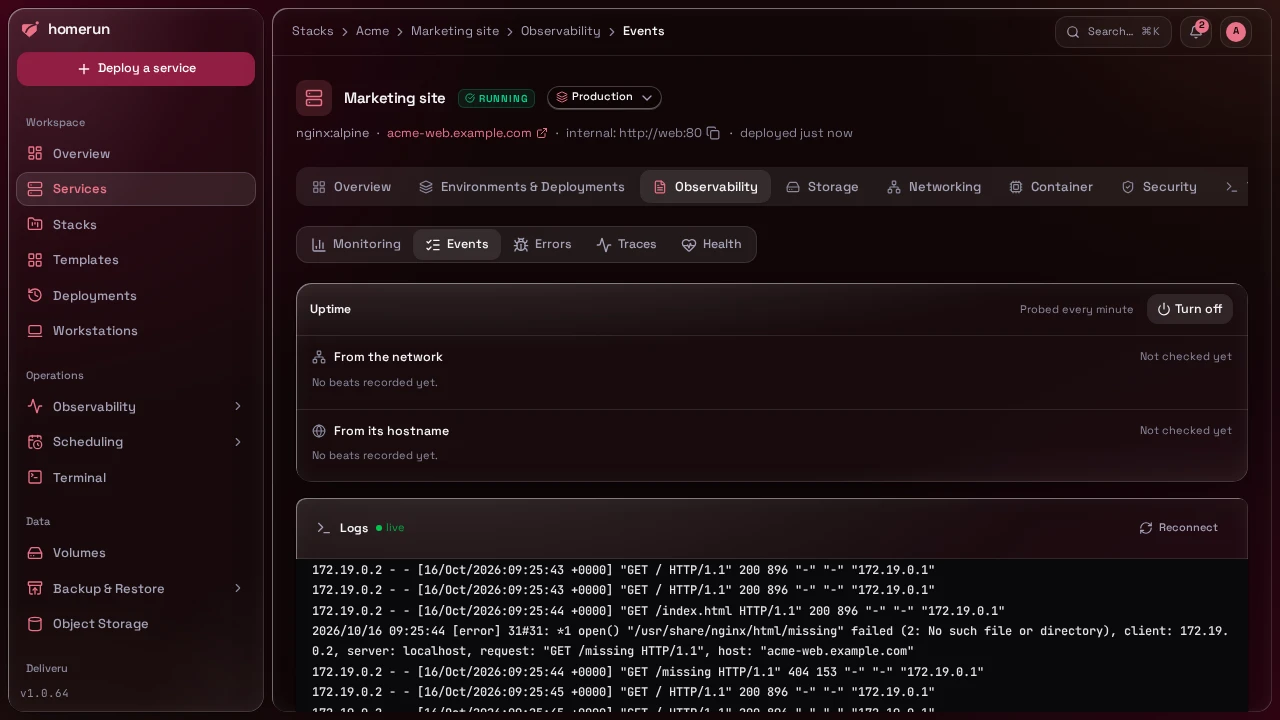
stdout/stderr streamed from the container as it runs, ANSI colours intact,
in the Observability tab's Events section, next to its uptime probes and errors.
The same viewer backs the tail on the overview page.
#Networking
The public hostname, extra domains, the container port and protocol, bridge or host networking. Most of these are Traefik labels, so the tab tells you plainly that changing them needs a redeploy.
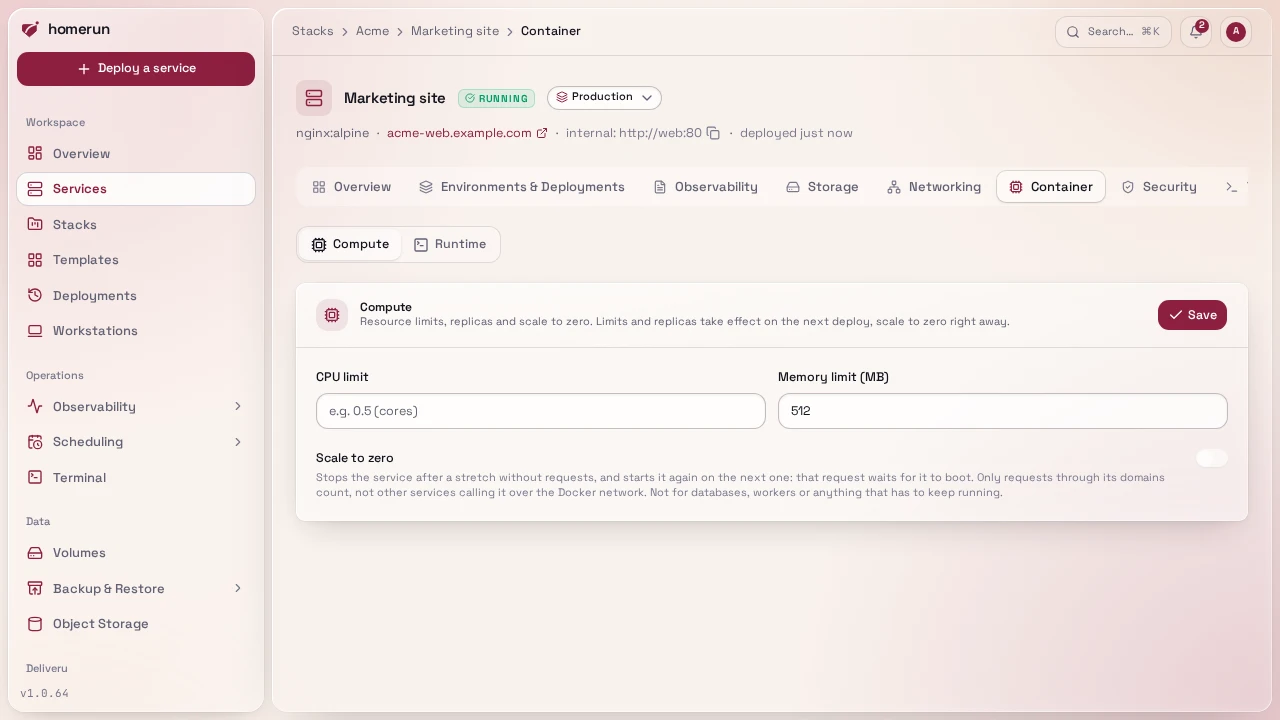
#Environment and compute
Environment variables with a paste-a-.env shortcut, and CPU/memory limits
applied to the container itself.
#Revisions and deployments
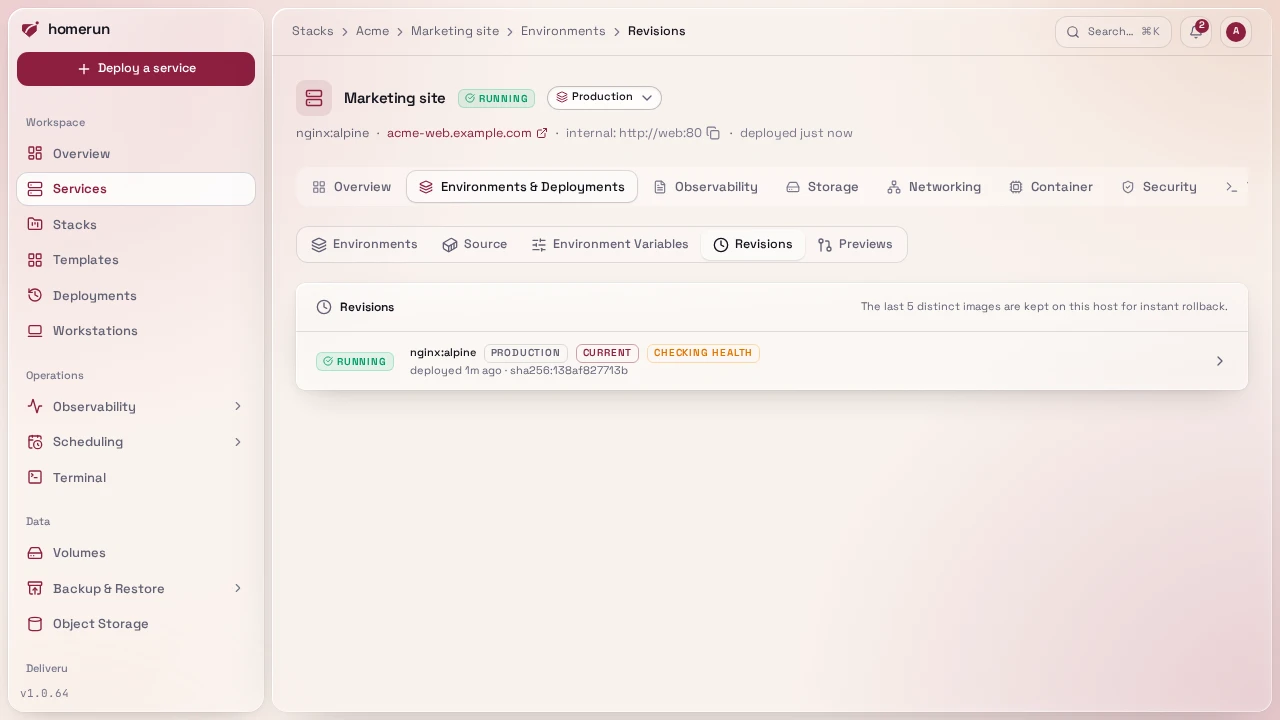
Every deploy is a revision you can roll back to, and the Deployments page lists every deploy and rollback on the instance with who ran it and how it ended.
#Deploying something new
Five steps — basic info, networking, environment, volumes, compute — from an image or straight from a git repo's Dockerfile.
#Templates
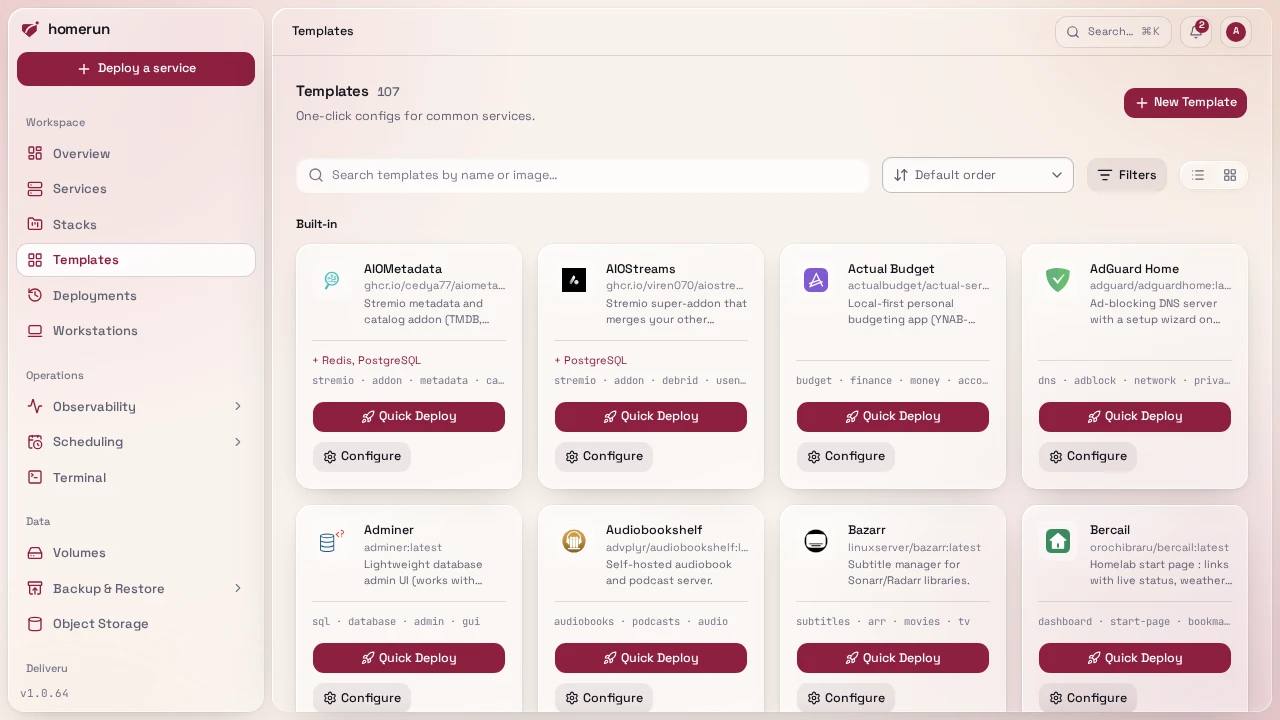
A built-in catalog of common self-hosted apps with real logos, one-click Quick Deploy, and companion containers that come along with the primary. Your own services can be saved as templates too.
#Stacks
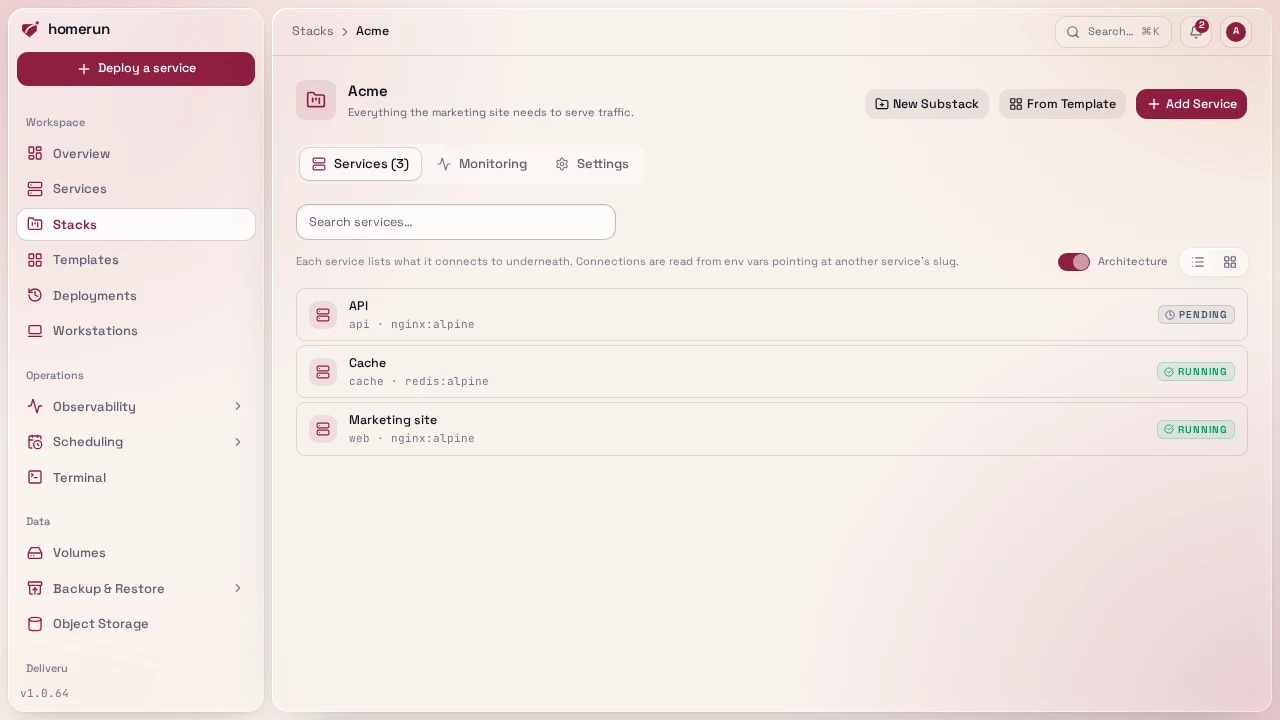
A stack puts its services on a shared Docker network, so they reach each other
by slug (http://cache:6379) without going back out through Traefik.
#Domains and DNS
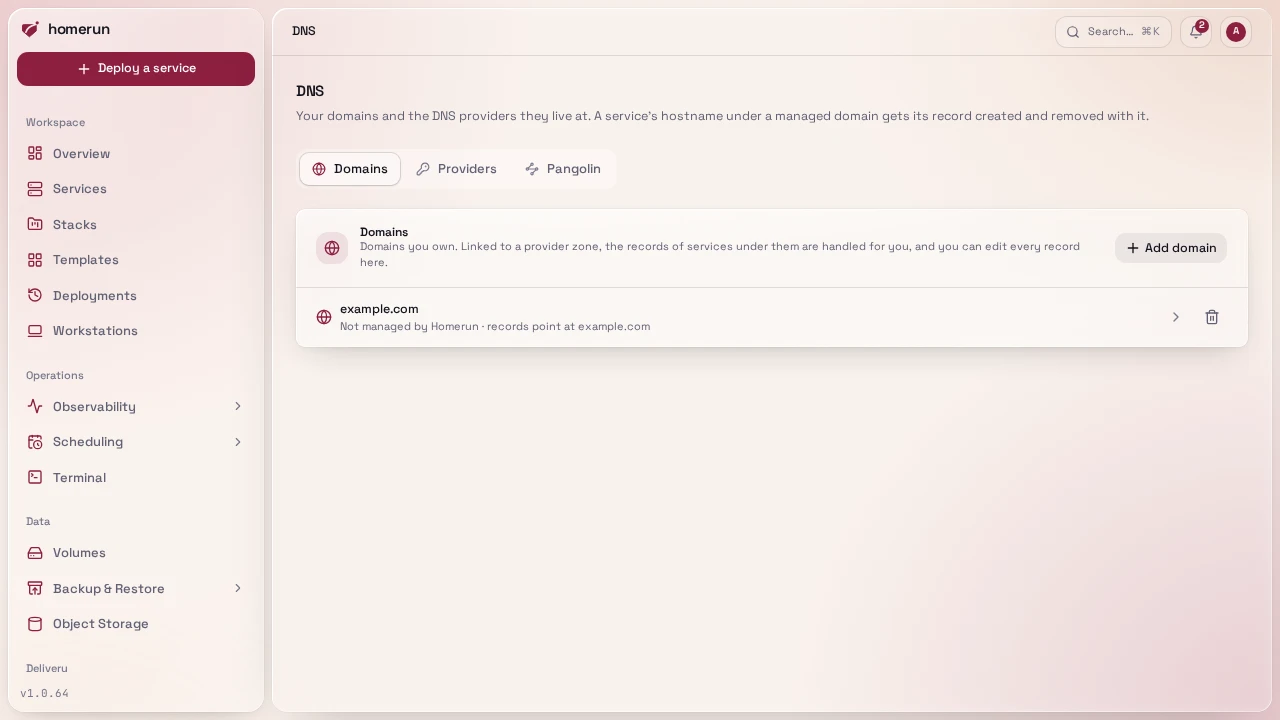
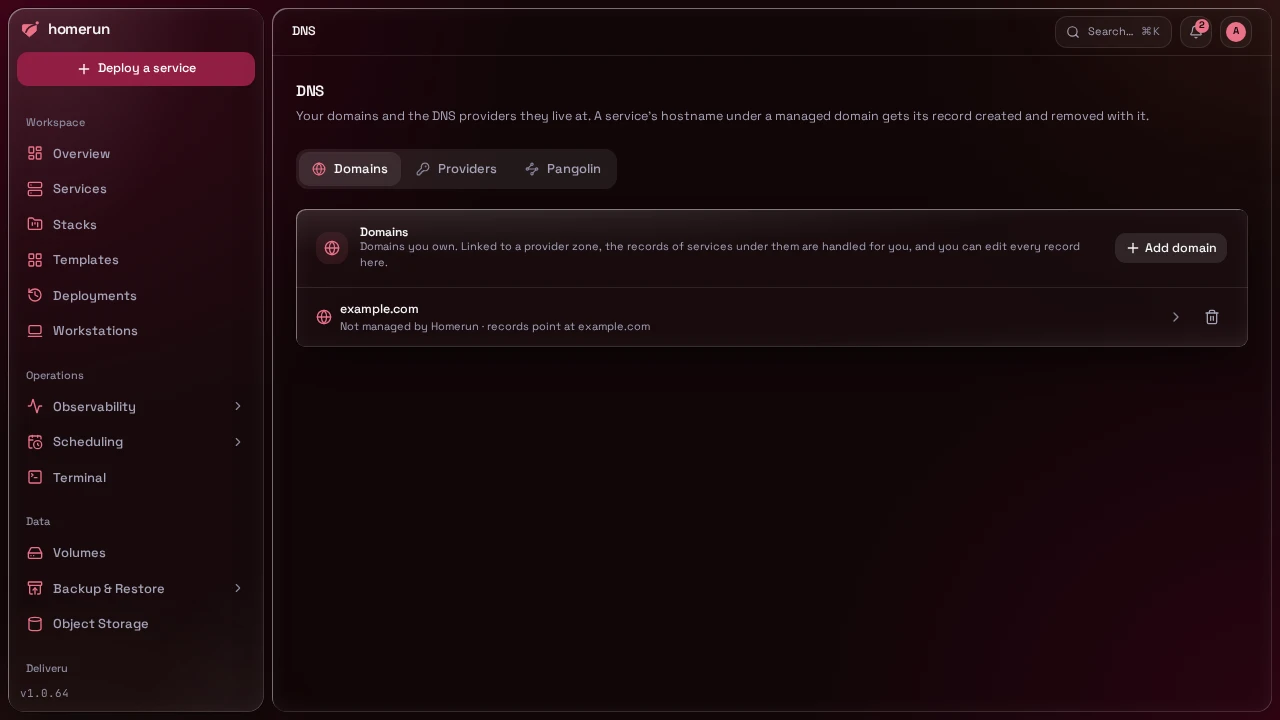
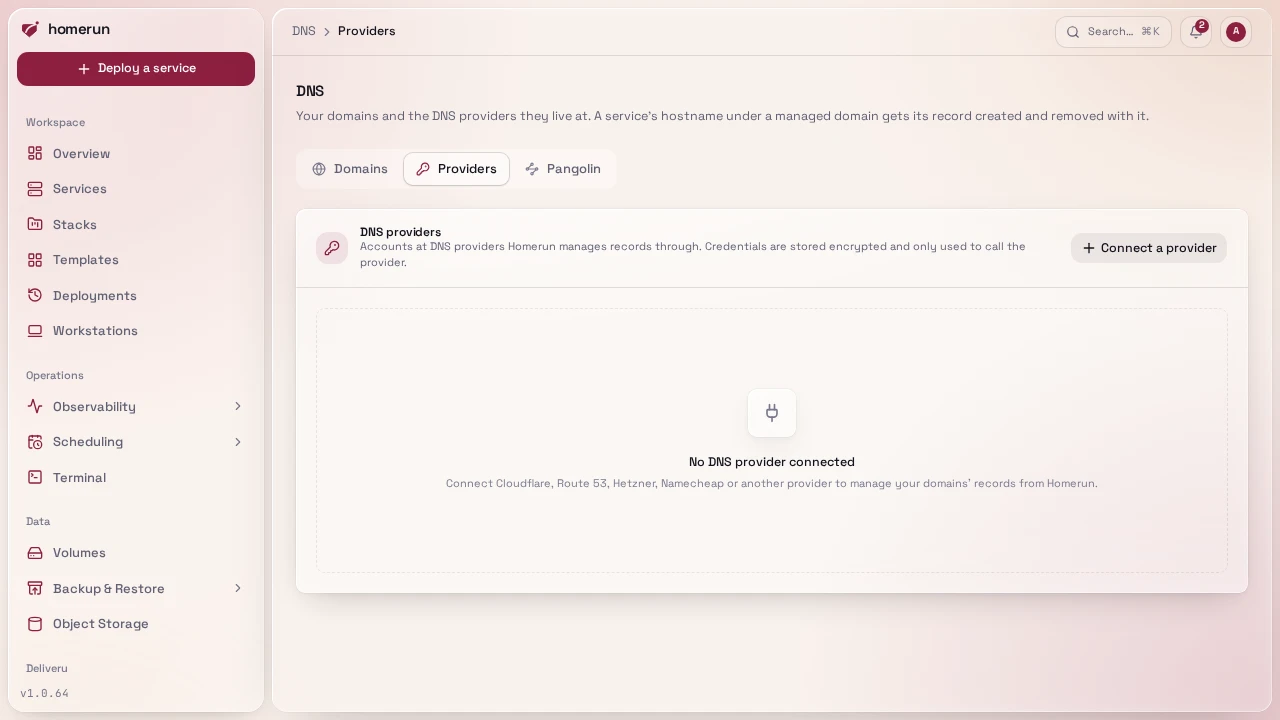
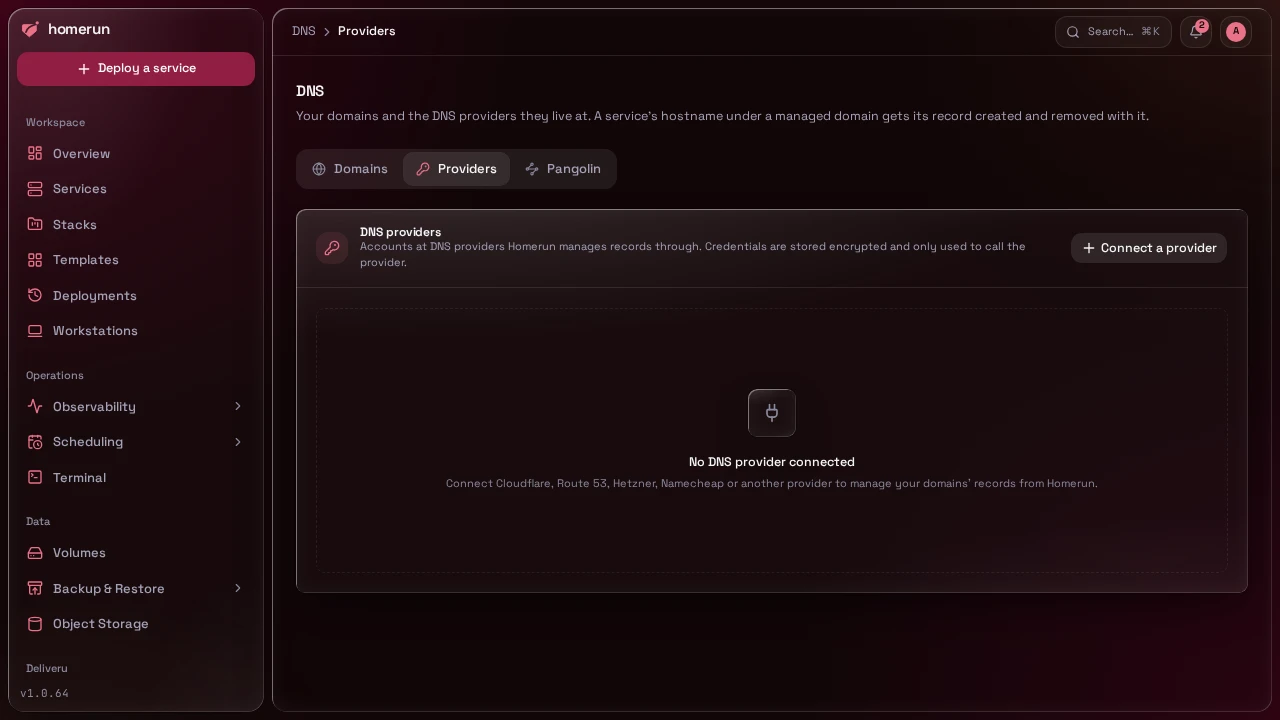
Add the domains you own, link each to a DNS provider zone (Cloudflare, Route 53, Hetzner, Namecheap and a dozen more), and Homerun creates and removes the records of the services under them. Every record of a linked zone is editable from here too.
#More servers
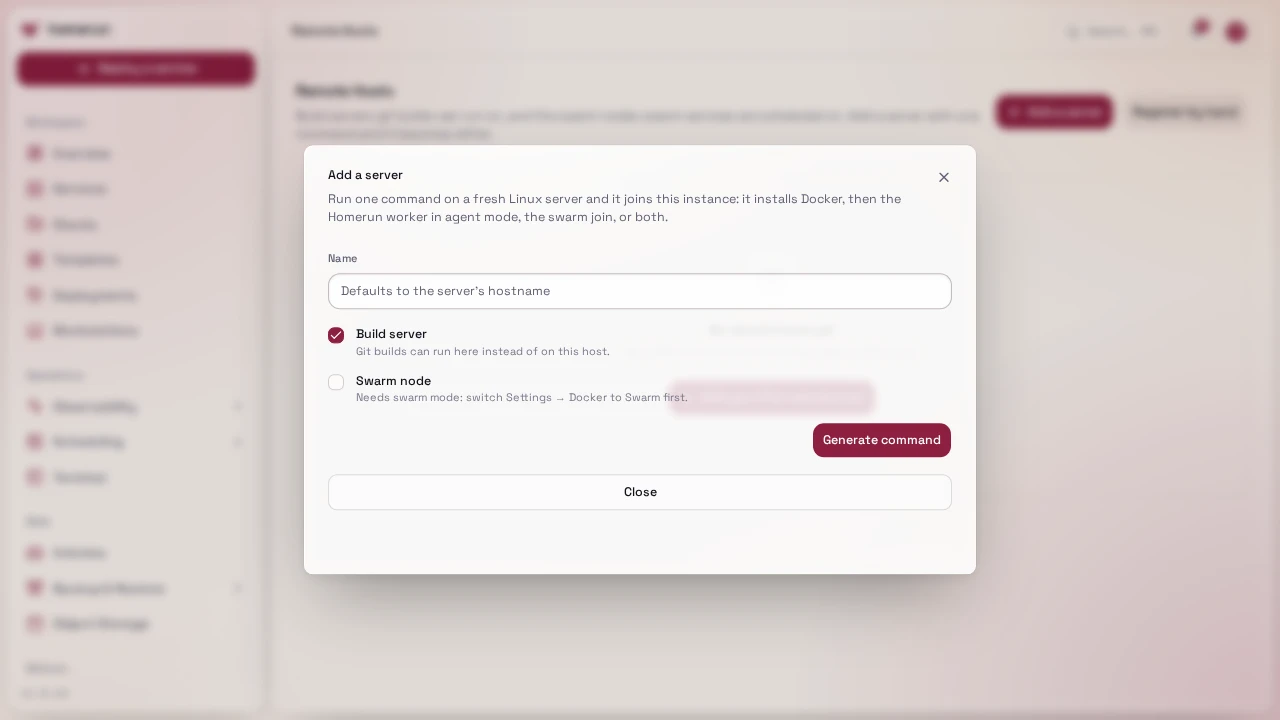
One command on a fresh Linux server makes it a build server, a swarm node, or both.
#The API
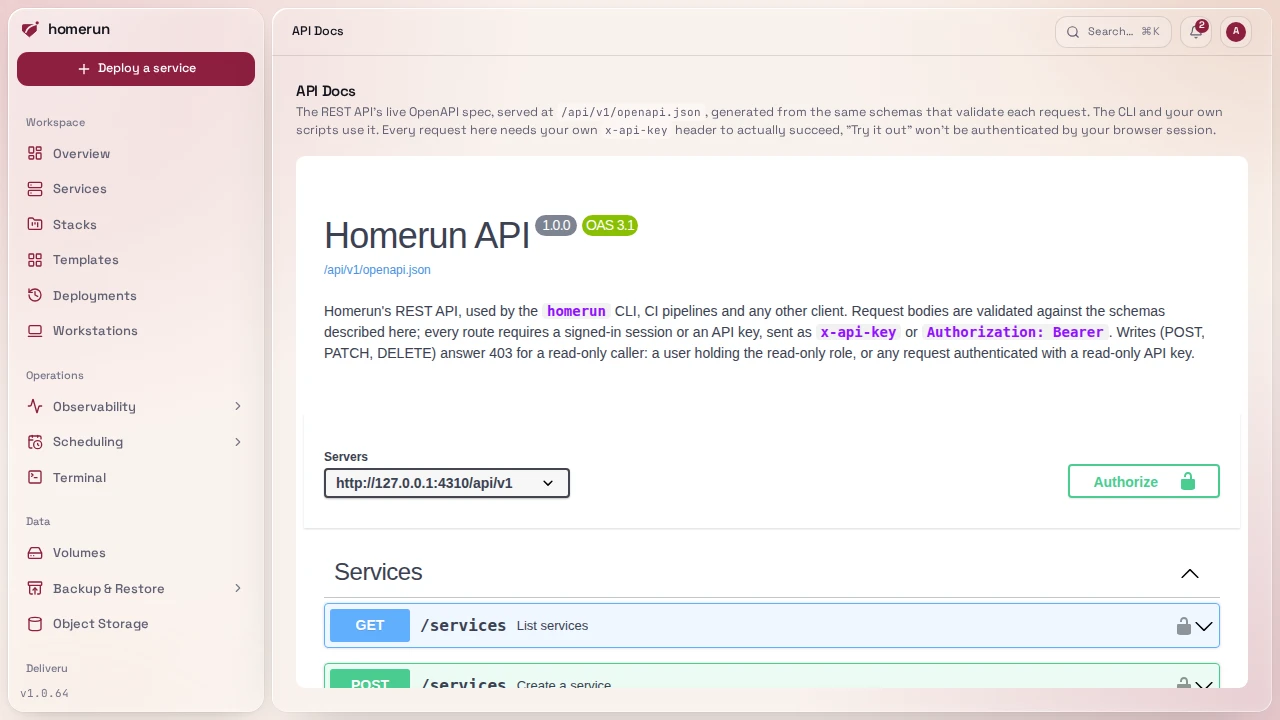
The REST API the CLI and CI use, documented from its own OpenAPI document and ready to try from the browser.
#Appearance
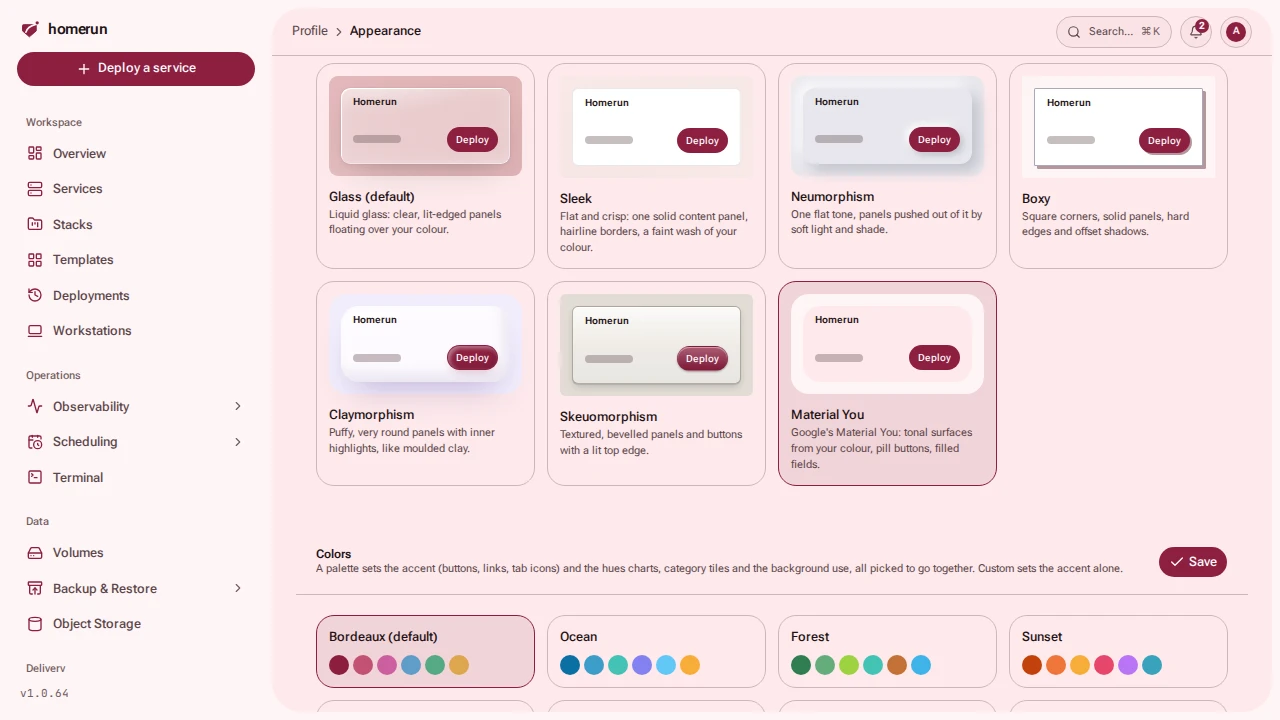
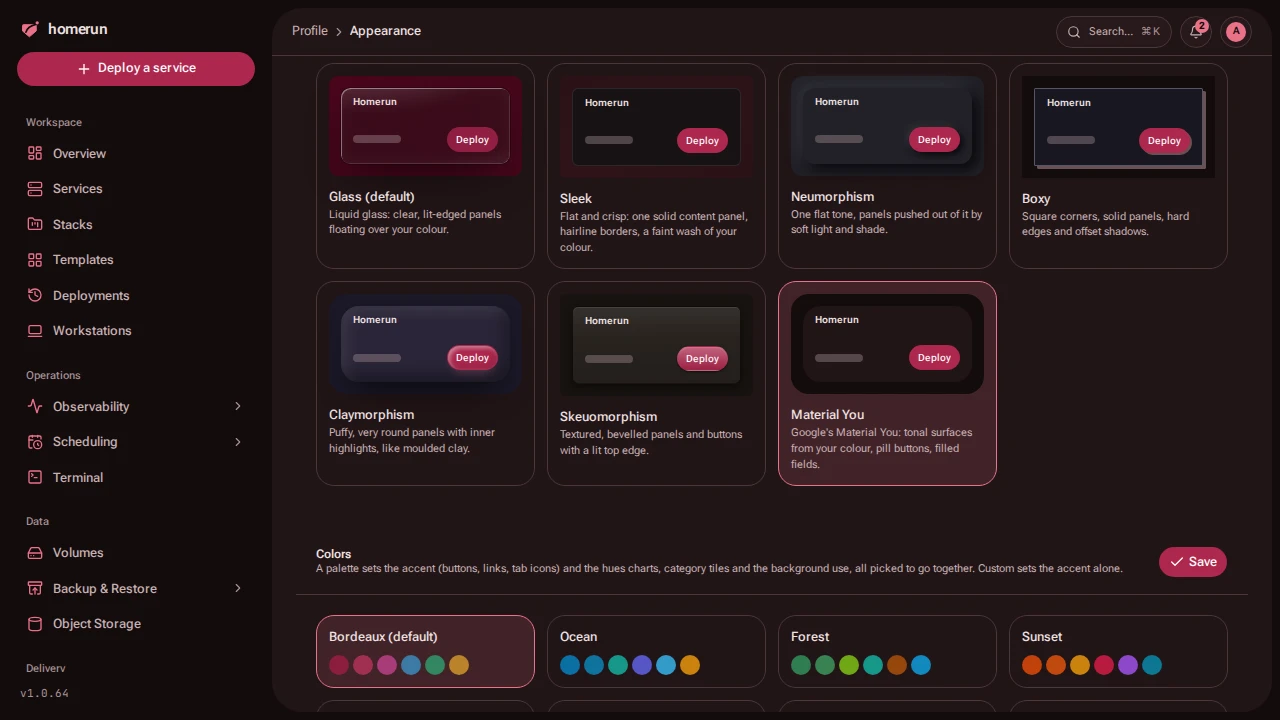
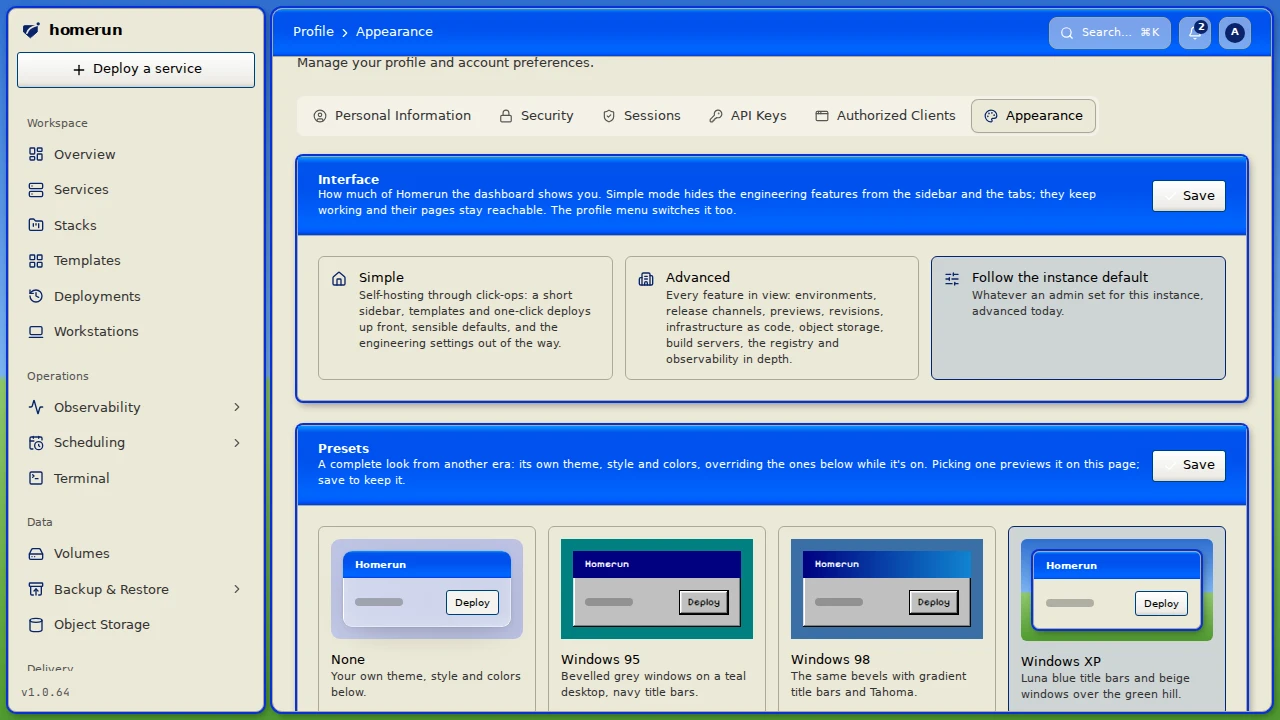
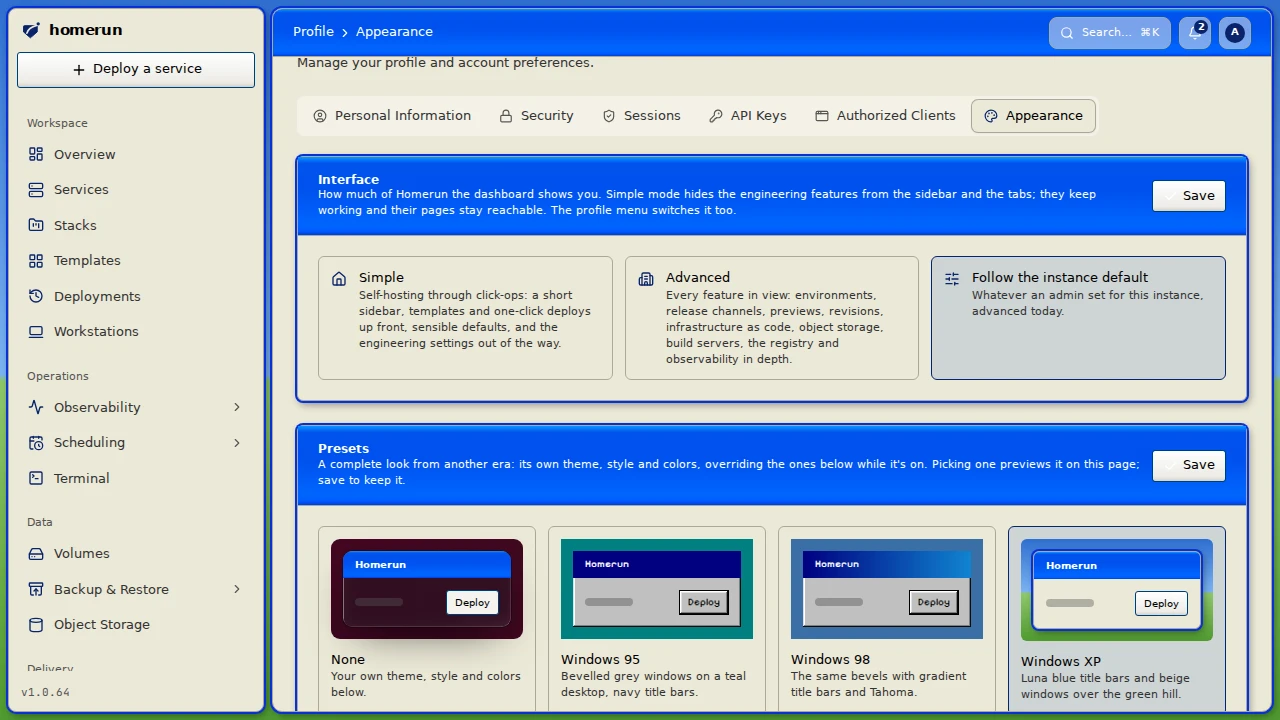
Light or dark, a colour palette or your own accent, a style for panels and buttons (Sleek, the default, Glass, Neumorphism, Boxy, Claymorphism, Skeuomorphism, Material You), or a whole preset from Windows 95 to a green-phosphor terminal.
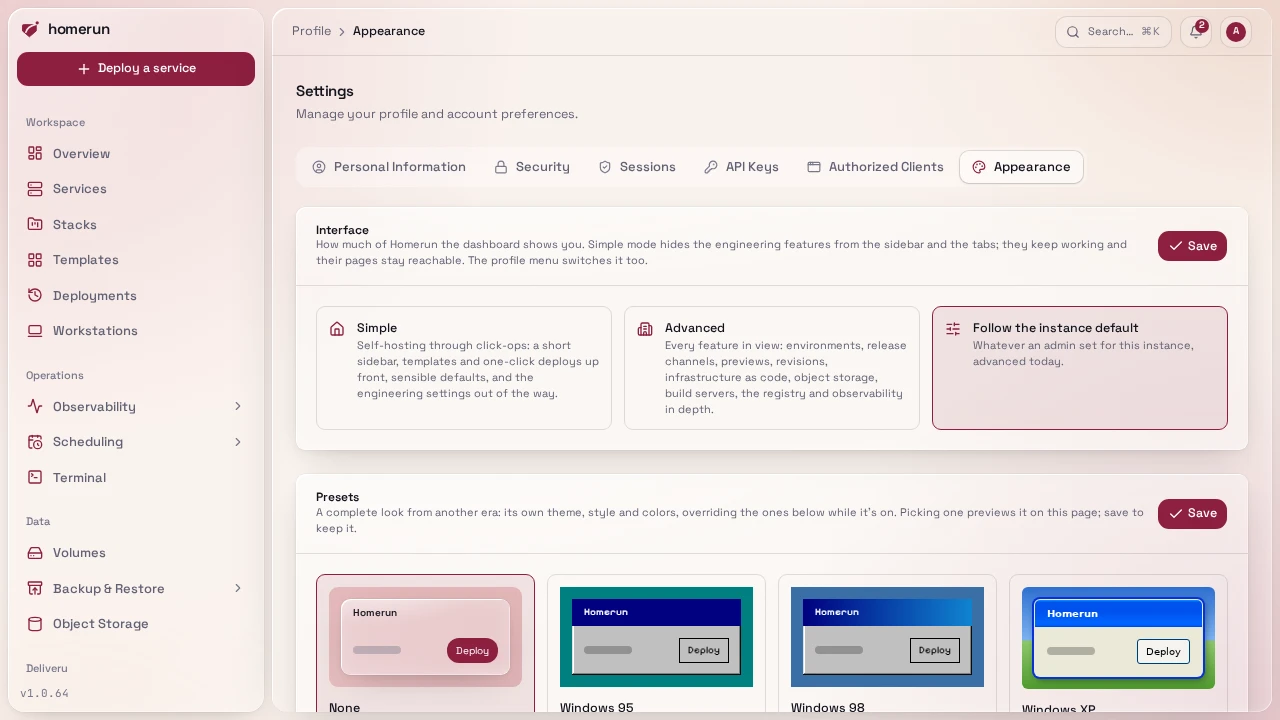
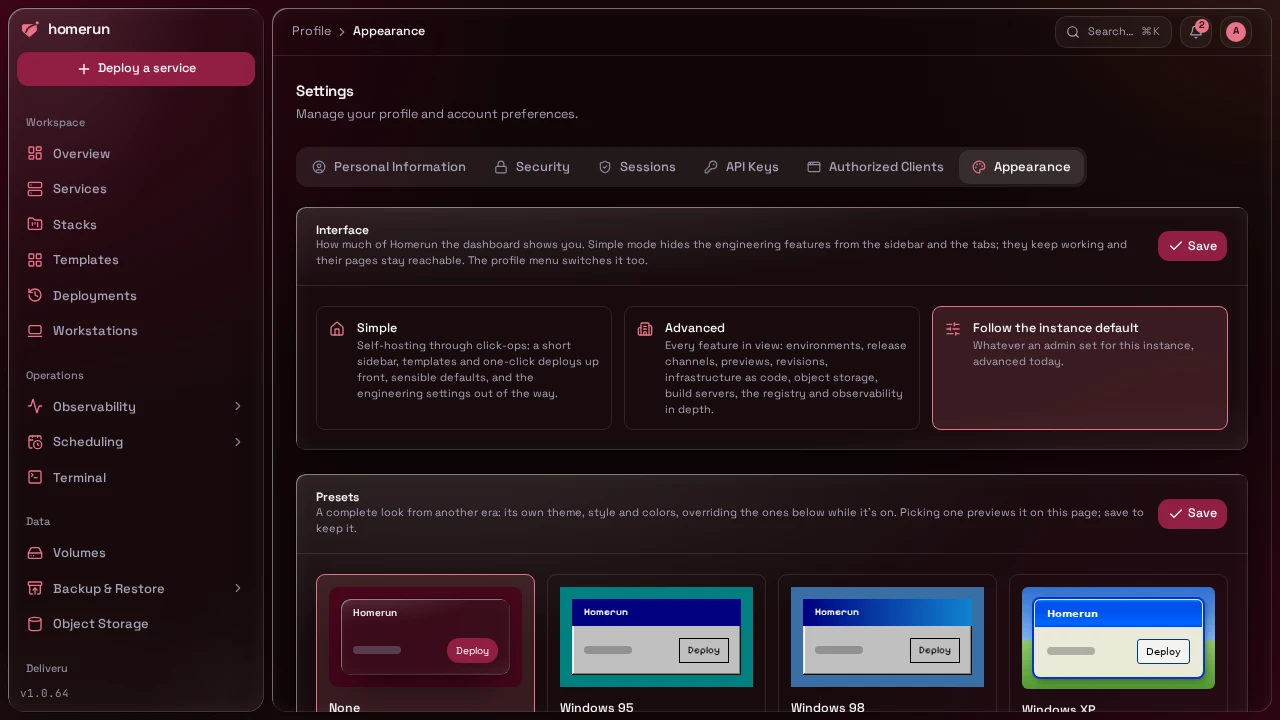
Picking a style or a preset previews it on the whole dashboard before you save it. Here are Glass, Material You and the Windows XP and Retro presets, picked from that same page:
#Instance settings
Base domain, Docker socket, Traefik, DNS automation and SMTP — stored in the database and applied live, with the env var behind each field shown as its placeholder.
#Users
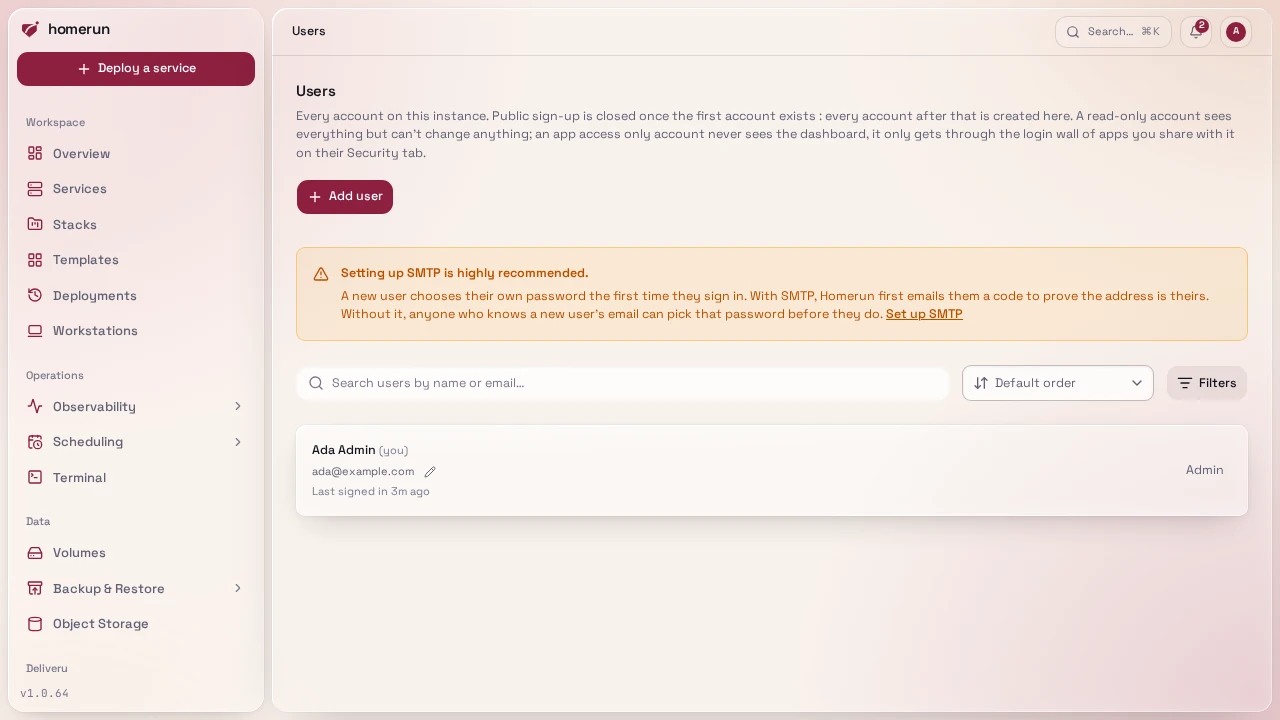
Admins and developers sharing every resource, email invitations, and account removal that hands what the account created over to an admin.
#Signing in
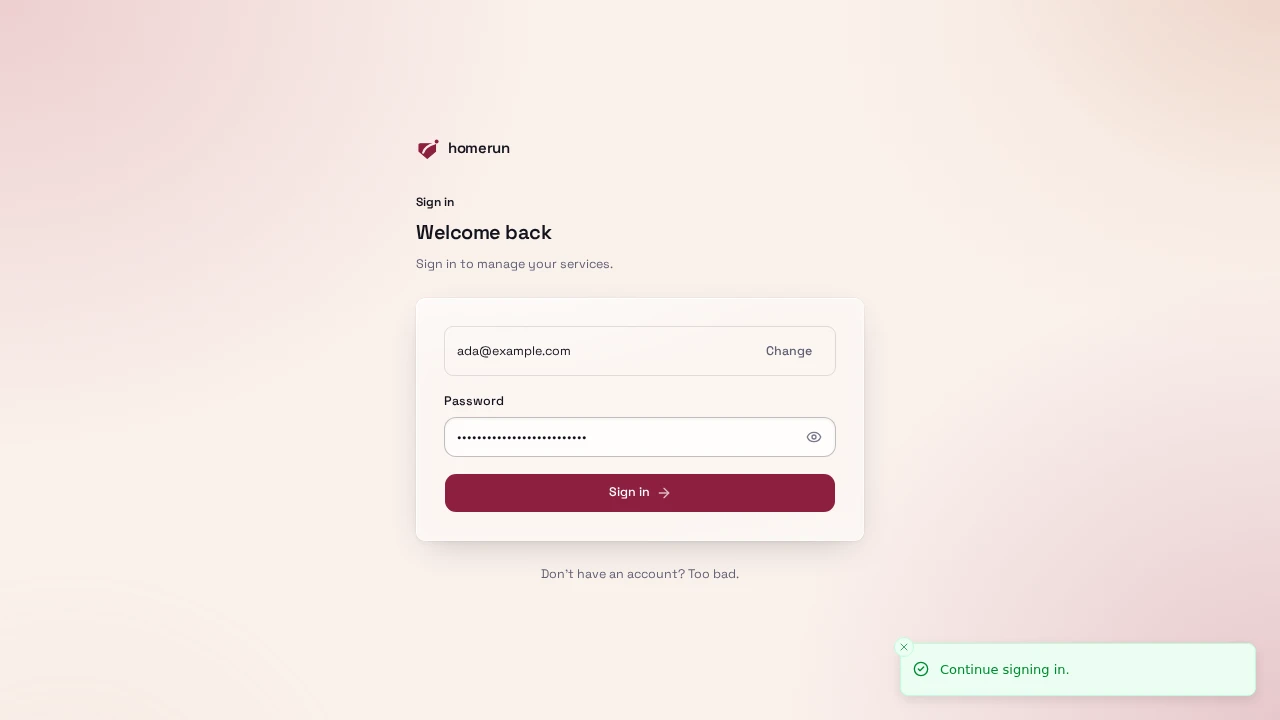
The first account created on a blank instance becomes the admin. After that, every account is created by an admin, optionally through an OAuth/OIDC provider.
This guide lives in the project repo: edit it there, and this page follows within a day.