Sign in with Homerun
Homerun is also an OpenID Connect (OIDC) provider. Apps you host can offer "Sign in with Homerun" using the same accounts as the dashboard, so you don't need to run Pocket ID, Authentik or Keycloak just to give Grafana or Outline a login. Whatever the dashboard requires (passkeys, two-factor codes, your preferred sign-in methods) applies to these sign-ins too.
It needs the Dashboard URL set under Settings → General: the issuer is
<dashboard>/issuer, tokens are signed as that, and apps discover everything
else from <dashboard>/issuer/.well-known/openid-configuration. (It used to be
<dashboard>/api/v1/auth: an app configured before has to be pointed at the new
discovery URL, since it checks the iss claim against it.)
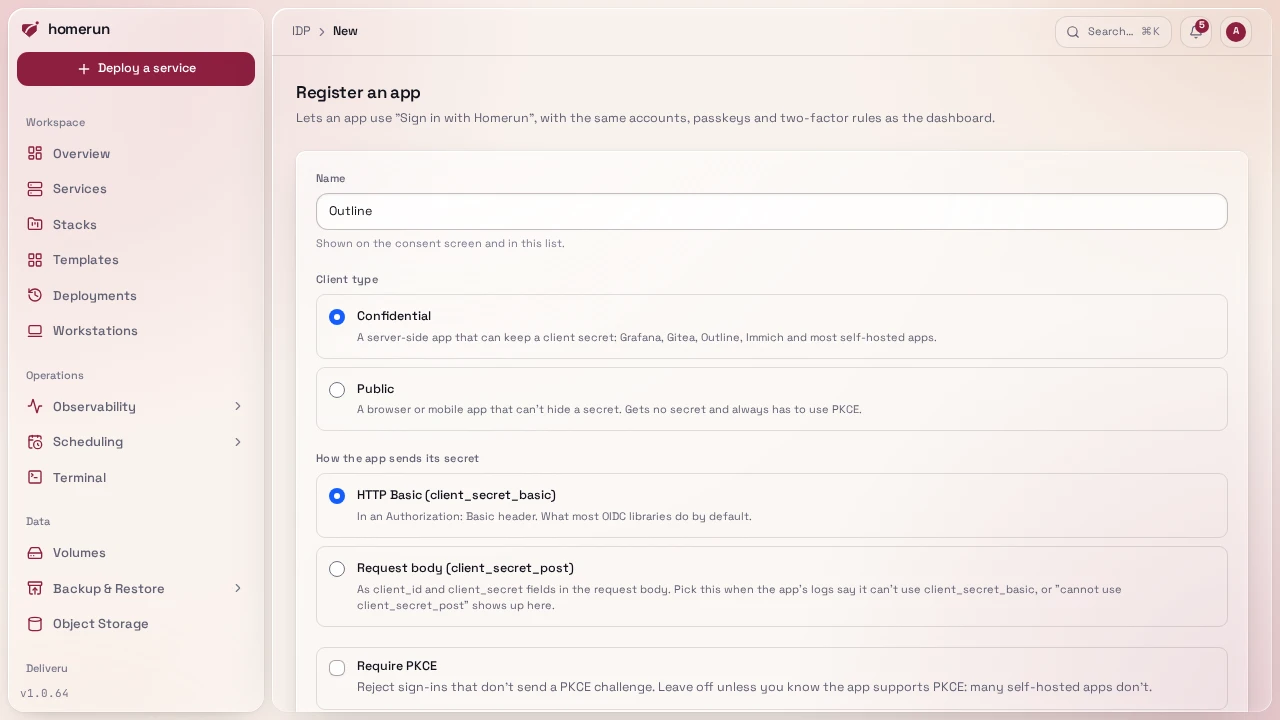
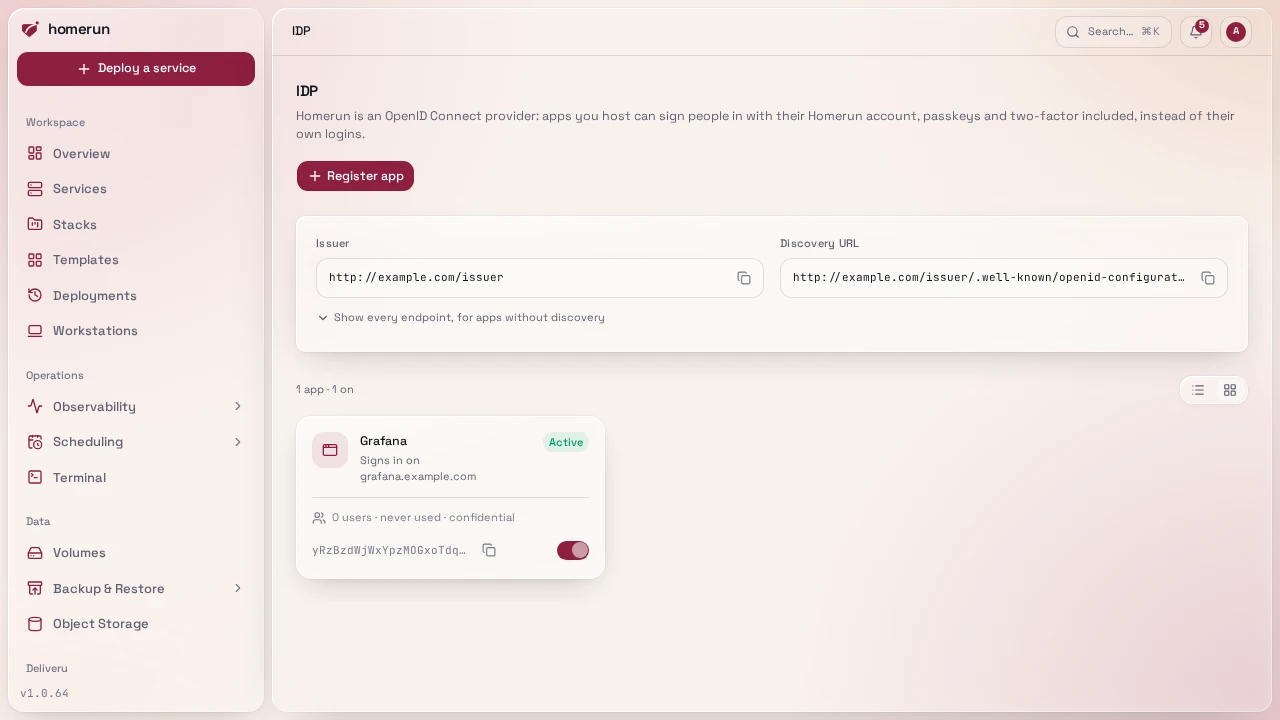
Registering an app. On the IDP page (Integrations in the sidebar, admins only), click Register app:
- Name: shown on the consent screen.
- Client type: Confidential for server-side apps (almost every self-hosted app), Public for a browser or mobile app that can't keep a secret.
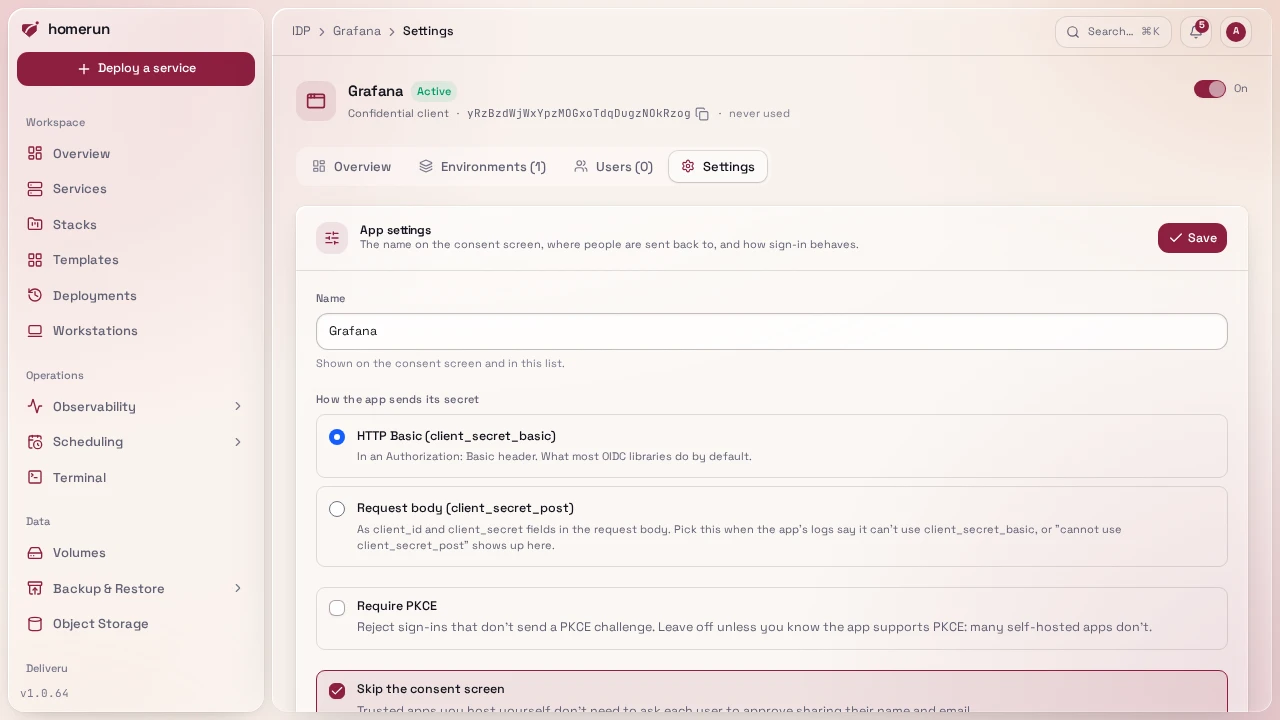
- Require PKCE: confidential apps only, leave off unless you know the app
sends a PKCE challenge. Change it later from the app's own page, for an app
that fails with "pkce is required for this client". A public app always needs
PKCE, and so does a sign-in asking for
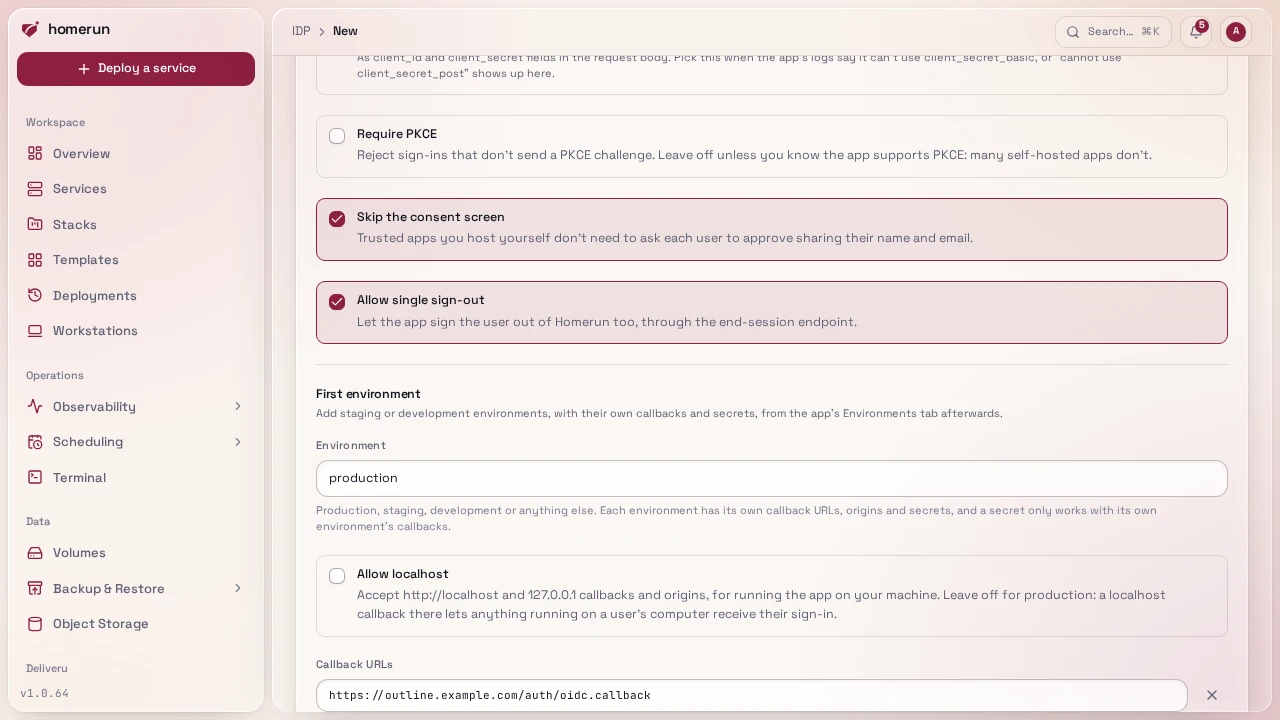
offline_accesswithout an OIDC nonce, whatever this says. - Skip the consent screen: on by default for apps you host yourself. Turn it off to have users approve sharing their details the first time.
- How the app sends its secret: confidential apps only. HTTP Basic
(
client_secret_basic, the default and what most OIDC libraries do) or Request body (client_secret_post). Homerun only accepts the one picked, so an app failing withclient registered for client_secret_basic cannot use client_secret_postneeds Request body (change it in the app's Settings tab), and the other way round. - Allow single sign-out: lets the app sign the user out of Homerun too.
- First environment: a name (
productionby default) and its callback URLs, see Environments below.
Each callback URL gets its own input (Add callback URL for more), is checked
as you type, and shows what the app will receive
(→ https://app.example.com/callback?code=…&state=…).
Registering shows the client ID and a client secret for the first environment. A secret is shown only once; if you lose it, create a new one under the app's Environments tab and revoke the old one.
Environments and secrets. An app has one or more environments (production,
staging, development, or any name), each with:
- Callback URLs, which must use
https.http://localhostandhttp://127.0.0.1callbacks are only accepted in an environment with Allow localhost on, so a production environment can't have one. - Authorized origins, only for apps that call the token endpoint from the browser (a SPA): a browser request from any other origin is refused, and the listed ones get CORS headers. Server-side apps leave it empty.
- Client secrets (confidential apps): as many as you like, each with a label, shown once and revocable on its own, with when it was last used. A secret only redeems codes sent to its own environment's callbacks: a production secret can't finish a sign-in that went to a development localhost callback, and the other way round. Rotating without downtime is adding a new secret, switching the app over, then revoking the old one.
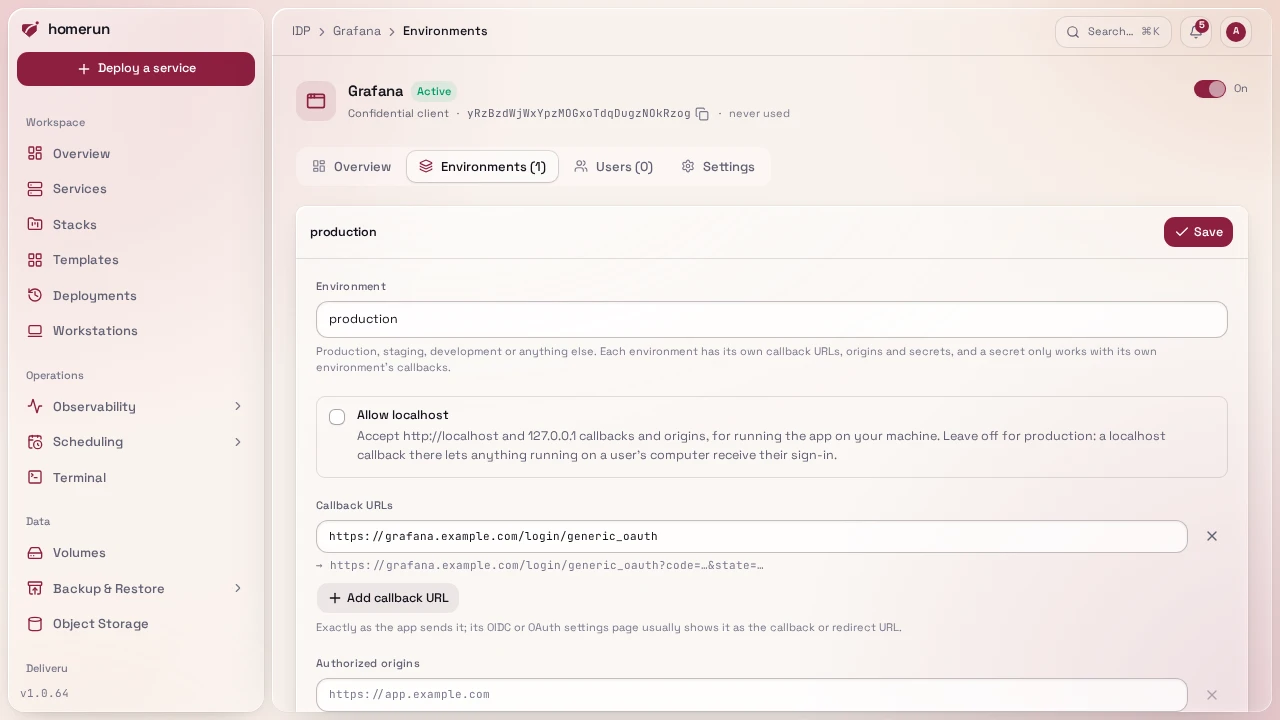
An app keeps at least one environment. Apps registered before environments
existed got a production environment with their redirect URIs and their secret
(listed as "Original secret").
Testing an app. Test sign-in on the app's Overview runs the real flow as
the app would: you sign in and consent as yourself, Homerun redeems the code
(with a secret minted for the test, deleted when it's done and refused from
anywhere else), calls userinfo, and shows each step with the ID token claims and
userinfo the app would get, or the step that failed and why. It needs the
Dashboard URL on https (or localhost), since the test callback is a Homerun
page.
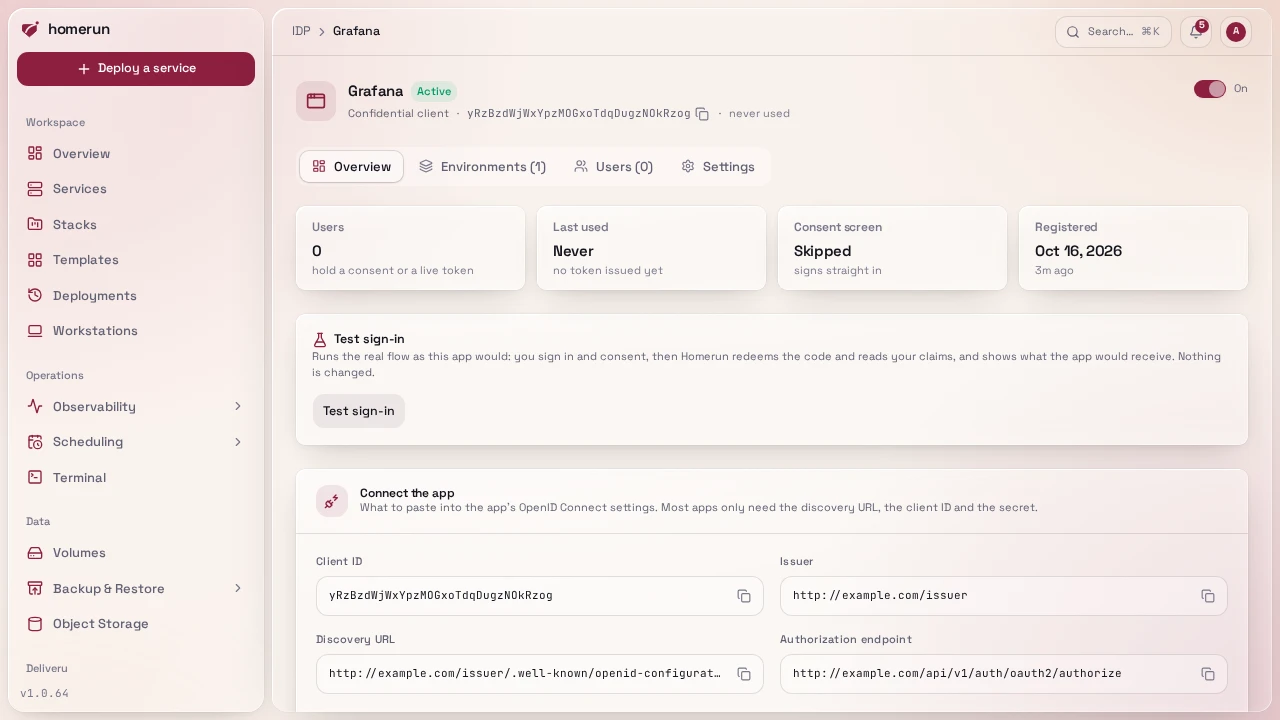
Managing an app. The IDP page lists every app with how many people use it and when it last signed someone in; right-click one for quick actions, or flip its switch to turn it on or off. Each app has four tabs: Overview (usage, the values to paste into the app, a test sign-in, its environments and how its sign-in behaves), Environments (callbacks, origins and secrets per environment), Users (everyone who has authorized it, with Revoke per person or Revoke everyone: their tokens stop working and the next sign-in asks for consent again) and Settings (name, consent, PKCE, how the secret is sent, and deletion). Any account with write access to Users & authentication (every admin) can change any app, whoever registered it.
From the REST API or Terraform. /api/v1/oidc-apps (an API key with write
access to Users & authentication) and the Terraform resources
homerun_oidc_app, homerun_oidc_app_environment and homerun_oidc_app_secret
manage the same apps, with the same checks. They split what the Register app
page does in one go: an app is created with no environment, so nobody can sign
in until one is added with its callback URLs, and a confidential app's secrets
are minted one at a time per environment (POST .../secrets, whose response is
the only place the value appears). An app's last environment can be deleted
there, unlike on the dashboard, so a Terraform destroy goes through. See
REST API and CLI and
Infrastructure as code.
Connecting Claude. An AI agent reaches Homerun's MCP server
through this same provider. One that supports Client ID Metadata Documents signs
in with nothing registered here, and then shows up in this list. For one that
needs a client ID and secret, such as a claude.ai connector that can't sign in
by URL alone, register it: on the Register app page, click Claude
connector (it fills in Claude's callback URL, a confidential client with PKCE
and the consent screen on), then Register app, and paste the MCP URL, client
ID and secret the next screen shows into Claude's Settings → Connectors → Add
custom connector (the ID and secret go under Advanced settings). The button only
shows once the Dashboard URL is https (or plain HTTP on localhost). See
MCP server for AI agents for the rest.
Configuring the app. Most apps only need three values:
| Setting | Value |
|---|---|
| Discovery URL | https://<dashboard>/issuer/.well-known/openid-configuration |
| Client ID | from the registration screen |
| Client secret | from the registration screen |
If an app asks for individual endpoints instead, the app's page in Homerun lists
the issuer (<dashboard>/issuer) and the authorization, token, userinfo and
JWKS URLs, which live under <dashboard>/api/v1/auth. Request the scopes
openid profile email, plus groups if the app maps groups to roles: the
groups claim holds the user's Homerun role (admin, developer, viewer,
custom or app-user). An App access only account can sign in to these
apps too, it just can't reach the Homerun dashboard. Tokens are signed with
RS256.
Turning an app off or deleting it. Turning it off (the switch on the IDP page or at the top of the app's page) stops new sign-ins through the app. Delete app also revokes every token it holds, so users are signed out of it the next time it checks.
This guide lives in the project repo: edit it there, and this page follows within a day.