Authentication providers
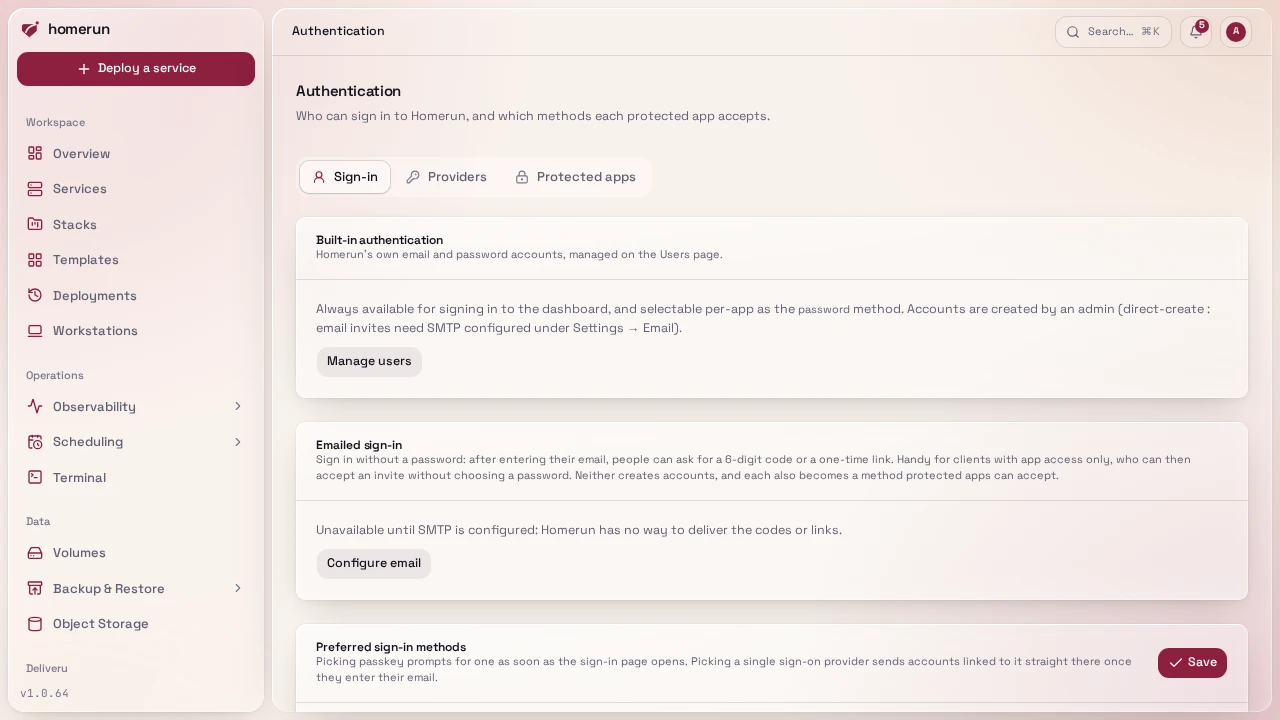
The Authentication page (Administration, needs the Users & authentication permission) is where sign-in methods are configured for the whole instance. It has three tabs: Sign-in (built-in accounts, preferred methods and requirements), Providers and Protected apps (every service behind the login wall and the methods it accepts). Homerun as a provider for your own apps has its own IDP page, see Sign in with Homerun.
-
Built-in authentication is Homerun's own email and password accounts, managed on the Users page. It's always available for the dashboard.
-
Emailed sign-in lets people sign in without a password, with a 6-digit code or a one-time link sent to their account's address (see below).
-
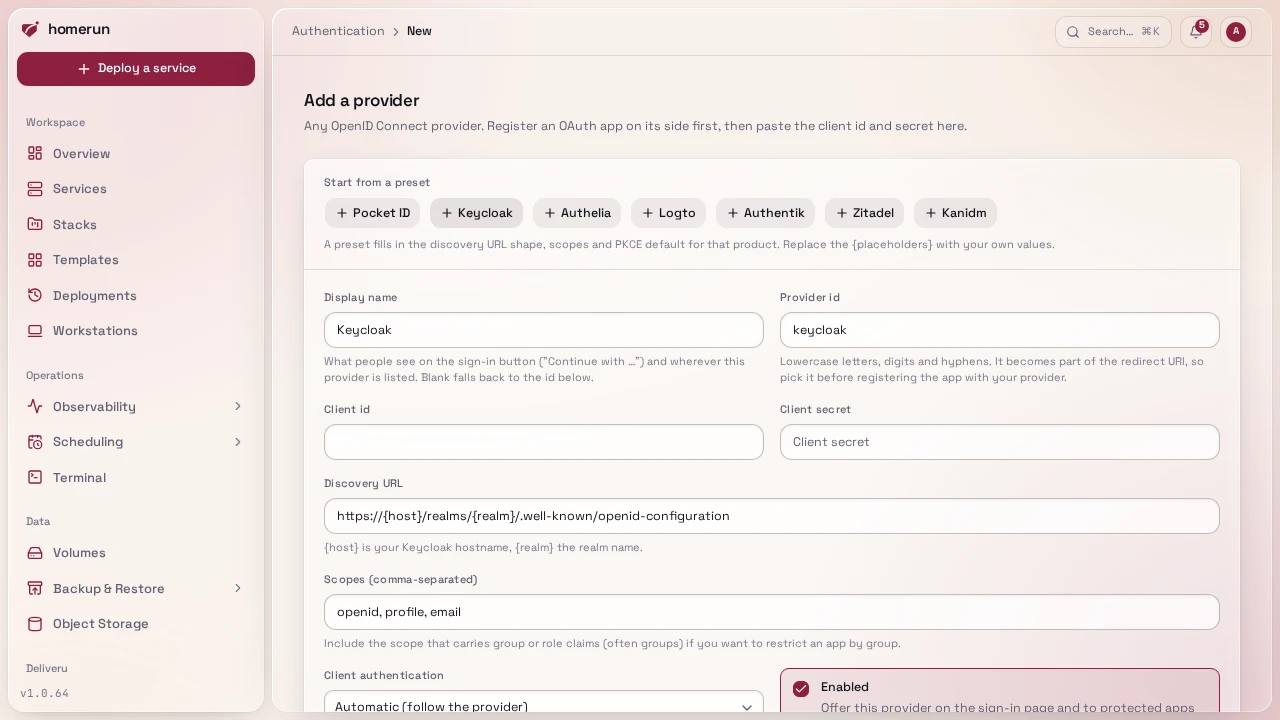
OAuth / OIDC providers are any standards-compliant provider, and you can configure as many as you like. The Providers tab lists them the same way Services does: Add provider opens its own page, and each one has a detail page for editing and removal (removal asks you to type the provider's id first). One-click presets fill in the discovery URL shape, scopes and PKCE default for Pocket ID, Keycloak, Authelia, Logto, Authentik, Zitadel and Kanidm; replace the
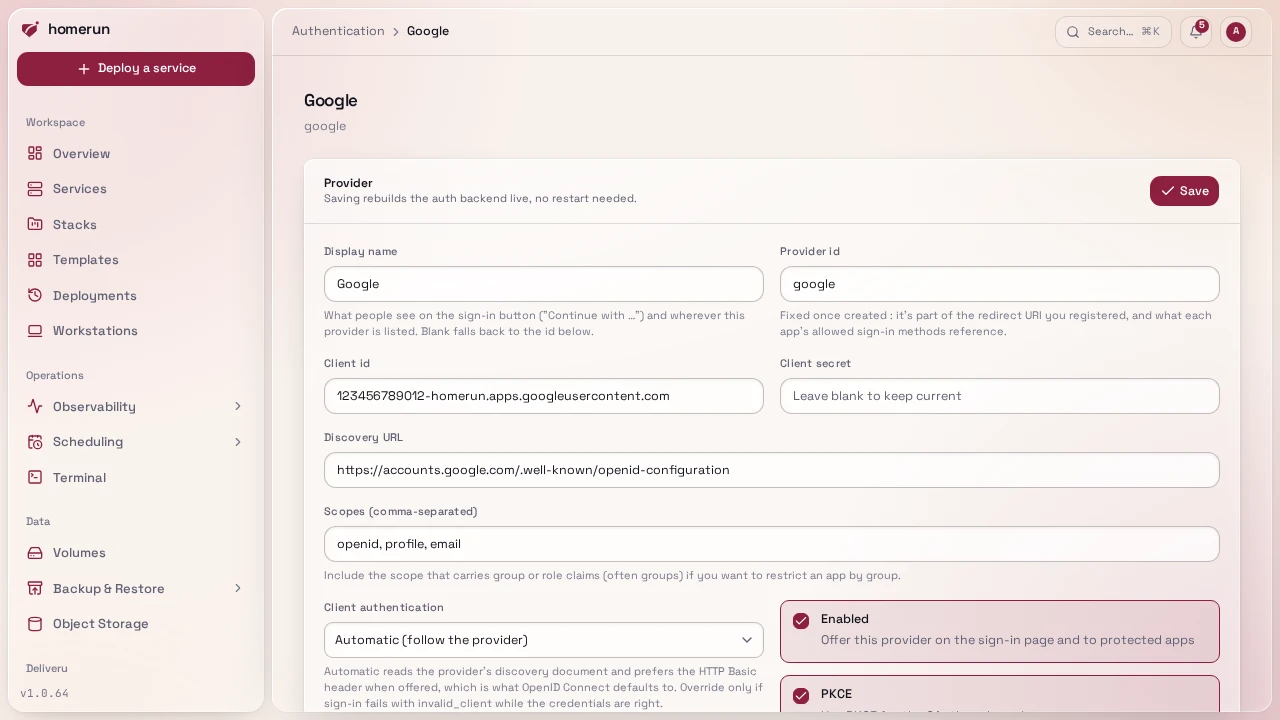
{placeholders}with your own hostname and add the client id and secret from the OAuth app you registered there. Any other OIDC provider works from the "Blank" option. Each provider has a Display name shown on the sign-in button and everywhere it's listed, separate from its Provider id, which is the lowercase machine name baked into the redirect URI and fixed once created. Leaving a client secret blank when editing keeps the one already stored.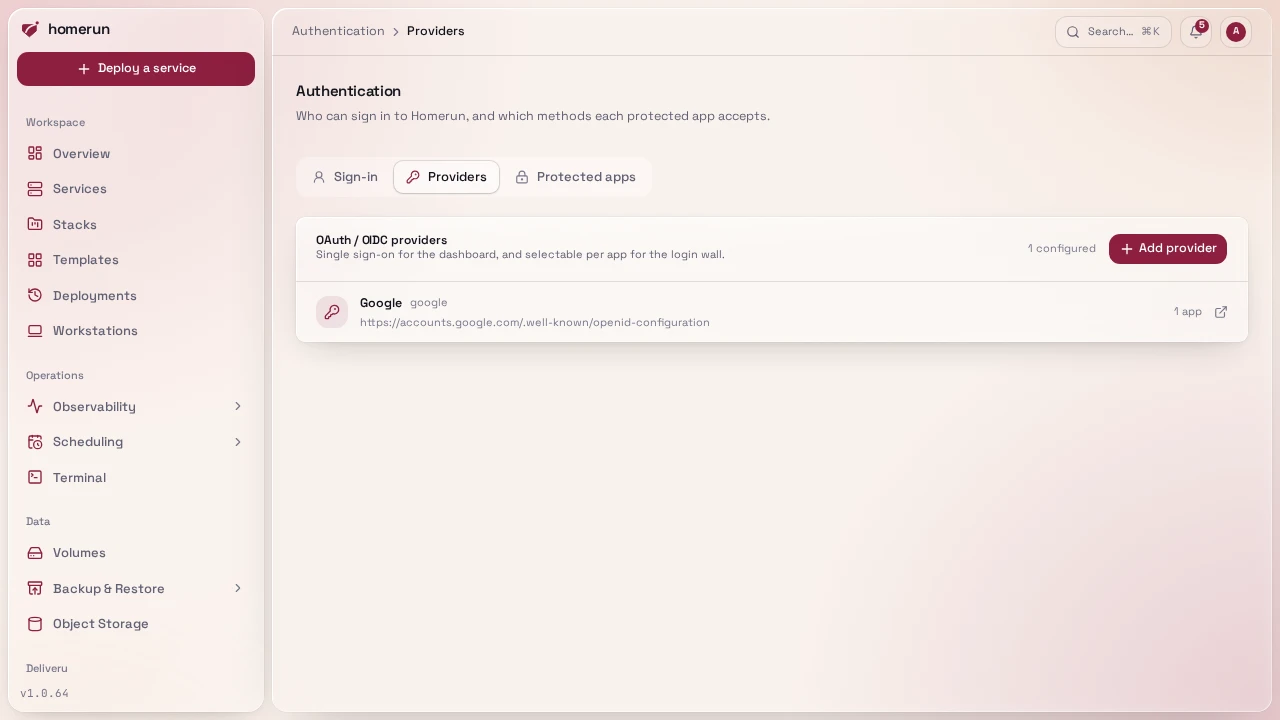
Register <your-homerun-url>/api/v1/auth/callback/<provider id> as the redirect
URI on the provider's side. The Authentication page prints the exact URL to use.
The same page has three instance-wide switches:
-
Emailed sign-in: Email me a code (on by default) and Email me a sign-in link (off by default), each switched on or off separately. Both need SMTP (Settings → Email); until it's configured the section says so and neither is offered anywhere. See Emailed codes and links.
-
Preferred sign-in methods picks among password, passkey and each enabled provider. The sign-in page is email-first (see below), so this no longer reorders a list of buttons: with passkey preferred, the page prompts for one as soon as it opens instead of only offering autofill; with a provider preferred, an account linked to it is sent straight there once you enter its email, skipping the extra click. Pick none and the page just falls back to whatever's available for that account.
-
Sign-in requirements: Require two-factor authentication and Require a passkey. They apply to every account, admins included. Anyone who doesn't meet one is sent to a setup page on their next visit and can't use the dashboard until they've enrolled. API keys and CLI tokens aren't affected.
Terraform sets these three with homerun_authentication_settings: turn
email_otp on there, with SMTP configured through homerun_smtp_settings, for
a service's login wall to offer email-otp, see
Infrastructure as code.
#OAuth / OIDC login
Configured per-provider from the Authentication page, not env vars: any OIDC-compatible provider via a discovery URL, client ID/secret, and scopes. Applies live once saved, no restart. The discovery URL is validated before saving specifically because a broken one used to be able to lock the whole instance out (see Configuration).
The REST API (/api/v1/oauth-providers) and Terraform's
homerun_oauth_provider add and edit providers through the same checks, the
discovery URL fetch included; the client secret is write-only and never read
back.
Client authentication on each provider controls how the client id and secret
are sent when exchanging the login for a token. Automatic reads your
provider's own discovery document and uses the HTTP Basic header when it's
offered, which is what OpenID Connect defaults to. Override it only if sign-in
fails with invalid_client while the credentials are correct — that means
the client you registered expects the other method.
Set the Dashboard URL (Settings → General) before you add a provider, and keep it accurate. An OAuth provider only accepts a redirect URI you registered with it in advance, so Homerun sends the one built from the Dashboard URL — that's the URL the Authentication page shows you. Two things follow:
- If the Dashboard URL doesn't match how you actually reach Homerun, sign-in fails with something like "The redirect_uri '…' is not registered for this client". Change the Dashboard URL to match rather than registering a second URI with your provider.
- Single sign-on has to begin and end on that same address. If you open Homerun on some other hostname, the sign-in page will point you at the configured one instead of offering provider buttons that can't work, and the login-wall sign-in screen redirects there on its own. Email and password sign-in works from any address.
The sign-in page asks for your email first: enter one with no password set and already linked to a provider, and it's offered there as a "Continue with …" button (or you're sent straight to it, see Preferred sign-in methods above); any other email gets a password field with every enabled provider offered below it. Every enabled provider also becomes selectable as a per-app sign-in method on the login wall. Saving takes effect immediately, without a restart.
#Emailed codes and links
After entering their email, anyone with an account can pick Email me a code or Email me a sign-in link below the password field (or below the provider buttons for a single sign-on account). An account with no password and no linked provider, such as a client who accepted an invite with emailed codes, skips the password step: when codes are the only emailed method on, entering the email sends the code straight away; when sign-in links are on too, it offers Email me a code and Email me a sign-in link and sends nothing until one is picked.
- Codes are 6 digits, expire after 10 minutes and allow five tries. Paste the code or type it; the form signs in as soon as all six digits are there. Send a new code replaces the old one, with a 30-second wait between sends.
- Links expire after 10 minutes and work once, in whichever browser opens them. A link opens a Homerun page with a Sign in as … button rather than signing in straight away, so a mail filter that fetches links can't use it up. A link isn't offered on the Sign in with Homerun screen of an app, since that flow has to finish in the tab it started in.
Neither can create an account: an email Homerun doesn't know simply gets no mail, and the page doesn't say whether the address exists. Everything else works as with a password: the login wall and Sign in with Homerun send you back where you came from, an account with two-factor authentication is still asked for its authenticator code, and the instance's sign-in requirements still apply. Signing in with a code or link also marks the account's email as verified, and ends a directly created account's pending password setup (it can keep signing in with codes).
An account without a password can add one later: Set a password under Profile → Security, or on the Your apps page for an app-access-only account. Homerun emails a code first to check it's really the account's owner, so this needs SMTP; the password follows the usual 12-character minimum. From then on the sign-in page asks that account for its password like any other, with the emailed options still below it.
#Locked out after a typo?
Base domain and Dashboard URL
are two different settings. If a wrong one means the dashboard's domain no
longer reaches Homerun, open it on the server's IP and port instead
(http://<server IP>:3000 for a standard install) and fix the setting from
there. Homerun always accepts sign-ins on its own IP address, whatever the
domain settings say. That works as long as ORIGIN in .env isn't an https
address, which the installer doesn't set.
#Signing out
Signing out of Homerun signs you out of Homerun only. If you also want it to end your session at the identity provider (which sends you to that provider's logout page), turn on Sign out of the provider too on that provider's page. It's off by default.
#Connecting a provider to an existing account
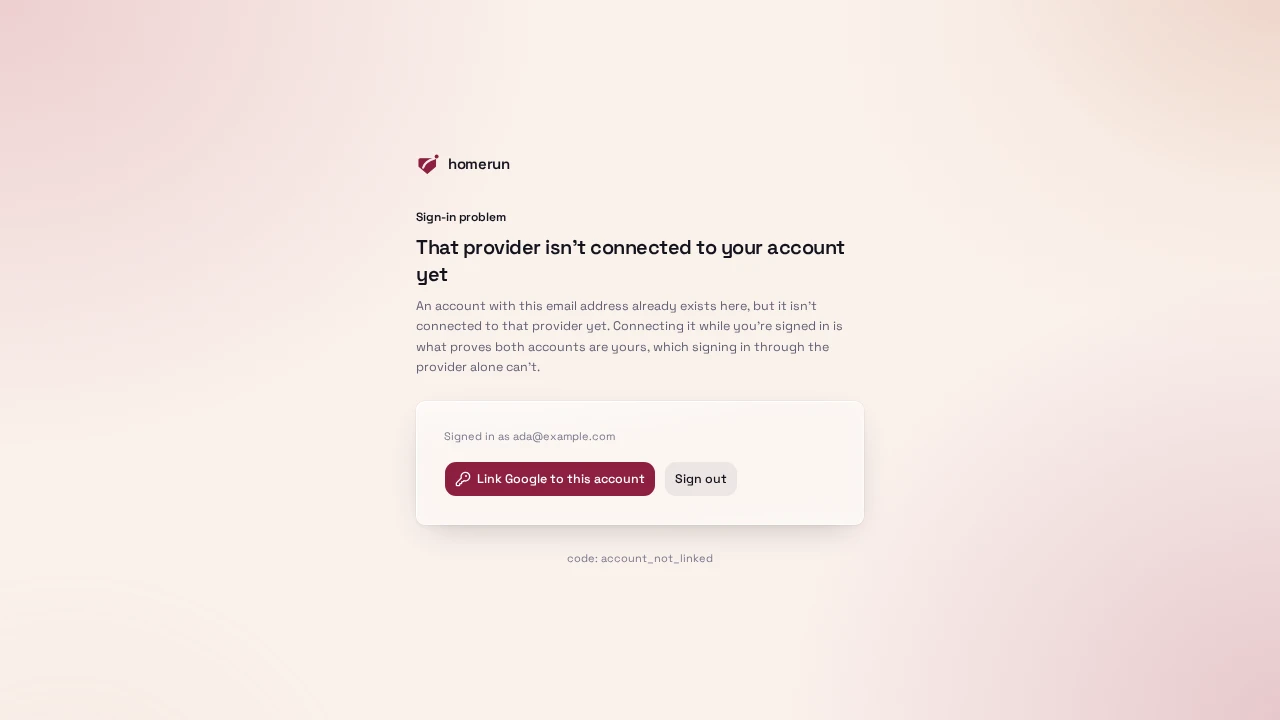
Signing in with a provider whose email already belongs to a local account is refused, on purpose: matching an email address doesn't prove the two accounts are the same person.
If you hit that, the page you land on does the work for you. Signed in, it offers Link <provider> to this account and Sign out. Signed out, it gives you an email and password box right there — sign in and the provider is connected in the same step, no trip through the sign-in page and your profile.
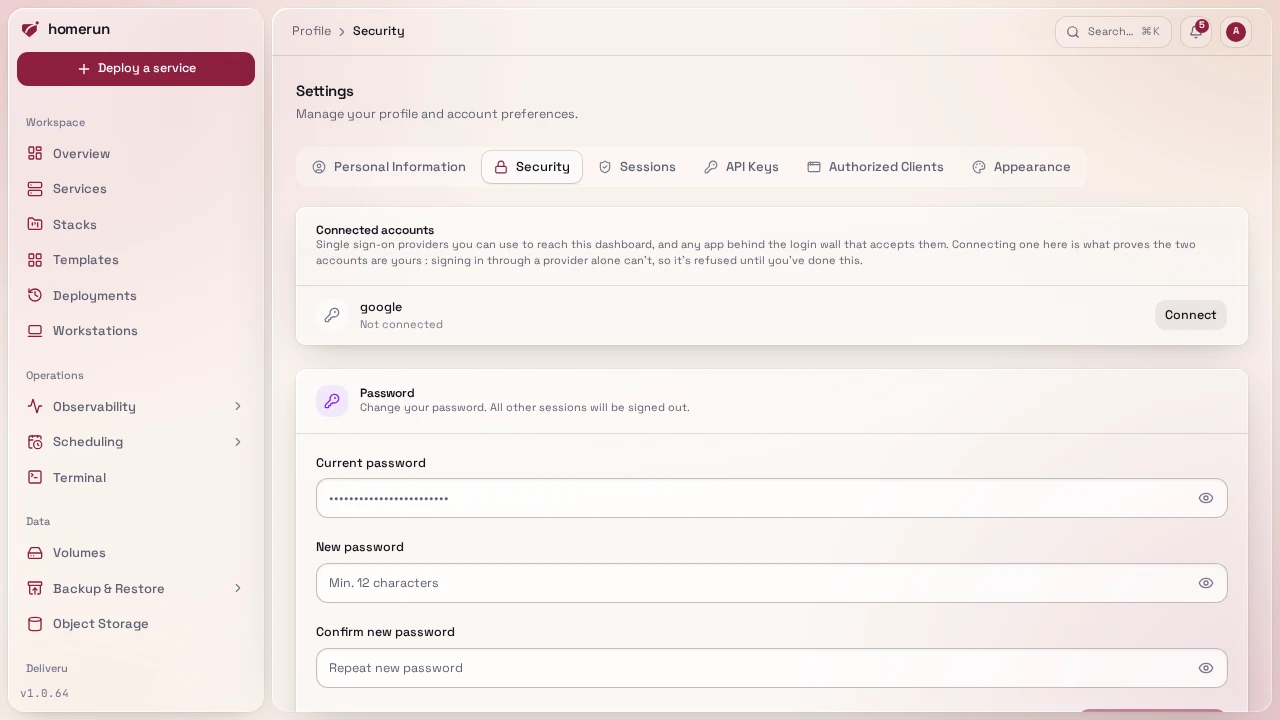
You can also manage this any time from Profile → Security → Connected accounts, which lists every enabled provider with Connect/Disconnect. Disconnect stays unavailable until you have a password set, so you can't remove your last way in.
This guide lives in the project repo: edit it there, and this page follows within a day.