Volume backups
Back up storage volumes to an S3-compatible bucket, an SFTP server, an SMB share or a WebDAV server, on a schedule or on demand, and restore them from the dashboard.
#Backup destinations
A backup destination (/s3-destinations, Backup Destinations under
Storage in the sidebar) is a named, reusable target, defined once and
pointed at by as many volumes as you like, rather than retyping a host and
credentials per volume. Pick its Type when you create it; the fields relabel
to match. Secrets (the secret key, password or private key) are stored encrypted
at rest, same scheme as registry passwords.
| Type | Host or URL | Path | Username | Secret |
|---|---|---|---|---|
| S3 | Endpoint URL (path-style) | Bucket | Access key id | Secret access key (plus a region) |
| SFTP | host or host:port | Directory on the server, optional | SSH username | Password, or a pasted private key |
| SMB | host or host:port | Share name, then an optional path under it (required) | SMB username | Password |
| WebDAV | Full http:// or https:// URL | Directory under the URL, optional | Username | Password |
- S3: anything S3-compatible works: AWS S3, MinIO, Cloudflare R2, Backblaze B2, Wasabi, and so on.
- SFTP: anything with SSH access, a NAS or a VPS. For a private key, paste it into "Private key, instead of a password"; it must be unencrypted (no passphrase), and when both are filled the key wins. Homerun does not verify the server's host key, so it trusts whatever answers at that address.
- SMB: a Windows or Samba share, the kind a NAS exports. SMB 2 and 3 only.
The path starts with the share's name, for example
backups/homerunis thehomerunfolder inside the sharebackups. - WebDAV: any WebDAV server, Nextcloud included.
Hetzner Storage Box works three ways, all three tested against a real box (the destination test, then a backup and a byte-for-byte restore). The Hetzner Storage Box preset sets up the first one.
- SFTP: host
uXXXXX.your-storagebox.deon port 23 (uXXXXX.your-storagebox.de:23), the box's username and its password or a key. - WebDAV: URL
https://uXXXXX.your-storagebox.de. - SMB: host
uXXXXX.your-storagebox.de, and a path starting with the sharebackup, for examplebackup/backups/homerun.
Each protocol is a separate switch on the box in Hetzner's console (SSH
Support, WebDAV Support, SMB Support), all off on a new box, and
External Reachability has to be on as well when Homerun runs outside
Hetzner's network. With them off the box refuses in ways that look like a wrong
password: WebDAV answers 403 Forbidden whatever you type, SSH offers no way to
log in at all, and SMB says the account is disabled. After a handful of failed
logins the box also refuses every connection from your address for a while (it
was about a quarter of an hour in testing), on all ports, which shows up as
connection refused. Fix the settings, then wait rather than retrying.
A NAS is usually easiest over SMB (the share it already exports) or SFTP when SSH is on.
The form's Preset picker fills in what a provider fixes, so only the account-specific fields are left: Hetzner Storage Box (SFTP on port 23, the host derived from the username as you type it), Hetzner Object Storage, AWS S3, Cloudflare R2, Backblaze B2, MinIO, a NAS over SMB or SFTP, and Nextcloud. A preset only fills fields in: every field stays editable, and Custom leaves them all to you.
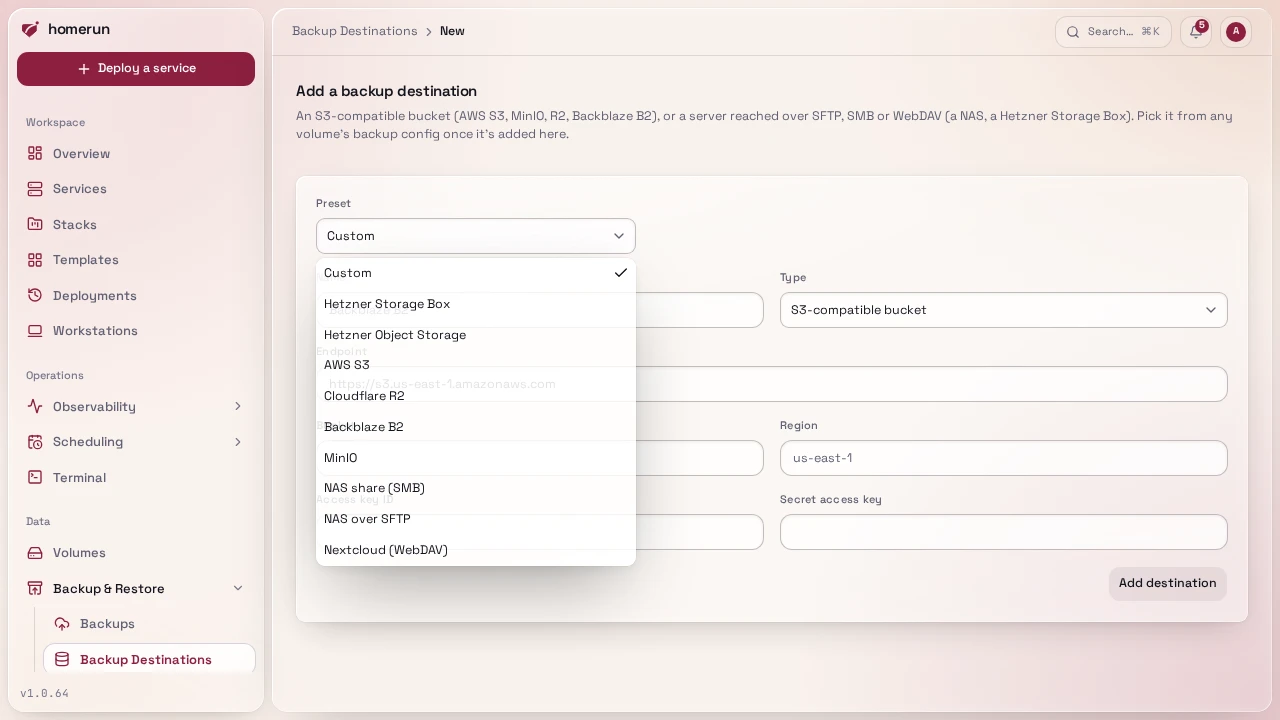
Adding a destination lands on its own page, which the pencil on a list row opens too. It shows the type and address, when it was added and last changed, and every volume whose backups go there, and it has the same form to change the settings. The type is fixed once a destination exists, and a blank secret field keeps the stored secret.
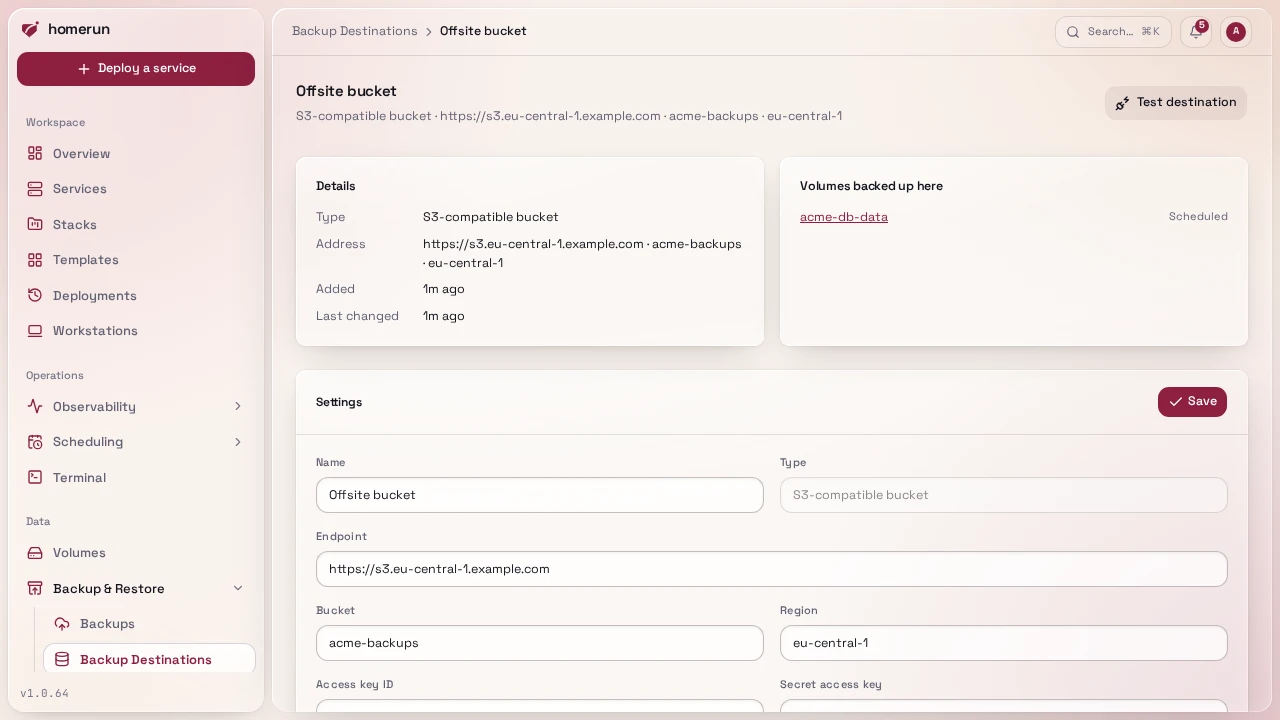
Test destination, on that page, proves the saved settings work before a
backup depends on them: it writes a small test file to the destination and
deletes it again, so it checks the address, the credentials and write access in
one go. An S3 destination gets a signed PUT and DELETE of
.homerun-test-<id> in the bucket; an SFTP, SMB or WebDAV one gets the same
through rclone, under the destination's path (directories it had to create stay
there). A failure shows the endpoint's or rclone's own error on the page. The
test uses what is saved, so save a change before testing it.
The list page has the same search box and pager as every other list page. A destination can't be deleted out from under a volume without the volume simply losing its target, so a volume whose destination is gone reports "no destination" and its backups fail with a config error rather than silently doing nothing.
#Storage space
An SFTP, SMB or WebDAV destination has a fixed size, so Homerun watches how full it is: every hour it asks the destination for its size and its free space (an S3 bucket has no size to fill, so it isn't measured). The list shows a bar under each of them, and the destination's Storage section shows the free space, the size, how full it is, when it was last checked and why the last check failed, if it did. Check now measures it right away.
Alert past (% used), 85 by default, from 50 to 99, sets when it counts as low on space: the bar turns amber past it (red past 95%) and channels subscribed to Backup storage low (on by default for a new channel) get one message, with the space used, free and in all. The next one comes only once the destination went back more than 5 points under the threshold and crossed it again, so a destination hovering at the line doesn't alert every hour. Changing the threshold lets it alert again.
SFTP reports its size through the server's own extension when it has one, and
through df in a shell otherwise; a server with neither, or a WebDAV server
without quota support, shows "Size unknown" with rclone's reason.
#Backups
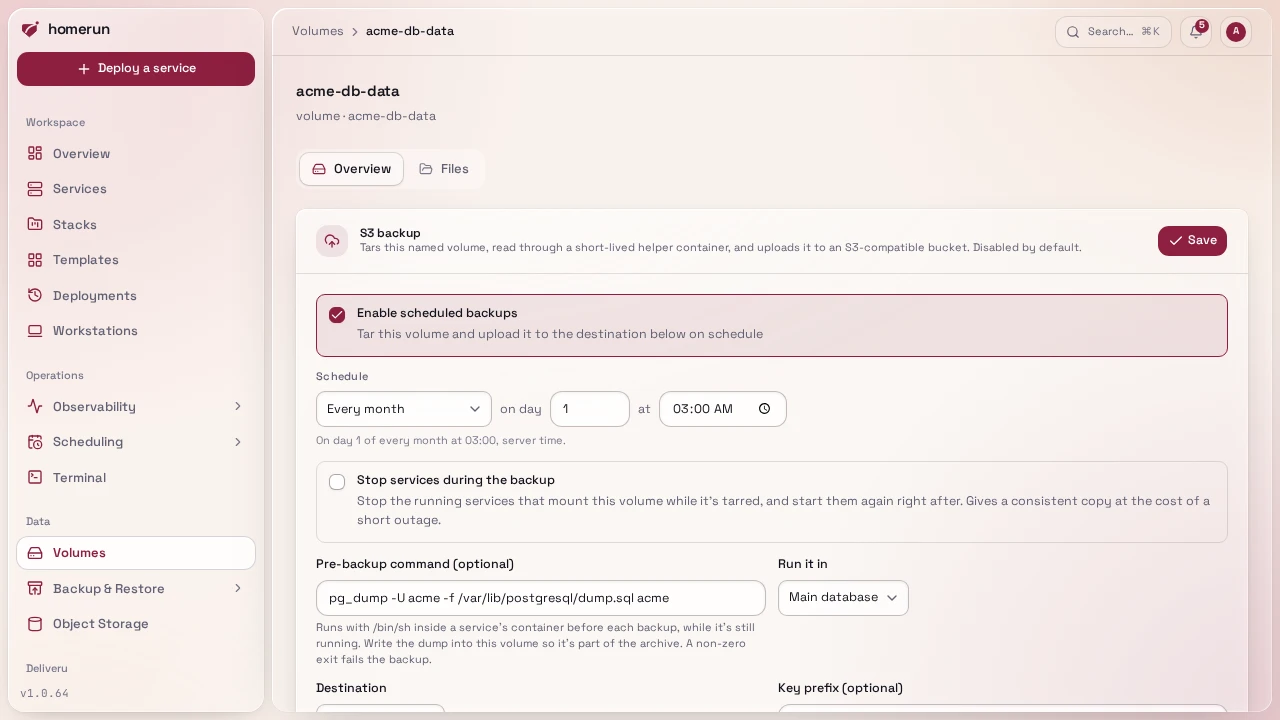
Off by default, turned on per volume. The quickest way is the switch next to
a mounted volume on a service's Storage tab: it turns backups on every day at
03:00, to your backup destination when you have exactly one. With none, or
several, it opens the settings instead. The cog beside it sets the schedule,
the destination and an optional key prefix. The volume's own page
(storage/[volumeId]) has the same settings plus restores, stopping services
during the backup, and a pre-backup command. The homerun worker tars the
volume's contents and streams it, gzipped, to
<prefix/>volumeName-<timestamp>.tar.gz.
Every backup is a full archive, and Homerun keeps them all by default, so a
nightly backup of a large volume fills its destination within weeks. Set
Backups to keep per volume in the destination's Settings (backupKeep
on a backup destination in the REST API and Terraform) to cap it: the limit
applies to each volume backing up there, and after each successful backup
Homerun lists that volume's archives on the destination and deletes all but the
newest N. Only files named exactly <prefix/>volumeName-<timestamp>.tar.gz
count, so another volume sharing the destination (even one called db-data next
to db) and anything else stored there are never touched. A failed backup
deletes nothing. If the listing or a deletion fails, or the archive just
uploaded isn't listed, the backup still succeeds: its run log and Homerun's
system logs say why nothing (or not everything) was deleted, and the next
successful backup tries again. Runs on /backups stay listed after their
archive is deleted, but a restore can only pick archives that are still on the
destination.
Clean up old backups on /backups applies the same rule right away, without
waiting for the next backup: it queues a Backup cleanup job that goes
through every volume on a destination with a limit, one at a time, deletes its
archives past the newest N and logs what went per volume. Follow it in the job
queue. It's the quick way to free space after setting the limit on a destination
that's already full; a volume that fails is logged, the others are still cleaned
up, and the job ends failed so it doesn't go unnoticed.
S3 uploads go through a hand-rolled Signature V4 client (a multipart upload of 8 MiB parts, sixteen sent at once while the next ones are archived, the parts growing to 32 MiB for the largest archives, up to about 240 GB; no SDK). Parallel parts matter: some providers cap one connection well below what the link carries, Hetzner's object storage at about 1.3 MiB/s, so a 256 MiB archive that took over three minutes one part at a time uploads in about 16 seconds. The run's log reports the throughput every 30 seconds.
SFTP, SMB and WebDAV uploads go through rclone running
in a throwaway helper container (the official rclone/rclone image, pulled the
first time a backup or a restore listing needs it, so that first run needs
registry access and is a little slower). The archive is written as one stream,
with no parallel parts, to <key>.partial on the server and renamed to its real
name only once it is complete, so a half-finished or cancelled backup never
leaves a file that looks like a valid backup; a failed run deletes its
.partial. The log reports progress every 30 seconds here too. Expect the speed
of a single connection to your server.
Both volume kinds are backed up the same way. The volume (a bind mount's
host path or a Docker-managed volume) is mounted read-only into a short-lived
alpine helper container that runs tar and streams the archive out on its own
output, straight into the upload, and the helper is removed straight after. A
restore downloads the archive to a temporary file first, so the volume (and any
services stopped for it) are only touched once the download succeeded, then
pipes it into tar in the same kind of helper. Backups made by older versions
(which read the volume through Docker's archive API) restore the same way: the
file format didn't change.
A running backup or restore has a Cancel button in the run log, on
/backups and on the volume's page. The job stops within a few seconds, a
upload in progress is aborted so nothing is left on the destination, any
services stopped for it are started again, and the run is recorded as failed
with who cancelled it. Cancelling a restore leaves the files already unpacked in
place, so the volume is half-restored until you restore again. A run that still
shows as running although its job is long gone (after a crash, say) can be
cancelled the same way to close it.
A backup that stops making progress doesn't hang: if Docker stops answering for
the helper, the backup fails after about 10 minutes with an error naming the
container, instead of running (and blocking updates) forever. See
Docker stuck on a container.
An S3 upload is bounded the same way: each request to the S3 endpoint (one 16
MiB part of the archive) gets 10 minutes to answer, and a timeout, a 429 or a
5xx is retried twice before the backup fails with the endpoint's own error.
The run log opens with the volume, what it is on the host (a Docker volume or a
host path) and the services using it with their stack
(used by postgres (Gitea / Tools)), then where the archive goes, which
services are stopped around it (or that they keep running), every retry, how
much has been uploaded and at what speed every 30 seconds, and the final size,
duration and throughput. The log of a restore reads the same way. On /backups,
each volume and each run also shows the stacks and services it belongs to under
its name.
Set a cron schedule alongside the destination to back up automatically; the scheduler mirrors the scheduled-redeploy shape (a 60-second tick, a due-check, a guard against double-firing in the same minute). Enabled schedules also show up on the Scheduling page alongside cron redeploys and cron jobs.
Backups, scheduled or from a "Run now" button, are queued and run in the
background (see the job queue), so the button
returns straight away and the run shows up in the history on /backups once it
starts. A failed backup is retried once.
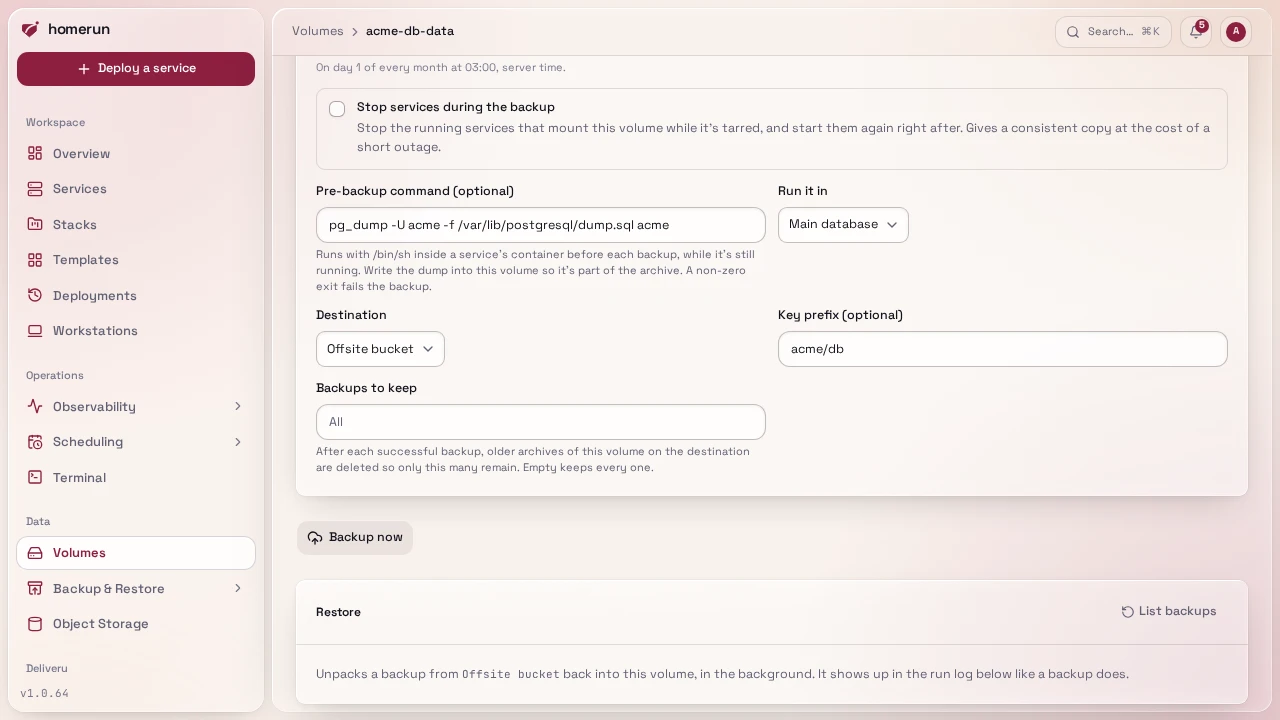
By default nothing is quiesced: Homerun reads the volume as it is, while the services using it keep running, which is fine for files but can produce a torn copy of a database that's mid-write. Two per-volume options on the same form fix that:
- Stop services during the backup stops every running service that mounts the volume just before the tar, and starts them again as soon as it's done (before the upload), whether the tar worked or not. The services are down for the length of the tar.
- Pre-backup command runs a shell command (
/bin/sh -c) inside a service's running container before each backup, for examplepg_dump -U postgres -f /var/lib/postgresql/data/dump.sql appormysqldump ... > /var/lib/mysql/dump.sql. Write the dump into the volume being backed up so it ends up in the archive. Run it in picks which service's container it runs in; left on the default, it's the first running service that mounts the volume. The command runs while the service is still up (before any stop), a non-zero exit or a run longer than 15 minutes fails the backup with the tail of its output, and nothing is uploaded.
#Scheduled backups and history
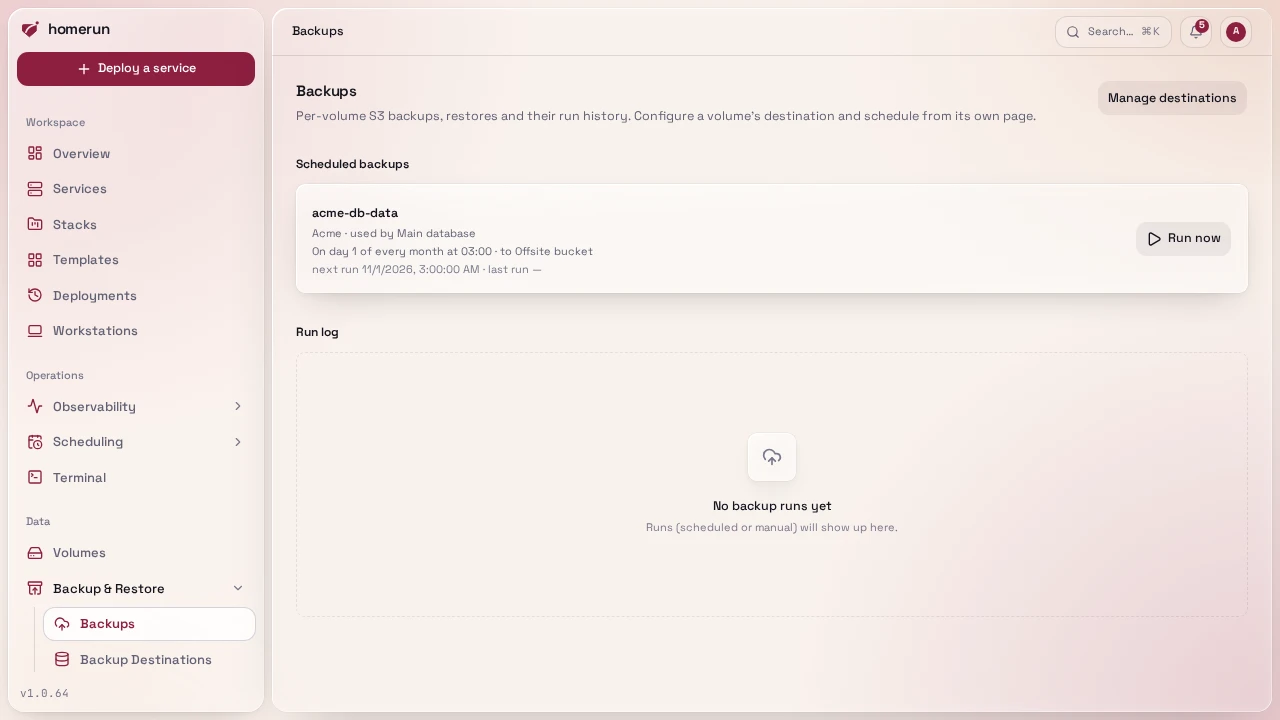
The top of /backups lists every volume with backups on, as soon as they're
turned on: its schedule in words, its destination, and when it next and last
ran, how many backups its destination keeps, with Settings (the volume's own
page, to change its schedule and backup settings) and Run now buttons. Run
all above the list queues a backup of every one of them at once; a volume
whose backup is already queued isn't queued twice.
/backups is one row per attempt across every volume, scheduled or manual,
backups and restores alike, with its kind, when it started and finished, whether
it succeeded, the size, and the error if it didn't (hover the kind for the
object key). It has a search box (matching volume name, object key or error), a
Kind filter (backup/restore), an Outcome filter (success/failed/running) and a
pager over the whole history, so a long-running instance with hundreds of past
runs can page all the way back through them instead of only ever seeing the
newest handful. The same "Run now" button is available here as on a volume's own
page.
#Restoring a backup
A volume with a destination has a Restore panel on its own page. List
backups reads what's at the destination for that volume (under its key prefix,
or path), newest first with date and size (for SFTP, SMB and WebDAV, a directory
that doesn't exist yet just lists as empty), and Restore on one of them
queues a restore that downloads it and unpacks it back into the volume, for both
volume kinds, through the same kind of short-lived alpine helper container.
Two options sit above the list and apply to whichever backup you restore:
- Wipe the volume first deletes everything in the volume before unpacking, so files that weren't in the backup don't survive. Off, the restore unpacks over the volume: files in the archive replace the ones on disk and anything else is left alone.
- Stop services during the restore (on by default) stops every running service that mounts the volume for the wipe and unpack, and starts them again afterwards, even when the restore fails. Turn it off only if you've stopped them yourself or nothing writes to the volume, otherwise it can end up with half-old, half-new data.
Restores go through the job queue like backups,
so the button returns straight away. The download happens before anything is
stopped, so services are only down for the unpack. A restore shares the volume's
lock with backups (it never runs while the same volume is being backed up), is
never retried, and shows up in the run log on the volume's page and on
/backups as a Restore row.
You can still fetch a backup yourself if you'd rather unpack it somewhere else:
aws s3 cp, rclone or your provider's console for S3, and rclone, sftp or
a file browser for SFTP, SMB and WebDAV. It's a plain gzipped tar.
This guide lives in the project repo: edit it there, and this page follows within a day.