Your profile
The profile pages (reached from the avatar menu, not the sidebar) are per account:
-
Personal Information, your name and email. Changing an unverified email takes effect immediately; a verified one needs confirming from a link sent to the address you're leaving, so it stays locked until SMTP is configured or an admin changes it for you from
/users(see Known, real limitations).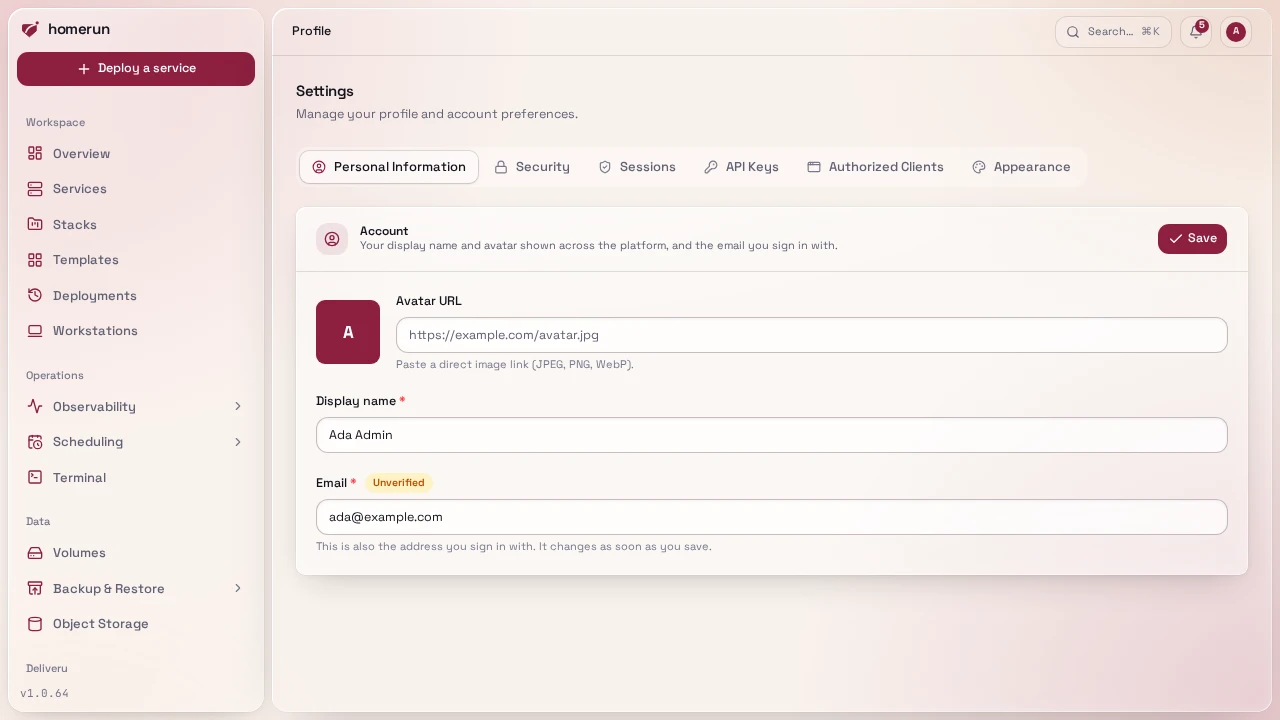
-
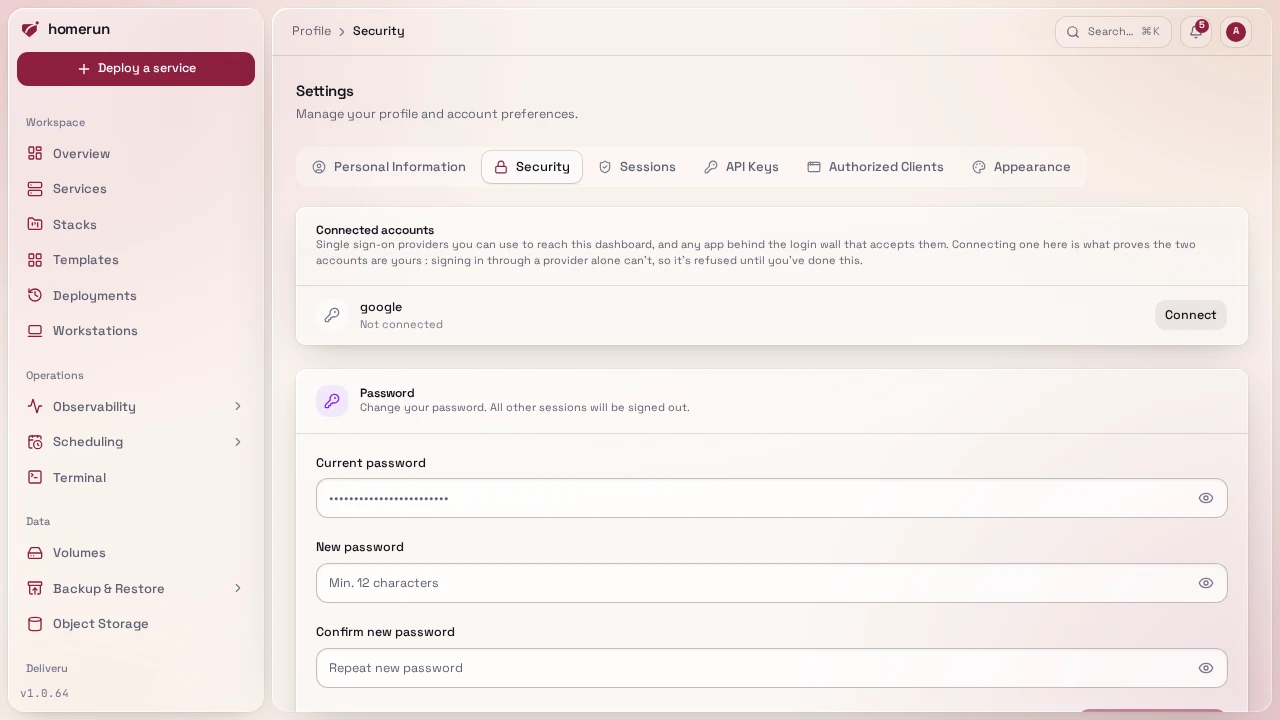
Security, change your password, connect or disconnect OAuth providers (see Connecting a provider to an existing account), set up two-factor authentication and passkeys, and delete your account. Deleting it hands everything you created over to another admin (or, failing that, the oldest other account), so nothing stops running. Only when yours is the last account are its containers removed with it.
-
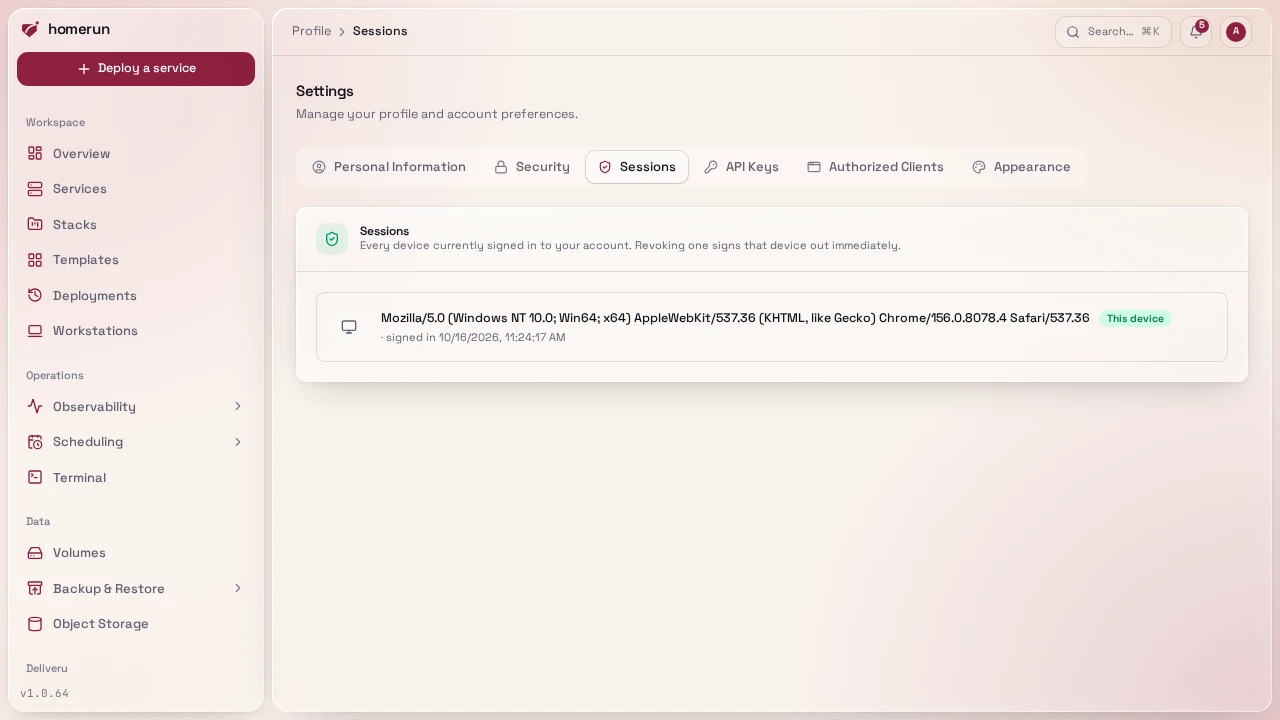
Sessions, every browser currently signed in as you, with the device and when it was last seen. Revoke any of them, useful after signing in somewhere you don't control.
-
API Keys, see below, including the ones the CLI created for itself through its device-code login.
-
Authorized Clients, every app you signed in to with "Sign in with Homerun" (OIDC provider). Revoking one deletes its tokens, so it's signed out of your account right away and asks for your consent again next time.
-
Appearance, see below.
-
Notifications, which events each of your notification channels receives, see Notifications.
#API keys
Profile → API Keys lists your keys; New API key opens the page that
creates one, to use the REST API or CLI without a browser
session, sent as x-api-key or Authorization: Bearer <key> on any /api/v1/*
request. When you create one, pick:
- Permissions, per area (see Users and roles): none, Read or Write. The presets (Read-only, Developer, CI deploys and Infrastructure as code) fill the list in one click, cut down to what your account holds, and the one matching the list stays highlighted; Clear empties it. A key can never hold more than the account that creates it, and at request time it's always limited to what its owner holds right now, so demoting an account also demotes every key it owns. A key that needs one thing (deploy one service, read the status of everything) should get only that area.
- Allow all permissions, flagged dangerous: the key follows everything its owner can do, including permissions granted to the owner later. Only for a key you'd trust as much as your own login.
- Expires: 7 days, 30 days, 90 days (the default, recommended), 1 year or Never, which shows a warning because a leaked key then works until you revoke it. An expired key is refused and shows an Expired badge in the list.
The pencil on a key opens its page, which renames it and changes its permissions (or switches it to all permissions and back) without changing the secret: whatever uses the key keeps working, with the new permissions from its next request. The expiry can't be changed; create a new key for that.
A request that needs a permission the key doesn't have gets a 403 naming the
area. homerun login keys are created with all permissions and no expiry, and
keys created before permissions existed were migrated: a read-only key became
read on every area, a full-access key became "all permissions".
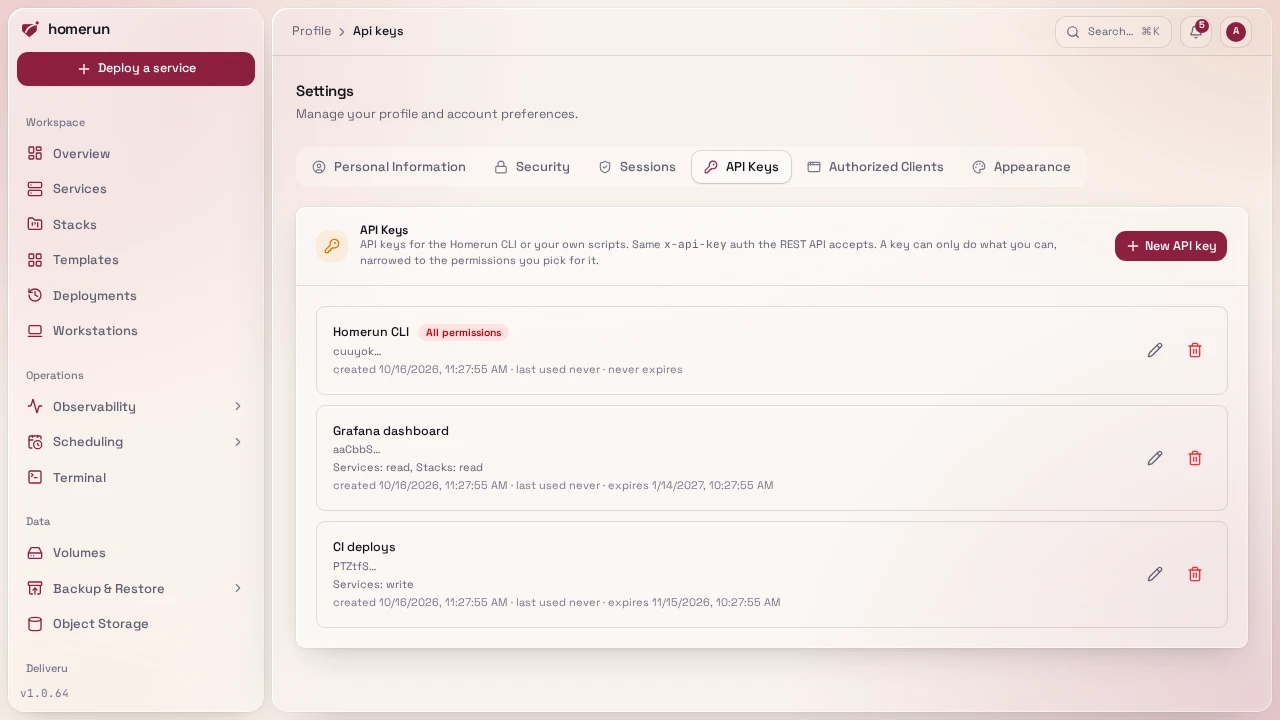
homerun login creates one for you through a device-code flow rather than
making you copy-paste, and it shows up in this list like any other. Keys for
Terraform, OpenTofu or Pulumi can also be created and revoked from an IaC
project's Credentials tab (see
Infrastructure as code).
#Appearance
A per-account "Appearance" tab on your profile page controls:
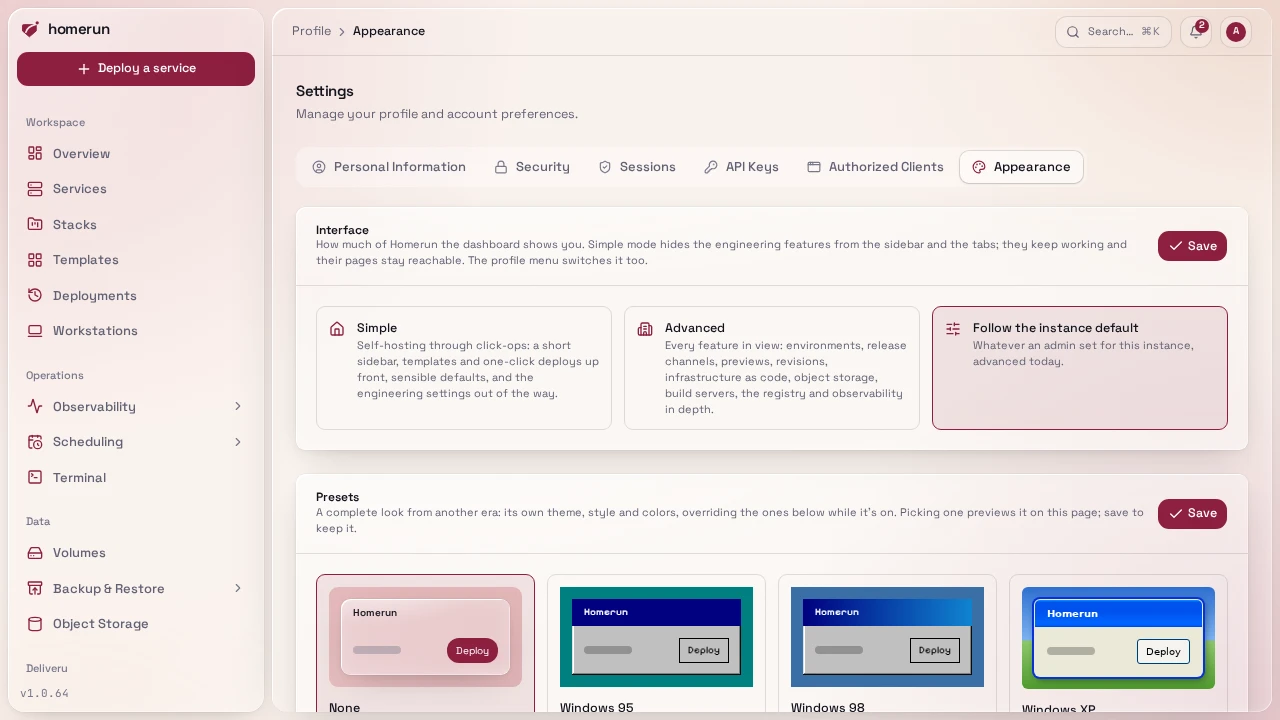
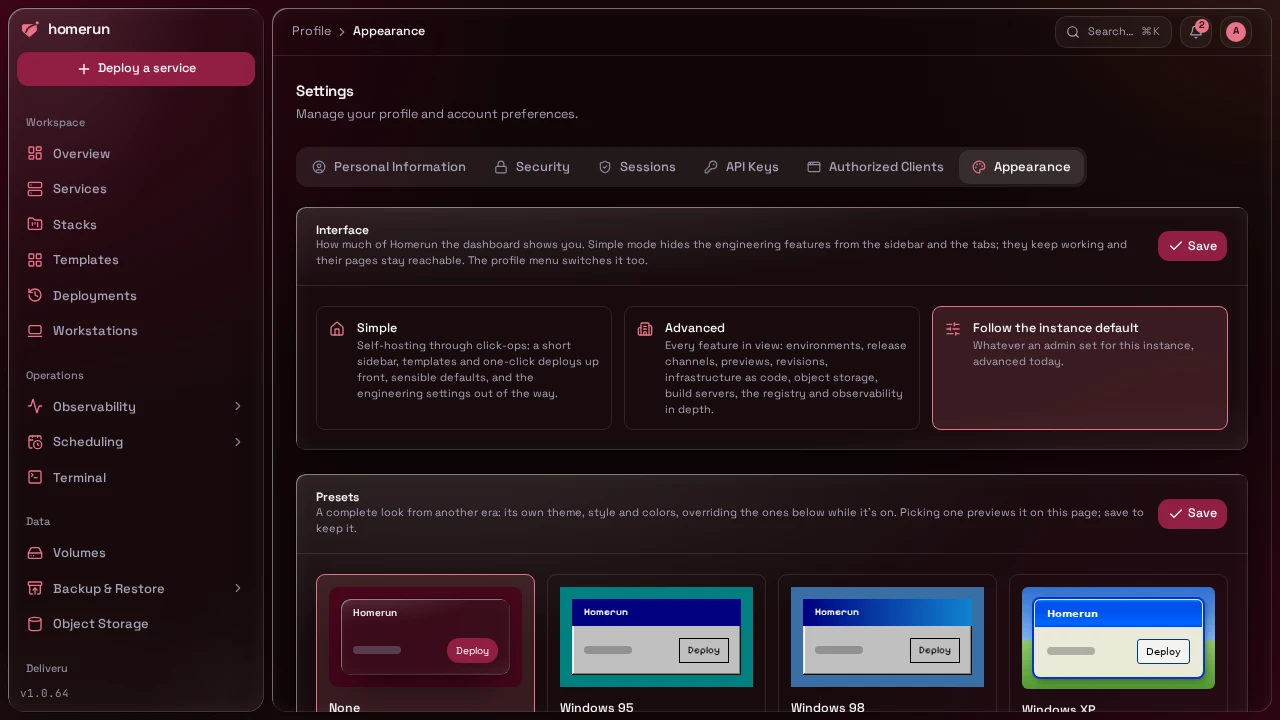
- Interface: Simple, Advanced or Follow the instance default (the default), see Simple and advanced modes. The profile menu switches between simple and advanced in one click too.
- Presets: a complete look from another era, with its own theme, style and colors: Windows 95, Windows 98, Windows XP, Windows 7, MSN or Retro (a green phosphor terminal), each with its own fonts: a pixel sans for Windows 95/98, Tahoma for XP, Segoe UI for Windows 7 and MSN (with bundled substitutes where they aren't installed) and VT323 for Retro. While one is on it overrides the theme, style and colors below, which stay saved for when you pick None again. Each has a preview, and picking one previews it on the page until you save.
- Theme: light, dark, or match system (the default). Changes apply instantly and are saved to your account, so the choice follows you to a new browser or device, not just the one you set it on.
- Style: how panels, cards and buttons are drawn: Glass (the default, Apple-style liquid glass: blurred panels with a lit edge, all tinted by your accent), Sleek (flat and crisp: one solid content panel, hairline borders, a faint wash of your accent), Neumorphism (one flat tone, panels raised by soft light and shade), Boxy (square corners, solid panels, hard offset shadows), Claymorphism (puffy, round panels), Skeuomorphism (textured, bevelled panels and buttons) or Material You (Google's style: tonal surfaces derived from your accent, pill buttons, filled fields, Roboto Flex). Each choice shows a small preview and previews on the page itself when picked; Save keeps it. Works with either theme and any palette.
- Colors: a palette (Bordeaux, the default, Ocean, Forest, Sunset, Grape, Rose or Graphite) sets the accent for buttons, links and tab icons plus the hues charts, category tiles and the background use, all chosen to go together. Custom sets the accent alone from any color.
- Tabs: where a page's tabs go: Above the page (the default) or In a column beside the page, a second sidebar next to the main one that lists the section's tabs while you're in it. On a narrow screen they stay above the page.
- Lists: how many rows every paginated list (services, stacks, templates,
deployments, backups and the rest) shows per page: 25, 50 (the default), 100
or 200. A
?perPage=in the page's URL still wins for that one view.
These are personal preferences, not instance-wide settings, each account picks
its own independently of /settings.
#Git provider accounts
Separate from signing in to Homerun: connecting a GitHub, GitLab, Gitea or Bitbucket account on the Git Providers page lets a git-based service pick its repository and branch instead of pasting a URL, reach private ones without a token in the clone URL, and deploy on every push through a webhook Homerun adds for you. An admin registers the OAuth app once for the instance; each person connects their own account to it. See Connecting a git provider.
This guide lives in the project repo: edit it there, and this page follows within a day.