Users and roles
Homerun has five roles, admin, developer, read-only, app access only and custom. Every dashboard account sees the same pool of resources, and what an account may do with it is decided by its permissions. Services, stacks, volumes, backups, backup destinations, build cache registries, remote hosts, cron jobs, status pages, custom templates and the job queue are shared, whoever created them. Each one still records who created it. What stays personal is your sessions, API keys, preferences, git provider connections, terminal sessions, bell feed and notification channels. Every account gets a copy of each bell notification, and every account's own notification channels hear about every event. Homerun has no teams and no per-stack access control: permissions are per area of the dashboard, not per resource.
#Permissions
Homerun has 18 permission areas: Services, Stacks, Templates, Cron jobs, Redirects, Status pages, Volumes & backups, Object storage, Docker Registry, Build cache, Git providers, Notification channels, DNS, Remote hosts, System, Infrastructure as code, Users & authentication and Settings. An account holds each one at Read or Write (write includes read), or not at all.
Every dashboard page and every REST API route belongs to one area. Reading it
needs read access, changing anything needs write access, and an account without
the permission gets a 403: a dashboard page shows a 403 error page, the
sidebar and global search leave out what you can't open, and the API, remote
commands and form actions refuse the request on the server, so hiding a link is
never the only protection. Your profile, the overview, CLI login, the API docs
and the MCP endpoint are open to every signed-in account (MCP tools call the
REST API, so each call is checked against the account's permissions).
System is the host-level area: the host terminal, system logs, Docker cleanup, host command cron jobs and the service options that give a container access to the host (privileged mode, device mappings, added capabilities and env files), including templates and compose imports that set them. Treat it as root on the box. Write access to Users & authentication can grant any permission, its holder's own included, so it's an admin in all but name.
The roles are presets of those permissions:
| Role | What it holds |
|---|---|
| Admin | Write on every area |
| Developer | Write on Services, Stacks, Templates, Cron jobs, Redirects, Status pages, Volumes & backups, Build cache and Notification channels; read on Git providers and Remote hosts |
| Read-only | Read on the developer's areas |
| App access only | Nothing: no dashboard at all, see below |
| Custom | Exactly the areas you pick for that user, each at Read or Write |
A read-only account sees what a developer sees but can't change anything: every form, button and API call that writes is refused with a message naming the area ("You don't have permission to change Services."), enforced on the server for form actions, remote commands and the REST API alike. What they can still do is look after their own account: sign out, change their password, manage passkeys and two-factor, set preferences, clear their notification bell, create API keys (limited to what they can read) and log in the CLI.
Custom is for everyone in between. On Users, switch the account's role to Custom, then click the Permissions button on its row and pick an access level per area, or start from a preset (Read-only, Developer, CI deploys, Infrastructure as code). Switching to Custom starts from the permissions of the role the account had, so you only adjust the difference. Invites and direct creation only offer the preset roles; change a new account to Custom afterwards.
App access only accounts never see the dashboard. They exist so you can let
someone (a client, a friend, the family) through the login wall
of the apps you choose without giving them anything else. They sign in on the
normal sign-in page, with a password, passkey, OAuth provider or emailed code
like anyone else, and are sent straight back to the app they were trying to
open. Opening the dashboard URL directly lands them on a small Your apps
page instead: the apps whose login wall currently lets them through (pull
request previews show their PR number and title), their passkeys and two-factor
setup, Set a password for an account that signs in by emailed code only, and
a Sign out button. Every dashboard page, form, remote call and REST API route
refuses them on the server, not just in the menu, and so does the MCP endpoint.
They can't create or use API keys or log in the CLI, and an API key they held
under an earlier role stops working. They can still use Sign in with Homerun
apps (see Sign in with Homerun), since that's a login
for an app, not for Homerun. To share an app with one, tick them under Users
on the app's Security tab, or add app-user to its Groups / roles to let
every app-access account in.
The first account created on a fresh instance becomes admin automatically.
After that, there's no public sign-up, every other account is created by an
admin from /users:
-
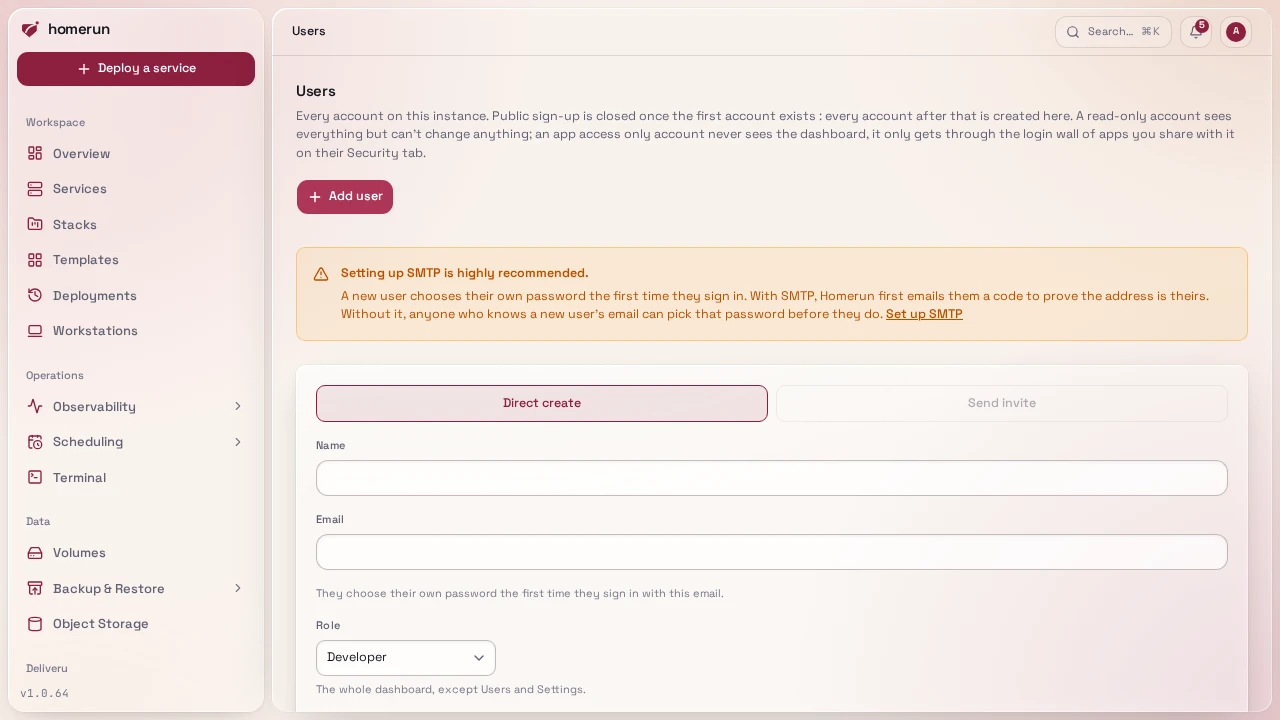
Direct-create, name/email/role only, no password to set or hand over. The new account signs in itself the first time: it enters its email on the sign-in page and, since it doesn't have a password yet, is walked through choosing one there (a 6-digit emailed code first if SMTP is configured, so the person really owns that address; straight to picking a password if it isn't). Works with no email setup either way. With emailed codes switched on, that step also offers Skip the password, sign in with emailed codes.
The REST API (
POST /api/v1/users) and Terraform'shomerun_usercreate accounts the same way, and can also give the custom role with its permissions; see Infrastructure as code. -
Email invite, only shown once SMTP is configured (see Configuration); sends a link to
/auth/accept-invite/<token>, valid for 7 days. The pending list on/usersshows only invites that can still be accepted; an expired one drops off, and inviting the same address again replaces it. While emailed codes or links are switched on (Authentication → Sign-in), the invite page lets the person choose between Set a password and Emailed codes: the second creates the account with no password at all, and they sign in each time with a code sent to their address. They can add a password later, after confirming an emailed code (Profile → Security, or Your apps for app-access-only accounts).
Inviting a client to review a pull request preview. Invite them with the App access only role, and on the preview's parent service's Security tab allow Emailed code and tick them under Users (previews copy their parent's login wall). They accept the invite with Emailed codes, open the preview link, enter their email, paste the code, and land on the preview; no password is ever created.
Without SMTP configured, /users shows a warning: anyone who knows a
direct-created account's email can beat its real owner to the sign-in page and
choose that account's password themselves, since there's no code step proving
who's asking. Set up SMTP (see Configuration) before
direct-creating an account if that's a real risk on your instance, or use email
invites instead, which already require it.
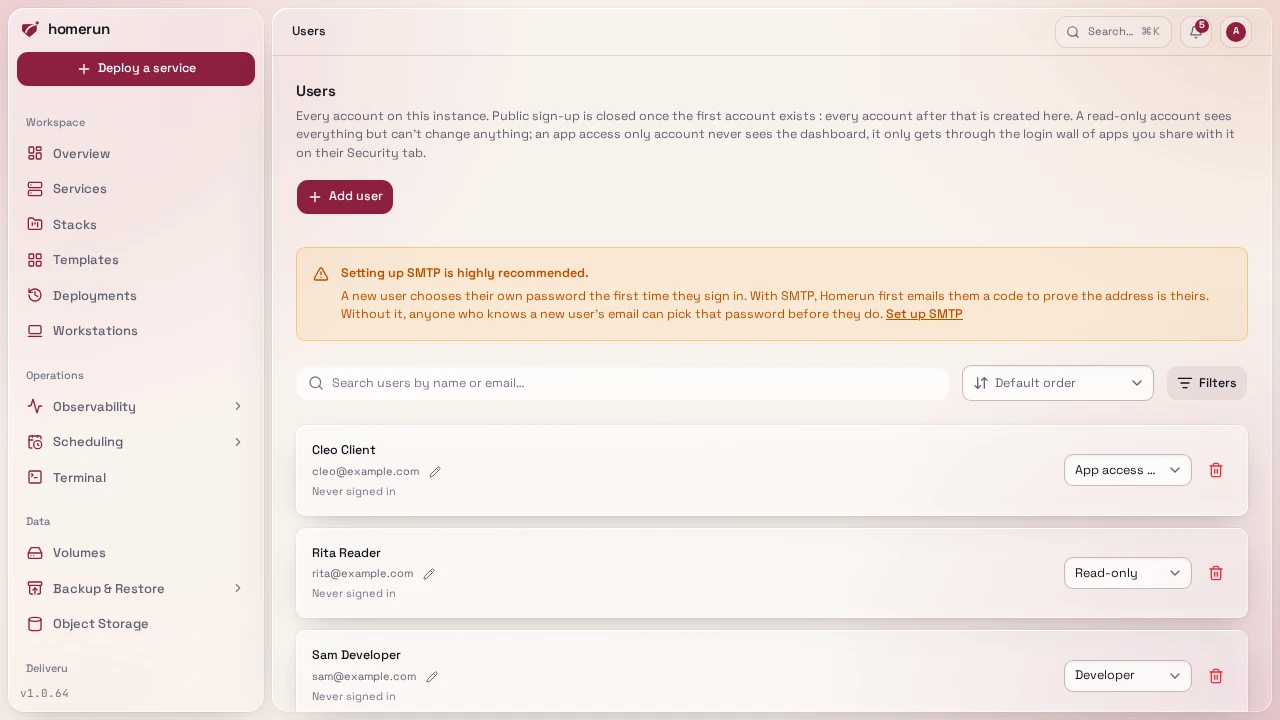
Someone with write access to Users & authentication (an admin, by default) can
change a user's role, permissions or email, or remove them, from /users. An
email changed there takes effect immediately and is marked verified, no
confirmation link and no SMTP needed, which is the way to change a verified
address on an instance without email set up. Two guards apply: you can't remove
yourself, and you can't demote/remove the last remaining admin. Removing a user
hands everything they created over to the admin who removed them: their services
keep running. A git service they created builds with its new owner's git
provider connection from then on, so reconnect the provider under your profile
if its builds or webhooks start failing. /users has a search box (name/email)
and a Role filter once you have more than a couple of accounts, plus a pager
once you have more than a page's worth, searched/paginated server-side.
A banned account (better-auth's admin API, POST /api/v1/auth/admin/ban-user,
there's no button for it) can't sign in, and its API keys and MCP tokens are
refused with a 403 until the ban is lifted or its expiry passes.
#Service accounts
A service account is a non-human account for CI and scripts, managed under
Administration → Service accounts (needs the Users & authentication area),
not on /users, which doesn't list them. It has no sign-in method at all, so it
can't open a dashboard session; its API keys, minted on its own page and shown
once, are its only credential. It holds no permissions by default: its keys then
only get through the login walls that list it (see
Letting CI through). Pick permission areas on its Settings tab
to let it call the REST API too, never more than you hold yourself. Disabling it
refuses its keys without deleting it, deleting it revokes them and hands
anything it created over to you, and every use of its keys is recorded on its
Activity tab. Service accounts get no bell notifications.
#Onboarding
The forced first-run wizard (see Getting started) is a property of the instance, not the account, once the bootstrap admin finishes it, later developer accounts never see it. If an admin invites someone before finishing onboarding themselves, that person sees a holding message instead of the wizard (they don't get instance-wide config controls).
This guide lives in the project repo: edit it there, and this page follows within a day.