Templates
A template is a saved service config (image, tag, container port, env vars, CPU/ memory, and the runtime options: entrypoint, command, labels, run-as user, env files, added capabilities, devices and privileged mode) you can deploy from repeatedly without re-entering everything. Two kinds:
- Built-in, a catalog of ~100 common self-hosted apps, media (Immich, Jellyfin, Plex, Navidrome, the *arr stack, qBittorrent), databases and caches (PostgreSQL, MySQL, MongoDB, Redis), networking (Pi-hole, AdGuard Home, Nginx Proxy Manager), monitoring (Uptime Kuma, Grafana, Prometheus, Gatus, Healthchecks), dashboards (Homepage, Dashy, Homarr, Portainer), productivity (Vaultwarden, Trilium, Wiki.js, BookStack, Vikunja, NocoDB, Excalidraw), identity (Keycloak, Pocket ID), git forges (Gitea, Forgejo), and more. Seeded on every boot (idempotent), immutable, available to every account. Each carries its real app logo, most of them from Dashboard Icons and a few bundled with Homerun; an app with no official logo falls back to a colored icon for its category.
- Custom, save any service's current config as a template from its Settings
tab, or build one from scratch under
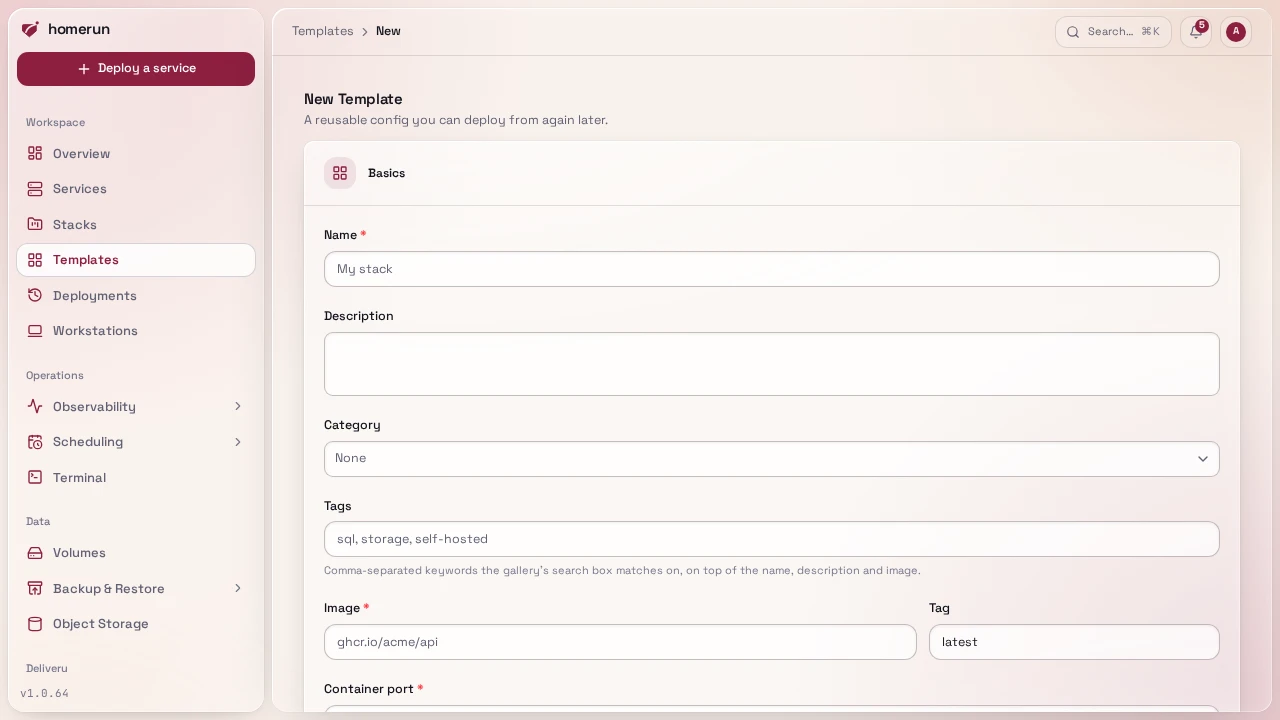
Templates → New Template, whose Runtime section takes the same fields as a service's Container → Runtime plus env files. Like every other resource, a custom template is shared with every account on the instance, see Users and roles.
#Keeping built-ins current
Most built-ins track a floating tag (latest, stable, alpine), so a new
deploy gets the app's current release on its own. The few pinned to a version
(PostgreSQL, MySQL, MongoDB, Valkey, the Docker registry, Uptime Kuma) are
bumped by a weekly job that looks up each image's newest stable release in its
registry and keeps the tag's shape: 18-alpine moves to the next NN-alpine, a
bare major to the next bare major, never to a release candidate or a nightly.
Every bump is only merged after each built-in template, companions included, has
been deployed on a real Docker host and reported healthy.
A bump only changes what a new deploy uses. A service you already created keeps its own tag until you change it on its Settings tab, which matters for a database: moving PostgreSQL or MySQL to a new major needs a dump and restore, not just a new tag.
A database or cache deployed from a template, or pulled in as a linked
container, gets its own data volume, see
Storage volumes. A built-in app
template that keeps data on disk (Ghost, Vaultwarden, Nginx Proxy Manager, …)
declares its data paths, and each one gets a named volume too: <slug>-data,
then <slug>-data-1, and so on. Quick Deploy creates them straight away; the
deploy wizard pre-fills them on its Volumes step, where you can rename or drop
them.
#Host access
Privileged mode, devices, added capabilities and env files give a container
access to the host, so they need write access to System on templates too
(admins, or a custom role with it). Only such an account can set them on
Templates → New Template or deploy a template that carries any of them,
whether through Quick Deploy or Configure. That includes a template
whose linked companion carries them: the whole deploy is refused with a message
naming each template that needs host access, before anything is created.
Non-admins see the same warning on the template's details page and in the New
Service wizard, and Quick Deploy is disabled there.
#The gallery
Templates has the same toolbar as every other list page, a search box
(matching name, description and image) and a category filter built from the
categories actually present, plus a list/card view toggle that defaults to
card here. Built-in and custom templates page independently, 24 at a time
each, so a large custom collection doesn't push the built-in catalog off the
first screen.
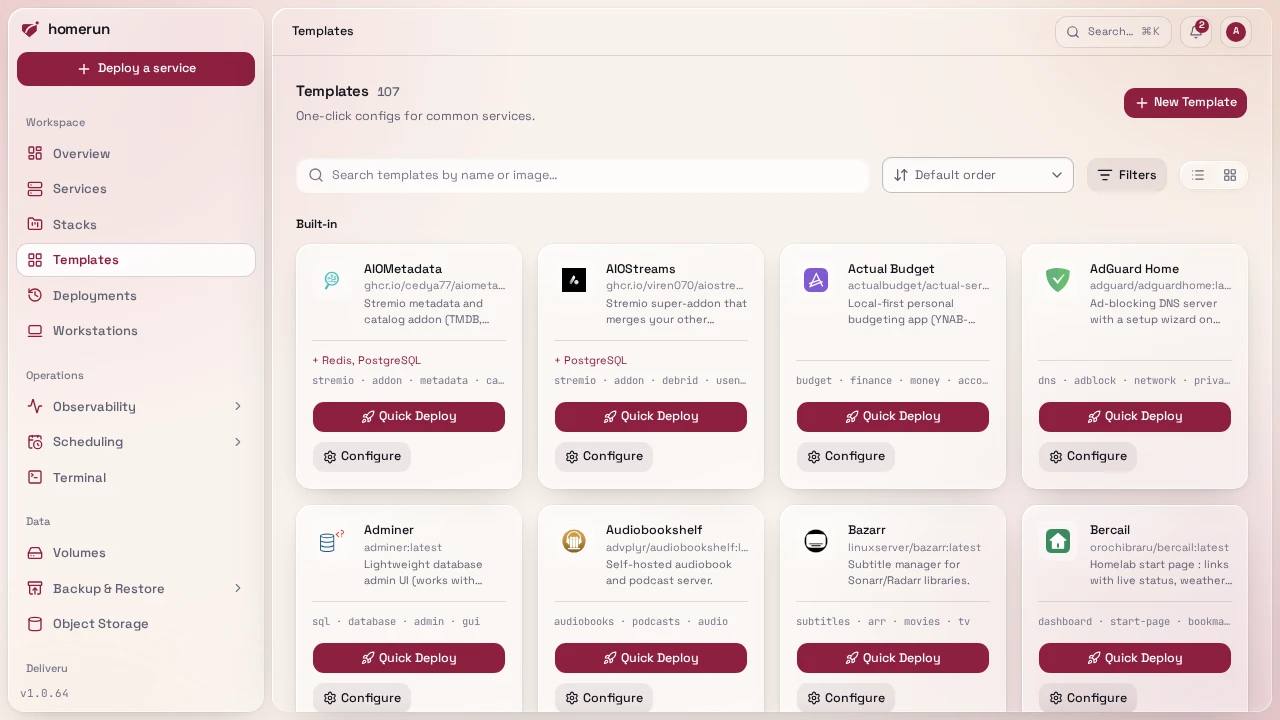
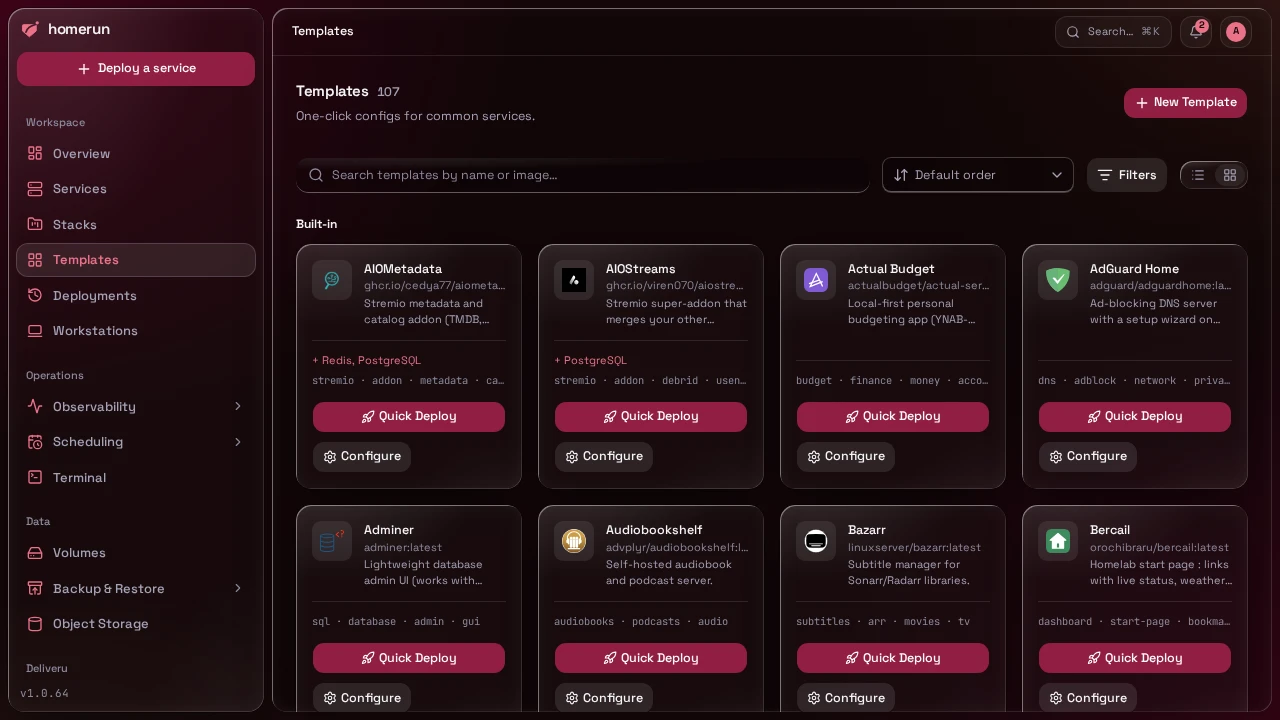
Every card, and the template's own details page, offers two actions:
- Quick Deploy creates the service straight from the template's defaults (name and slug generated for you) and deploys it immediately, no wizard. From the gallery it stays put and toasts a "View" link when it's done, so you can quick-deploy several apps back to back; from a details page it takes you to the new service.
- Configure opens the New Service wizard pre-filled from the template
(
?templateId=, plus?stackId=if you arrived from a stack) so you can adjust anything before creating it. Nothing is deployed until you submit.
#The details page
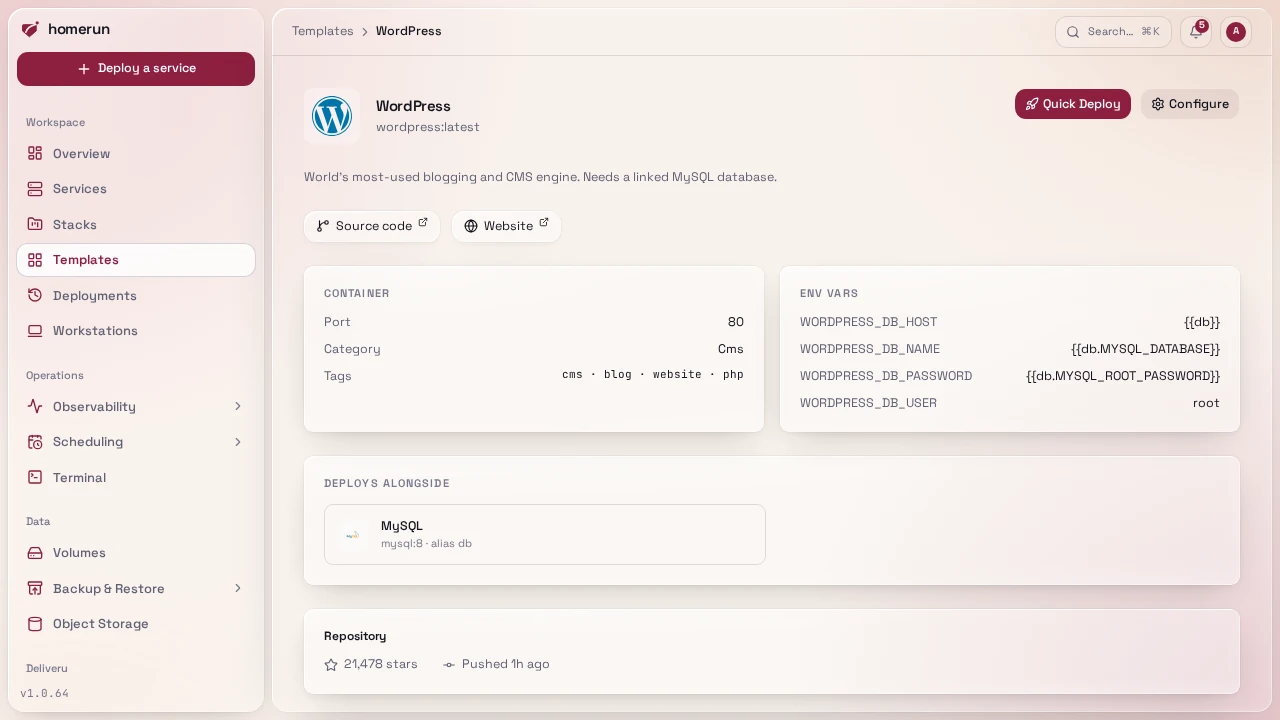
Clicking a template opens its own page: the full description, container port, CPU/memory defaults, every env var it sets, any runtime overrides, and links to the project's source repository and website where it has them. When the source link points at GitHub, Homerun also pulls in the repo's star count, last push, latest release tag and rendered README, so you can read what an app actually is without leaving the dashboard. That's fetched unauthenticated and streamed in after the rest of the page, so GitHub being slow, rate-limiting you (60 requests an hour per IP), or down just means the panel doesn't render.
#Linked containers
A template can pull its companions along with it. WordPress ships linked to
MySQL, Umami and Miniflux to PostgreSQL, Paperless-ngx to Redis, and you can
link your own the same way from the "Linked containers" section on
Templates → New Template: tick any other template, give it an alias (defaults
to a slug of its name), and deploying the primary deploys the companions too.
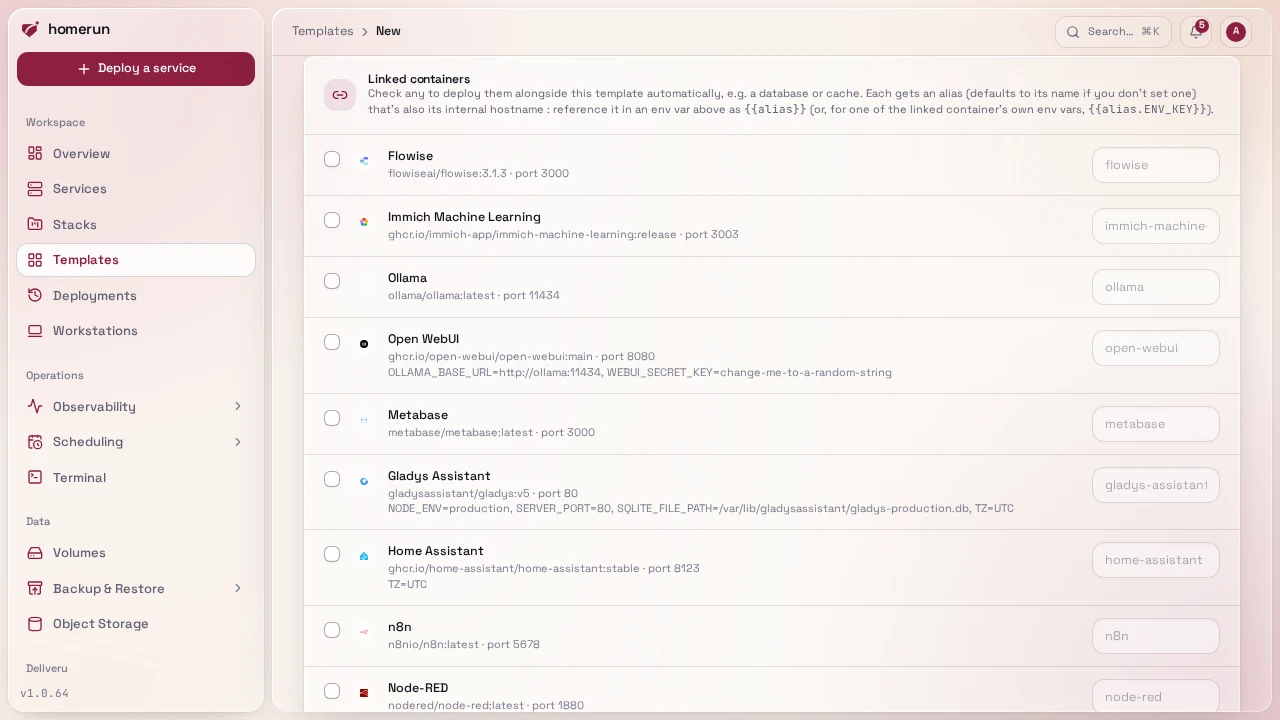
Env vars on the primary template can then reference a companion:
{{db}}resolves to that companion's generated slug, which is its hostname on the shared network, soDATABASE_HOST={{db}}just works.{{db.POSTGRES_PASSWORD}}resolves to the companion's own value for that env var, so the primary and the database agree on a password without you typing it twice.{{secret}}in a template's own env vars or command becomes a random 48-character value, fresh for every service created from it and the same everywhere it appears in that template. The cache templates (Redis, Valkey, Dragonfly, KeyDB, Garnet) use it to start with a password inREDIS_PASSWORD, so a link to them, and an app template that links one, gets a URL that authenticates. In the wizard you see the generated value and can change it; the command follows what you submit.{{secret:hex64}}becomes 64 random hex characters, for apps that only boot with a key of an exact length and format, like aSECRET_KEYthat must be 64 hex characters. Any length from 1 to 999 works ({{secret:hex32}}), and unlike{{secret}}every occurrence gets its own value. Built-in templates fail validation on any other{{secret:…}}token.{{url}}becomes the service's public URL,https://<slug>.<base domain>(or the custom domain you typed in the wizard), for apps that must know their own address, like Vikunja'sVIKUNJA_SERVICE_PUBLICURLor Joplin Server'sAPP_BASE_URL. The wizard shows the token as is and fills it in when you create the service.
An alias that doesn't resolve is left in the deployed env var verbatim rather than silently blanked, so a typo is visible instead of mysterious.
Deploying a linked template creates a stack for the linked services if the
service doesn't already belong to one (so it shows up grouped), gives each
companion a deterministic slug (<primary>-<alias>), and creates them not
DNS-resolvable by default, a database or cache usually doesn't want a public
subdomain. Companions are queued ahead of the primary, and if one fails the
primary is cancelled rather than started against a missing dependency (see
the job queue).
Links go exactly one level deep: you can't link to a template that itself has
links. That's deliberate, it keeps {{alias}} resolution to a single pass with
no cycles to detect.
#Icons
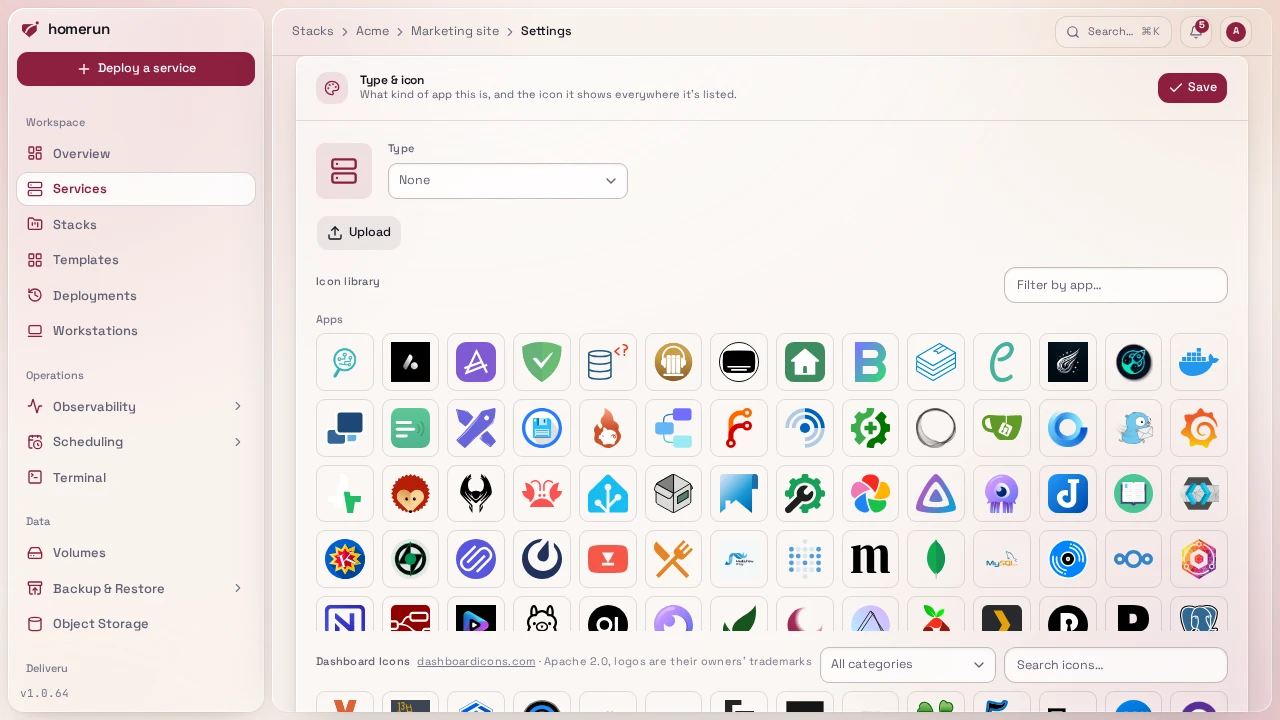
A service's icon is set under its Settings tab, in Type & icon. Three
sources:
- Icon library, the built-in templates' logos plus a bundled set of language, framework and server logos.
- Dashboard Icons, the ~3,300 app logos of Dashboard Icons, searchable by name or alias and filterable by category.
- Upload, a PNG, JPEG, WebP, GIF or SVG image up to 256 KB, stored with the service.
Browsers never contact the Dashboard Icons CDN themselves. Homerun fetches the
catalog and each icon from its CDN once, on first use, and serves them from its
own origin at /icons/dashboard/<name>.svg (always .svg, whatever the format,
so a crawler detector like CrowdSec counts them as static files rather than
pages), so an instance only reachable on a LAN still shows them and viewers' IP
addresses don't leak to a third party. The files are kept on disk under
STORAGE_BASE_PATH (the app's /app/data volume) in dashboard-icons/, the
catalog is refreshed once a day, and an icon upstream doesn't have is retried
after ten minutes. If the CDN can't be reached for an icon that isn't cached
yet, the service shows its category icon instead of a broken image. That route
is public, like the status pages that also show icons.
Logos drawn for one background, like the dark Umami and Open WebUI logos, follow the theme: when Dashboard Icons has a variant for the other background, the dark theme shows the light one (and the other way round), and switching the theme swaps it live. An icon with no variants looks the same in both themes.
A service keeps whatever icon it was created with: switching a built-in template's logo to Dashboard Icons only changes the template (and services created from it afterwards), never an existing service.
#Icon credits
App logos come from Dashboard Icons (Apache 2.0), apart from a handful of apps it doesn't have, whose logos come from their own projects. The language, framework and server logos it lacks come from Devicon (MIT) and Simple Icons (CC0). Every logo is a trademark of its owner.
This guide lives in the project repo: edit it there, and this page follows within a day.