Per-app login wall
A deployed service can require a login before anyone reaches it. Turn on Require login to access this app on the service's Security tab, under Login wall, or in the deploy wizard's Networking step. Turning it on in the wizard enables the built-in Homerun login as the sign-in method; add OAuth providers or an allow-list on the Security tab afterwards.
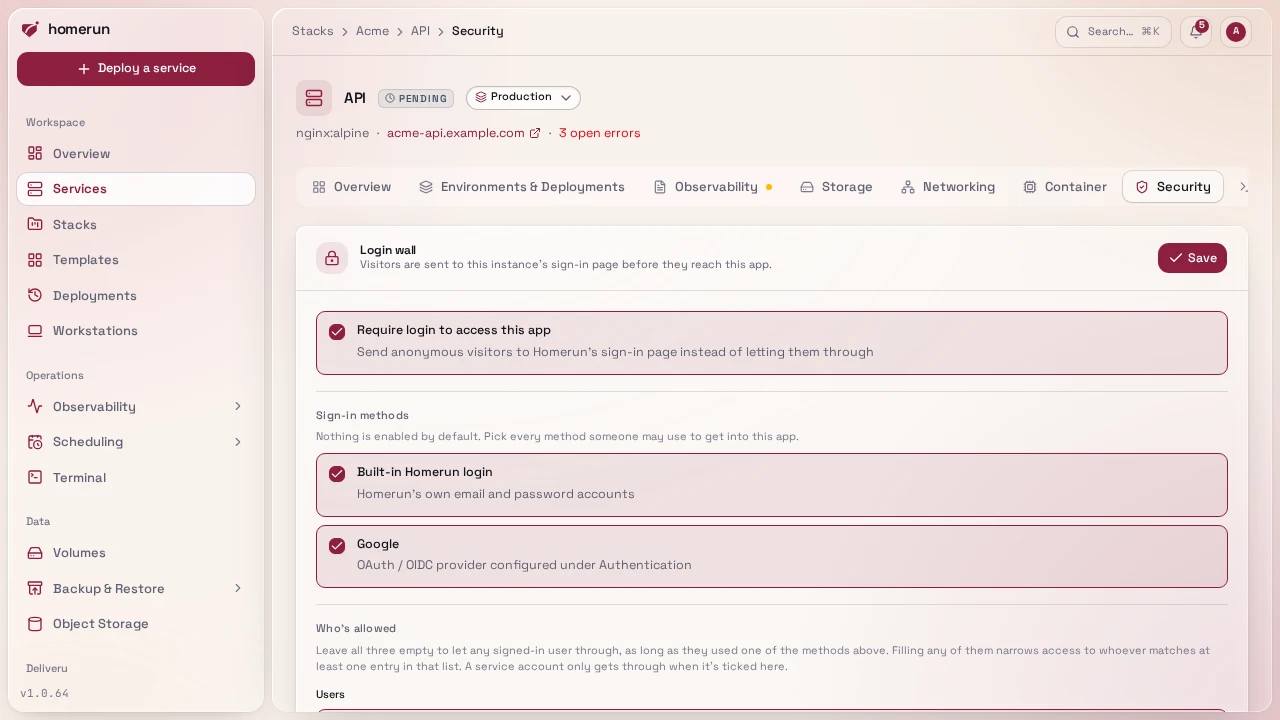
How it works. Traefik's forwardAuth middleware asks Homerun about every request to that hostname. A visitor without a valid session for that app is redirected to Homerun's own sign-in page, the same one as the dashboard's, so passkeys, two-factor codes and your preferred sign-in methods all work there. The page names the app they're signing in to and wears the brand set under Settings → Error pages (name, logo and accent colour), and once they're in it shows a short "taking you to …" screen before sending them back to the page they originally asked for. Homerun then sets a session cookie scoped to that app's own hostname, so the app stays reachable for eight hours without signing in again. Nothing is shared with your other apps: each one gets its own cookie, and a cookie issued for one hostname is rejected on any other.
Only page loads are redirected. A request the app's own page makes in the
background (a fetch, a script, an image) without a session gets a plain 401,
since it can't follow a redirect to a sign-in page on another address anyway.
The app's web app manifest (manifest.json, manifest.webmanifest or
site.webmanifest) is let through without a session: browsers never send
cookies when they fetch it, and it only holds the app's name, icons and colors.
This needs the Dashboard URL set under Settings → General, since that's the URL visitors are sent to in order to sign in. Saving the setting is refused with an explanation if it isn't set yet. It does not need Cross-subdomain cookies (Settings → General), which is unrelated to this flow.
Sign-in methods. Nothing is enabled by default: pick at least one of the built-in login, Emailed code, Emailed link and your configured OAuth providers. The two emailed methods are listed once they're switched on under Authentication (see Emailed codes and links). Only an account linked to one of the methods you pick is let through; someone who signs in another way sees a "you don't have access" screen with a button to sign in as someone else. Every account has an email address, so allowing an emailed method lets any account through on that count; narrow it with the lists below. An emailed method that's later switched off, or loses SMTP, stops counting until it's back. Turning the wall on with nothing picked is refused, so you can't lock yourself out by accident.
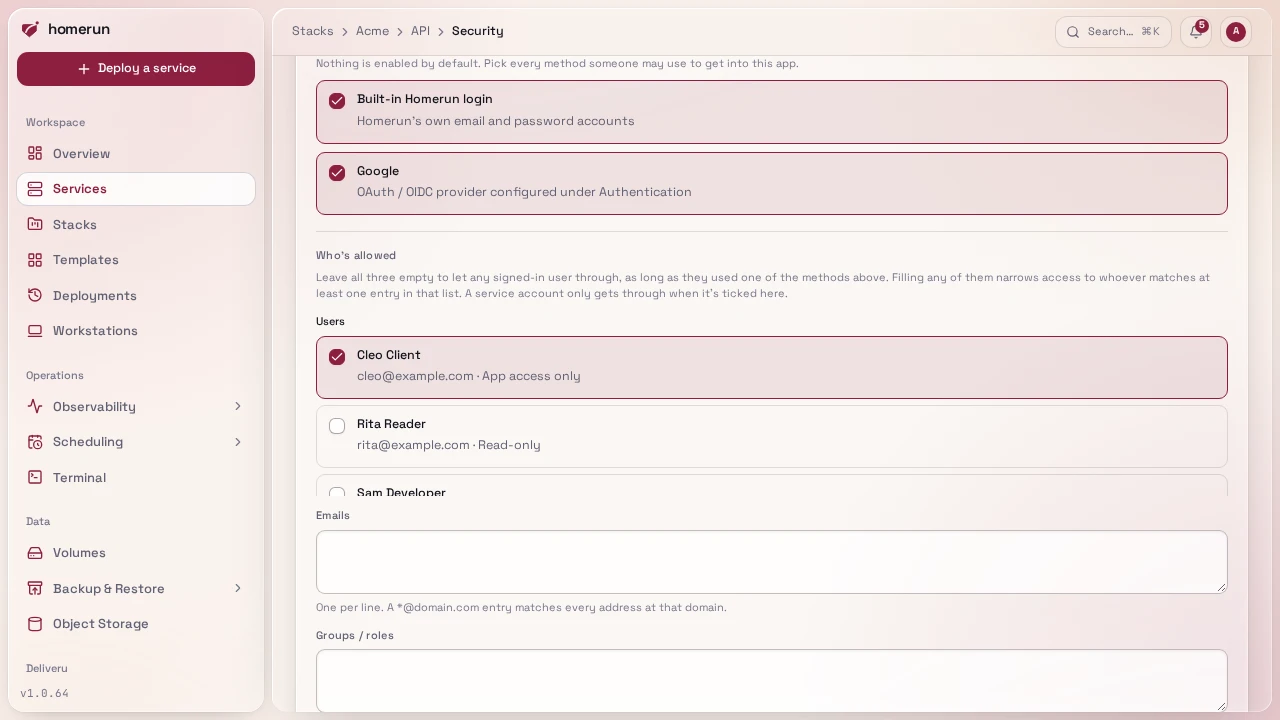
Who's allowed. Three optional lists narrow access further:
- Users — specific Homerun accounts.
- Emails — exact addresses, or
*@example.comto cover a whole domain. - Groups / roles — matched against the group and role claims in the id token
your OAuth provider issued (
groups,roles, and Keycloak's realm and resource roles). Make sure the provider's scopes actually request them, often by adding agroupsscope.
Leave all three empty to let any signed-in user through, as long as they used an allowed method. Filling any of them narrows access to whoever matches at least one entry in that list. Changing any of this takes effect immediately, including for people already signed in to that app.
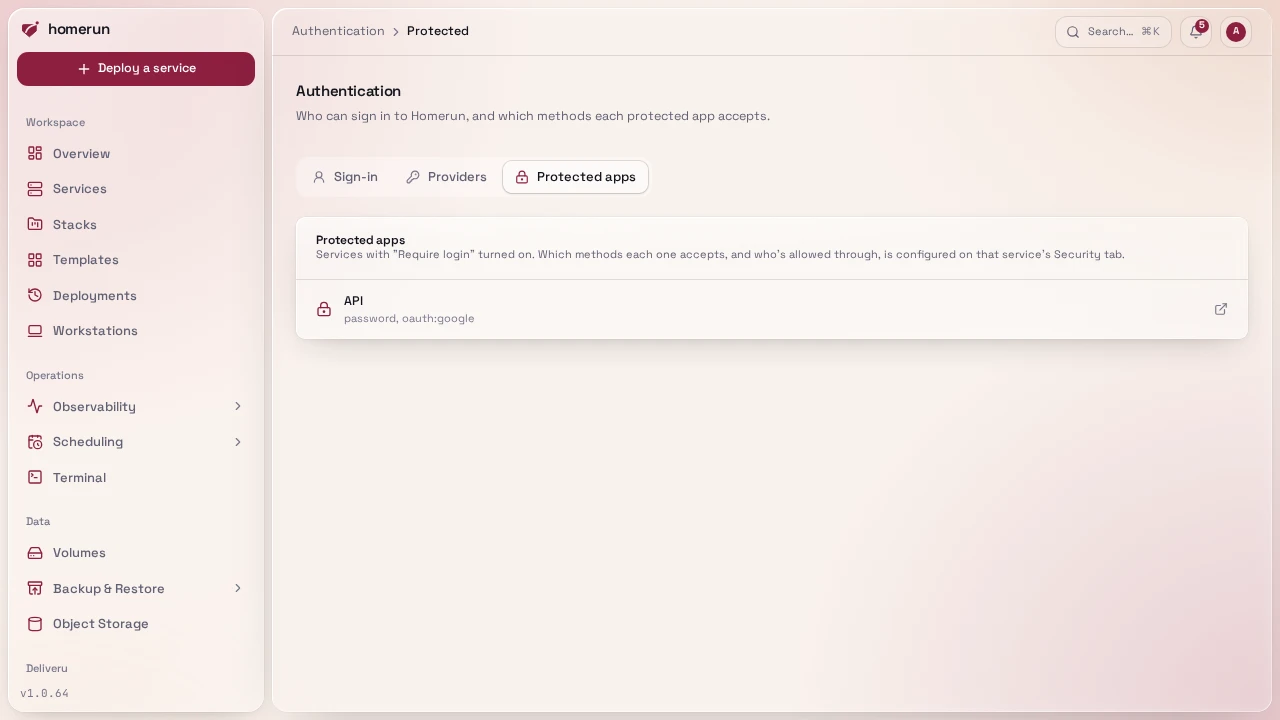
Every service with its wall on is listed under Authentication → Protected apps, with the sign-in methods it accepts.
Turning the wall on or off redeploys the service, which Homerun starts for you when you save (on swarm that's a rolling update, so the app stays up). Only a service with its wall on sends each request to Homerun for a check: a public service is served by Traefik directly, costs Homerun nothing per request, and keeps working while Homerun itself is down. Changing who's allowed, with the wall already on, still applies immediately.
Covering only some paths. Under Login wall paths on the Security tab,
Covers picks Every path (the default), Only these paths (say
/admin, leaving the rest of the site public) or Every path except these
(say /api and /health, for a public API or a health check behind an
otherwise private app). Patterns use the same syntax as
blocked paths: one per line,
matching whole path segments anywhere, / at the start to match from the root,
* for anything. The wall's own sign-in callback always stays behind it. Like
turning the wall on, saving a change redeploys a running service. Pull request
previews keep their own wall on every path.
The app itself receives the signed-in identity as X-Homerun-User,
X-Homerun-Email and X-Homerun-Name request headers, which an app that
supports proxy-header authentication can consume directly.
Groups include the Homerun role. Besides the provider's claims, a user's
Homerun role (admin, developer, viewer for read-only, custom, or
app-user for app access only) counts as a group, so an app can be limited to
admin without an identity provider at all.
Sharing an app with someone who shouldn't see the dashboard. Create them on
/users with the App access only role, then pick them under Users on
the app's Security tab (every account is listed there, with its role). Allow
Emailed code on the app too if they shouldn't need a password: they then
sign in with a code sent to their address. They sign in through the wall like
anyone else, but Homerun itself refuses them everywhere else, and opening the
dashboard shows them only the list of apps they're allowed into. See
Users and roles. Note that a wall with all three lists
empty lets any signed-in account through, app-access accounts included.
Letting CI through: service accounts. A CI job running end-to-end tests
against an app or a pull request preview behind the wall shouldn't borrow a
person's API key, whose permissions cover the whole instance. Create a service
account under Administration → Service accounts instead (or
homerun service-accounts create, the REST API, or the Terraform
homerun_service_account resource), mint it an API key on its API keys tab
(homerun service-accounts keys create <id>, shown once), and tick it under
Users on the app's Security tab or the Previews access policy, or put its id
in auth_allowed_user_ids / preview_auth_allowed_user_ids.
A service account has no sign-in method at all: no password, no emailed code or link, no passkey, no OAuth. It can never open a dashboard session, and no code or link is ever mailed to it. Its API key is its only credential, and it stands in for the sign-in method: the account is let through a wall only when that wall lists it under Users, whatever its methods, emails and groups say. By default its key reaches nothing else, neither the dashboard nor the REST API; an admin can grant it permission areas on its Settings tab, as for a custom role.
In CI, trade the key for the app's session cookie with the CLI:
export HOMERUN_BASE_URL=https://homerun.example.com
export HOMERUN_API_KEY=<the service account's key>
homerun gate session https://pr-42.app.example.com                # prints homerun_app_session=…
homerun gate session https://pr-42.app.example.com --playwright state.jsonThe first prints a Cookie header value; --playwright writes a Playwright
storageState file to load into the browser context instead. The handshake
follows no redirect automatically: the key is only ever sent to the Homerun
dashboard's own address, after checking the wall really redirected there, never
to the app's host. The cookie lasts eight hours, like a person's.
Disable a service account on its Settings tab to refuse its keys right away without deleting it; cookies it already holds stop working within five minutes. Every use of its keys, through a wall or the API and refused ones included, is recorded under its Activity tab and in Service accounts → Activity, with the account's name, the outcome and the caller's address, and stays there after the account is deleted. Service accounts don't apply when Pangolin owns the login (the wall is then Pangolin's, not Homerun's).
Revocation. Access is re-checked when the app cookie is issued, whenever the
rules change, and again at least every five minutes while the cookie is in use.
Deleting, banning or re-roling a user in Homerun, or unlinking one of their
sign-in methods, is picked up on their next request to any gated app. For an app
that filters on groups, the five-minute re-check first asks the user's OAuth
provider for fresh tokens, so a group removed at the provider is noticed within
about five minutes, as long as the provider issues refresh tokens and returns a
new id token on refresh, which usually needs the offline_access scope. If the
refresh fails, the groups from the last sign-in are used until the eight-hour
cookie lifetime runs out.
Limits worth knowing. The wall covers services Traefik routes publicly; a service that isn't publicly routed has no router to gate.
Workstations. A workstation can sit behind the same wall: Settings → Login wall on the workstation, with the same sign-in methods and Users, Emails and Groups / roles lists. Its owner always gets in, whichever method they sign in with; anyone else has to match the rules. The wall replaces the workstation's git sign-in and, for code-server on this server, its IDE password. Turning it on or off restarts a running workstation instead of redeploying a service, and policy changes apply at once as above. The wall can also be set on New Workstation and saved in a preset, which hands it to every workstation created from it. Walled workstations aren't listed under Protected apps, and Pangolin owning the login doesn't change them: a workstation's hostname is always published with Pangolin's own sign-in off.
This guide lives in the project repo: edit it there, and this page follows within a day.