Scheduling and the job queue
Advanced mode: simple mode hides the Scheduling sidebar entry. Everything here keeps working either way, and a hidden page still opens from a link.
Everything that runs on a timer or in the background: scheduled redeploys, cron jobs, the Scheduling page that lists them, and the job queue behind all of it.
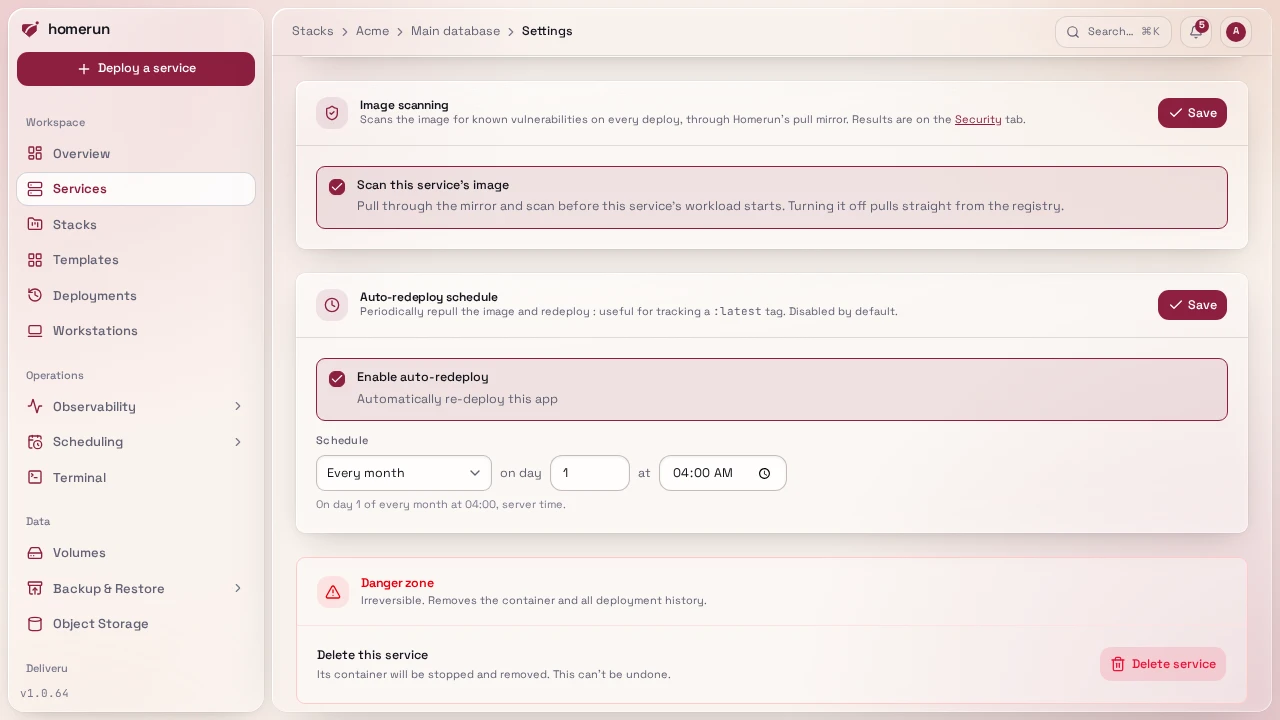
#Scheduled redeploy
Off by default, per service, the Settings tab's cronEnabled checkbox + a
standard 5-field cron schedule. Useful for an image tracking :latest, or a
git-mode service you want rebuilt on a schedule rather than manually. A due
schedule queues a deploy like any other trigger, so a redeploy that's still
waiting its turn is never queued twice.
#Cron jobs
Cron Jobs in the sidebar is the other half of scheduling: a task on a schedule, or run on demand, that isn't tied to a service. Each job runs one of three ways:
- Container: an image (plus optional tag, command override, env vars, and
private-registry credentials) run as a throwaway container. Homerun pulls the
image if it's missing, runs it to completion, keeps its stdout/stderr, and
removes the container. Renovate is the typical one:
renovate/renovatewithRENOVATE_TOKENand friends as env vars, and its config as a config file. - Source code: paste a script and pick a runtime (Bun, Node.js, Deno, Python
or
sh), and it runs on the official Alpine image for that runtime, written to/homerun/main.<ext>. Install dependencies from the script itself if it needs any (Bun and Deno fetch npm imports on their own). - Host command: a shell command run through
sh -con the Docker host itself, not inside Homerun's container: a throwaway privilegedalpine:3helper sharing the host's PID namespace usesnsenterto step into the host's own namespaces, so the command sees the host's filesystem, network and processes as root. Only the job's own env vars are set. Needs write access to System (admins only, unless a custom role has it). With rootless Docker "the host" is the rootless daemon's own namespace, and with Docker Desktop or OrbStack it's their Linux VM, not your Mac.
Every kind takes env vars, and the lock next to one marks it secret like a service's (see Marking a variable secret): its value is hidden behind a fixed mask on the job's page, kept as stored until you type a new one, and always redacted for an AI agent.
Container and source code jobs also take config files: any number of text
files, each an absolute path and its content, written into the container before
its process starts, so an image that reads a config file gets one without
building your own image. Homerun wraps the image's entrypoint in a /bin/sh
script that writes the files and then runs the image's own entrypoint and
command, so the image needs /bin/sh, and the path must be writable by the user
the image runs as: /tmp always is, a root-owned directory isn't for an image
that runs as non-root, such as Renovate. Up to 20 files of 64 kB each, text
only. A file can carry a mode (octal, like 600 for one holding a token),
set right after it's written.
They also take what the container itself runs with:
- User:
uid,uid:gid,nameorname:group, blank for the image's own. The container writes its config files as that user. - Volumes: storage volumes (from Volumes) mounted at a container path, optionally read-only, for a cache or data that outlives a run, such as the Renovate cache. A fresh named volume takes the owner of the image's own directory at that path when the image has one; at a path the image doesn't have, it's root-owned and a non-root user can't write to it. A volume lives on this server, so a job running on another build server can't mount one. New volume under the list creates one without leaving the form (a Docker volume or a host path, like Volumes → New volume, and it needs write access to Volumes & backups) and adds it to the job's volumes, ready for its container path.
- Docker socket: mounts the Docker socket at
/var/run/docker.sockand adds the socket's group to the container, so a non-root user can use it. That's root on the host, so it needs write access to System, both to set it and to manage or run a job that has it.
#Running on another host
Container and source code jobs have a Run on picker, shown once at least one
remote host with a direct Docker connection is
registered: This host (the default) or one of those hosts, reached over
tcp:// or, with nothing but sshd and a Docker user on the other end,
ssh://. The run
works the same as a local one, pulled, run, its output streamed back and the
container removed, only against that daemon. The first run on an ssh:// host
records its SSH host key, and every run after that refuses a different one.
What changes on another host:
- Host command jobs always run on this host, so they have no picker.
- Homerun Agent hosts aren't offered: an agent builds images but has no endpoint for one-off runs.
- Volumes can't be mounted, since they live on this server: a job with volumes and a remote host fails its run with "Volumes live on this host".
- Docker socket mounts the remote host's
/var/run/docker.sock, not this server's, and without adding its group, so the container has to run as a user that can already open it there (root, or a member of that host'sdockergroup).
The same field is remoteHostId on the REST API's cron job
routes, and its errors are the remote host's own: see
Direct Docker connection over SSH
for what "refused Homerun's key" and the socket errors mean.
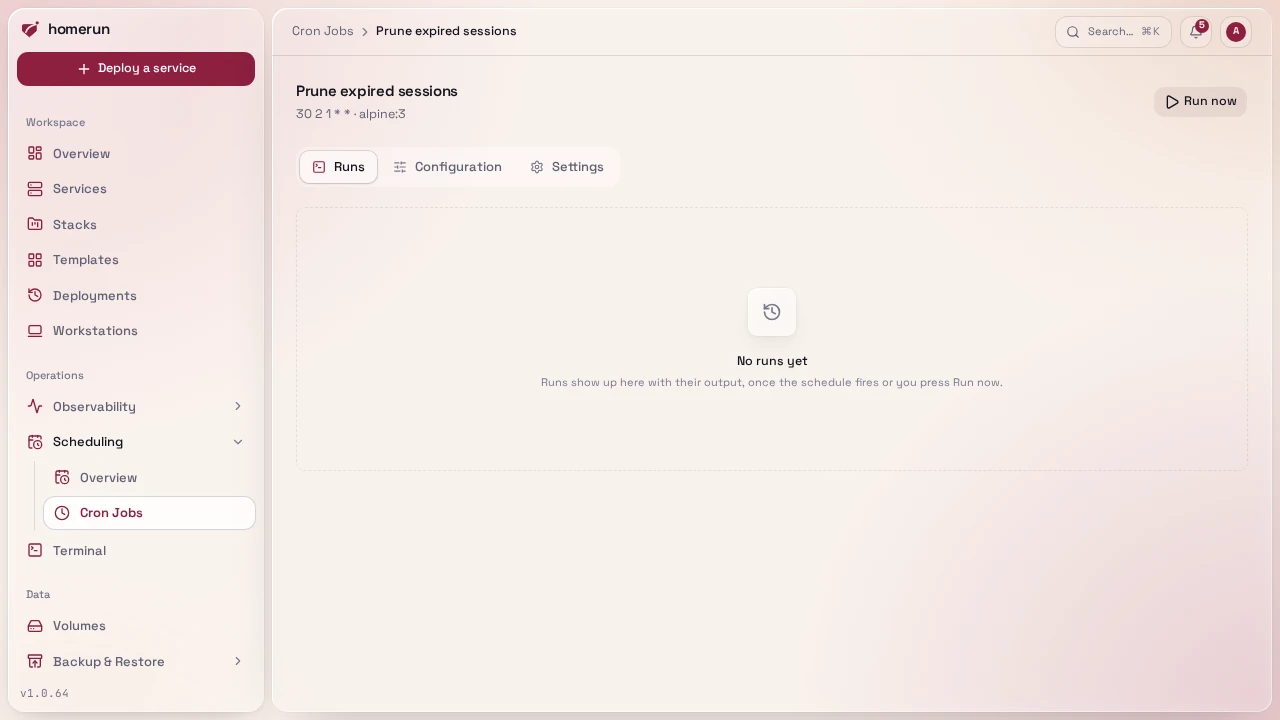
A job's page has three tabs: Runs, Configuration (what runs and how: everything above) and Settings (name, schedule, timeout, the schedule toggle, and deleting the job). Runs leads with the latest run: press Run now in the header and it shows the run queued, then running with its output filling in every couple of seconds, then its outcome and exit code. Below it, the run history lists each run with its start, trigger (the schedule or a manual run), exit code and duration. Click one for the run's own page: its status, trigger, start and finish, duration and exit code at the top, then a Logs tab with the full output (still following a run in progress) and a Traces tab with the worker's trace of the run (picking it up, running the container with its exit code, and recording the result), with a link to the full trace under Monitoring → Traces. A trace lands a few seconds after the run finishes and is kept for the trace retention set under Monitoring → Settings; runs from before this version have no trigger or trace recorded.
Give it a 5-field cron schedule, a timeout (default 900s, the job is killed past
it), and turn the schedule on or off without deleting the job. With the schedule
off it's a one-off task: it only runs when you press Run now, or when
something calls POST /api/v1/cron-jobs/{cronJobId}/run with an API key (a CI
step, another service), which queues a run and answers 202 with the queue
job's id to poll on GET /api/v1/jobs/{jobId}. Runs go through the same
job queue as deploys and backups, so Run now returns
immediately and one job never runs twice concurrently. Each run's exit code,
captured output (its last 64k characters) and trace are kept on the job's page,
and enabled jobs also show up on the Scheduling page next to cron redeploys and
backups.
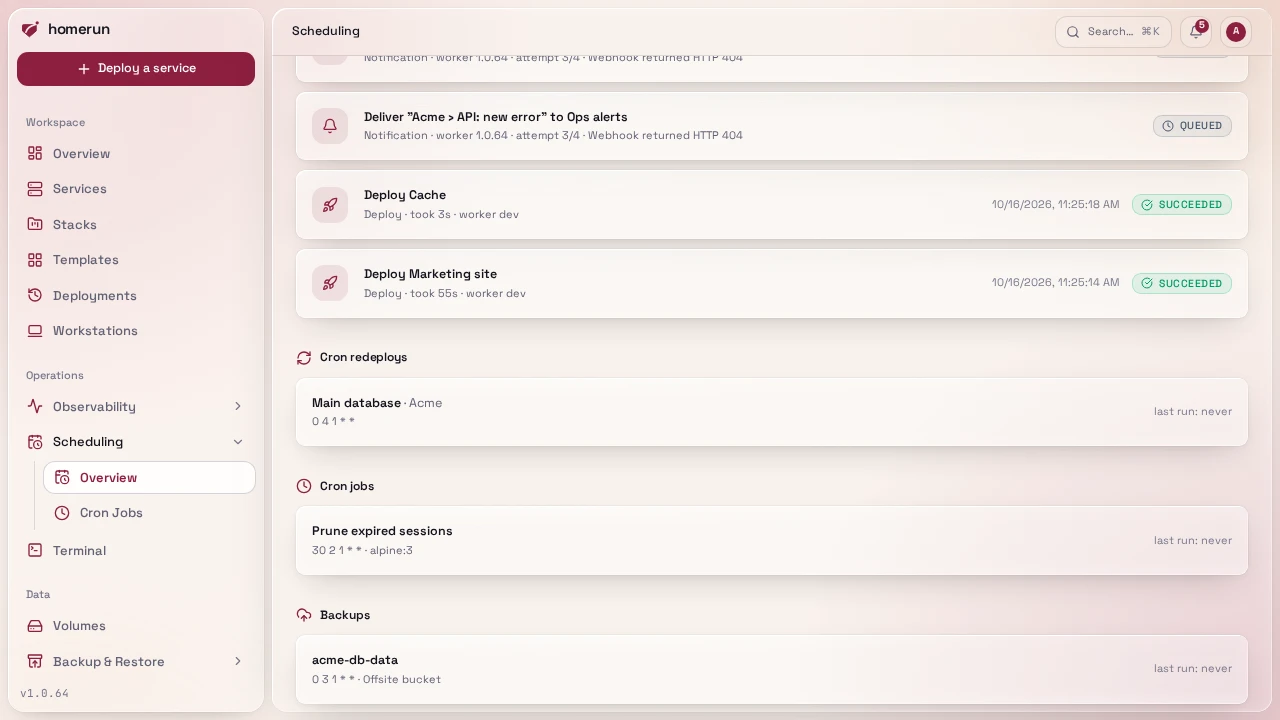
#The Scheduling page
/scheduling is one instance-wide view of everything that runs on a timer or in
the background:
- Cron redeploys, every service with scheduled redeploy turned on, with its schedule and when it last fired.
- Cron jobs, every enabled cron job.
- Backups, every volume with a backup schedule, and which backup destination it writes to.
- The job queue, what's running right now, what's waiting, and how the last handful of jobs finished, refreshing itself every few seconds while anything is active.
It's a read-only overview: edit a schedule on the thing that owns it (the service's Settings tab, the cron job's own page, the volume's page).
#The job queue
Deploys, git builds, image scans, volume backups and Docker cleanups all run through one background worker instead of inside the request that triggered them. That buys four things worth knowing about as an operator:
- Repeats collapse. Queueing a deploy for a service that already has one waiting doesn't queue a second, it joins the one that's already there. Push five times in a minute to a git-based service on a redeploy schedule and you get one build, not five.
- One deploy per service at a time. Different services still deploy in parallel (up to three jobs at once); the same service never deploys twice concurrently.
- Linked services keep their order. Deploying a template that links a database or cache queues the companions first and the primary service behind them, and if a companion fails, the primary is cancelled rather than started against a missing dependency.
- A Docker cleanup runs alone. A host-wide prune waits for anything already running to finish and holds new work back while it runs, so it can't delete images or build cache out from under a deploy in flight. It does take precedence over deploys that are merely queued.
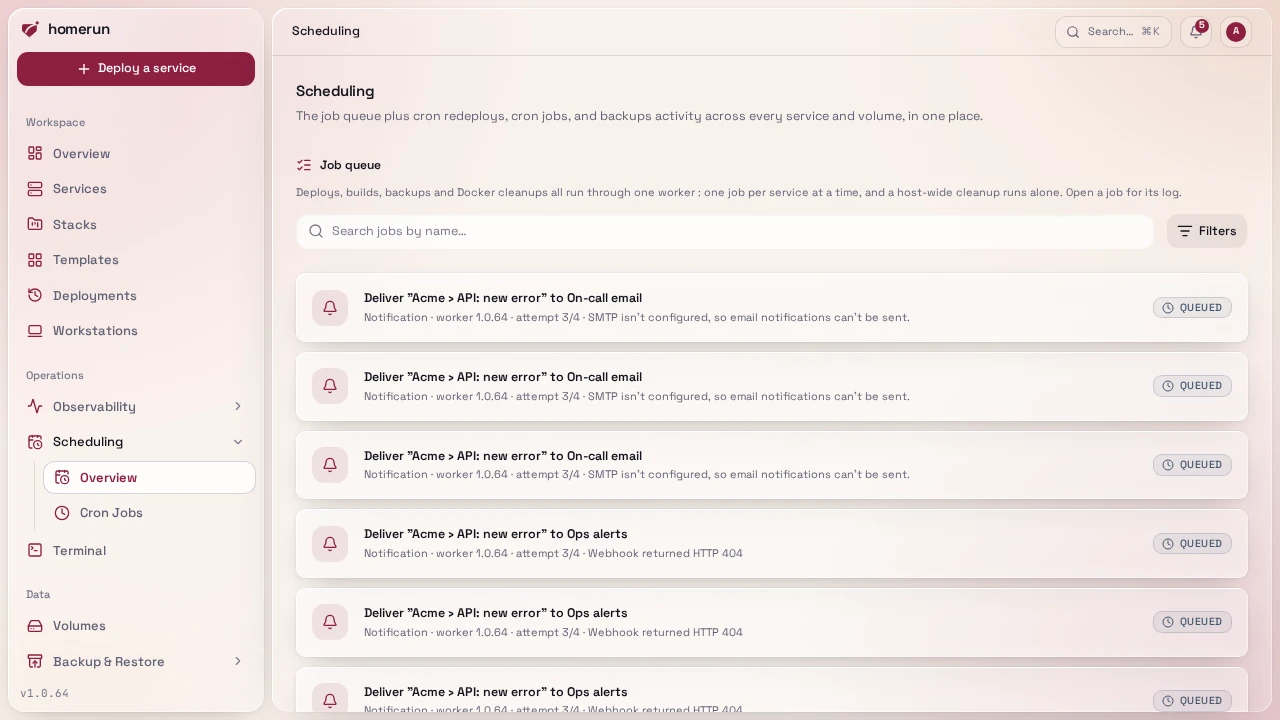
The Scheduling page has a Job queue panel showing what's running, what's waiting, and how recent jobs finished. Each job shows an icon for its type, how long it took and which worker version ran it. Search jobs by name, or filter them by type in Filters (with how many of each there are). Click a job to open its own page: when it was queued, started and finished, its attempt and stage, its error, and its log, which keeps filling in while the job runs. Work that was still running when the app was restarted is put back on the queue at next boot.
A failed deploy is not retried automatically, you'll see it fail and decide; backups get one retry.
This guide lives in the project repo: edit it there, and this page follows within a day.