Configuration
Almost everything is a setting in the dashboard. The first-run wizard asks
for what a first deploy needs, and /settings (needs the Settings permission,
admins have it) lets you change any of it later, live, with no restart and no
file to edit. If you installed with the
one-liner,
that's the whole story: it set the handful of values the container itself needs
before it can start, and everything after that is the UI.
The rest of this page is for the two cases where that isn't enough: the few values that genuinely can't live in the database, and the optional config file for people who'd rather manage settings as code.
#What you set in the dashboard
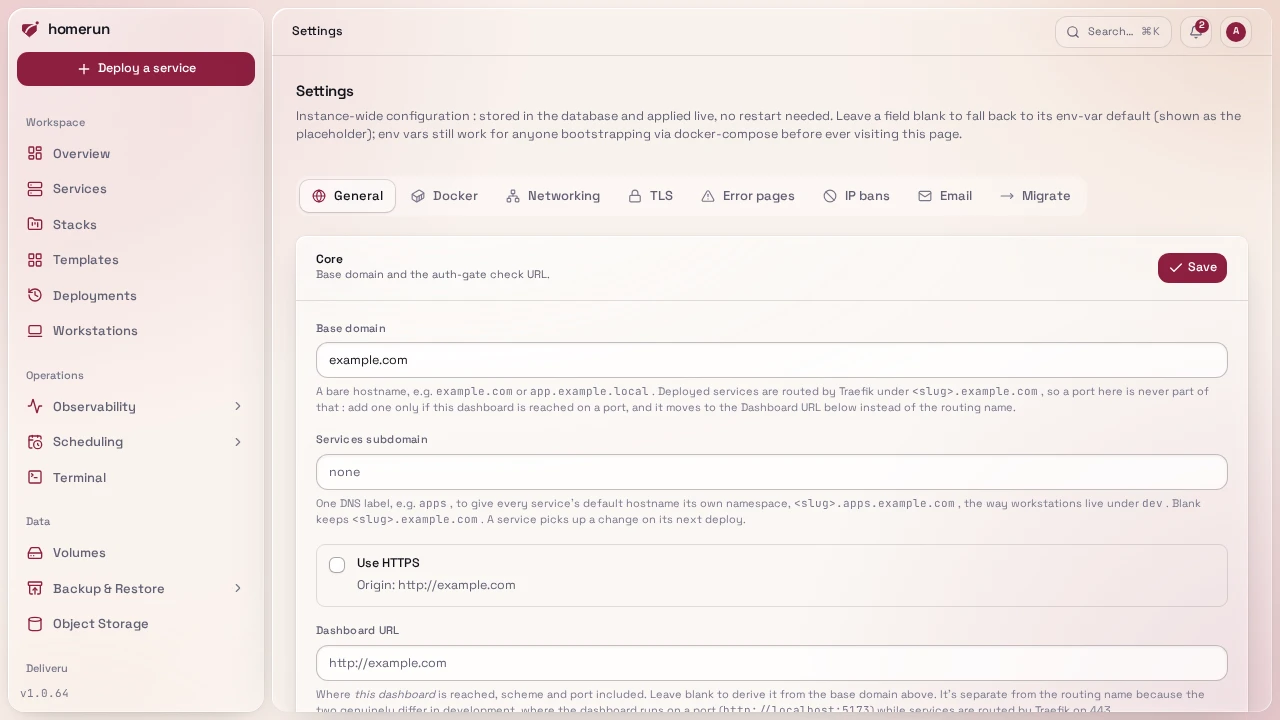
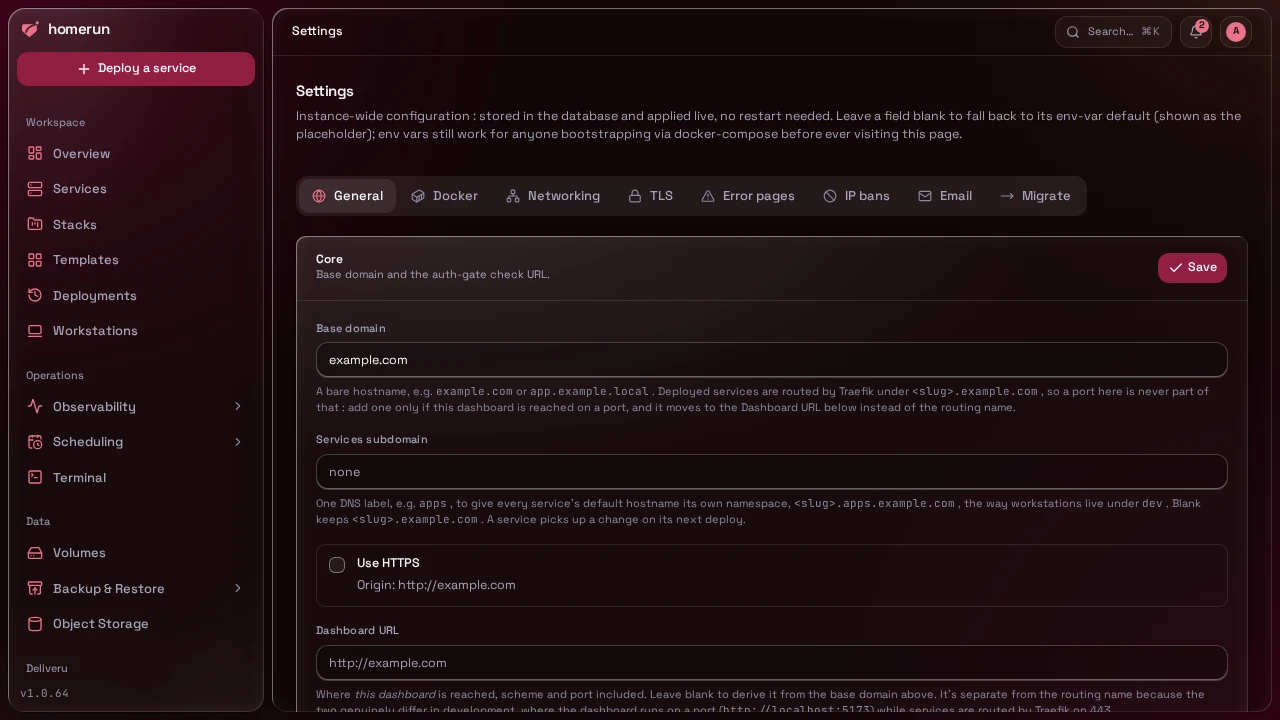
/settings is one page per tab, all behind the Settings permission:
| Tab | What's on it |
|---|---|
| General | Base domain, Services subdomain, Use HTTPS, Dashboard URL, the login wall's auth-check URL, cross-subdomain cookies, the default interface mode, resource limits, and the release channel |
| Docker | Docker socket path, the shared network name, image scanning and its block policy, orchestration mode (swarm or standalone) |
| Networking | Traefik entrypoint, cert resolver, ACME email, the dynamic-config directory, and the HTTP cache. DNS automation (Cloudflare or Pangolin) has its own DNS page under Integrations |
| TLS | One certificate for the base domain and its subdomains, served instead of Let's Encrypt (a Cloudflare origin certificate, say), see One certificate for the whole instance |
| SMTP host/port/user/password/TLS/from address, used for invite emails and email-change confirmations, with a "Send test email" button once saved | |
| Migrate | Import applications, compose stacks and databases from Dokploy or Coolify, see Migrating from Dokploy or Coolify |
In simple mode the Docker, TLS, Error pages and IP bans tabs are hidden from this page; they still open from a link.
Use HTTPS sets the scheme of the Dashboard URL derived from the base domain, and the helper text under it shows the resulting origin.
Sign-in methods, and the instance-wide two-factor and passkey requirements, live
on their own Authentication page rather than a /settings tab, see
Authentication providers. Git hosting accounts
live on Git Providers, see Connecting a git provider.
The built-in registry's own auth toggle and public hostname live on its own
Docker Registry page's Settings tab, see
Docker Registry. Per-account preferences (theme, accent
colour) live on your profile, not here.
Secrets you enter here, SMTP passwords, OAuth client secrets, DNS provider and
Pangolin tokens, are encrypted at rest with a key derived from AUTH_SECRET.
Every tab but Migrate can also be set from Terraform or the REST API
(/api/v1/instance/settings, /smtp, /tls, /error-pages, /ip-bans), with
the same checks and side effects as the form: homerun_instance_settings,
homerun_smtp_settings, homerun_tls_settings, homerun_error_pages and
homerun_ip_ban_settings, see
Infrastructure as code.
#Base domain vs. Dashboard URL
The one pair worth understanding before you type into it, because they look like the same thing and aren't:
- Base domain is the DNS suffix your deployed services are routed under, a
service appears at
<slug>.<base domain>. It never contains a port, because a Traefik host rule can't have one. - Dashboard URL is where you reach Homerun itself, scheme and port included. Leave it blank to derive it from the base domain; fill it in when they differ.
Services subdomain (blank by default) moves every service's default hostname
one level down, to <slug>.<subdomain>.<base domain>, the way workstations live
under dev.: with apps, a service lands at web.apps.example.com, so a
service's slug can never shadow the dashboard, the registry or anything else
sitting directly under the base domain. It's one DNS label (letters, digits and
dashes). A service picks the new hostname up on its next deploy; DNS automation
creates the new record then and deletes the old one once that deploy succeeds
(unless something else still routes that host), so the old hostname keeps
answering until the service has moved. Changing the base domain moves the
records the same way. Point a wildcard (*.apps.example.com) at the server, and
a
whole-instance certificate
for *.example.com doesn't cover it, so add the subdomain's own wildcard name.
They're the same in a normal deployment (example.com → https://example.com).
They differ in development, where the dashboard is on http://localhost:5173
while services are routed by Traefik as <slug>.localhost. Typing a port into
Base domain moves it to the Dashboard URL for you rather than corrupting your
service hostnames.
#What the container needs before it can start
These three can't be dashboard settings, because they're needed before there's a
database to read settings from, or because changing them at runtime would break
every session in flight. The installer sets all three for you; with plain
docker compose you set them once in .env and never touch them again.
| Var | What it is |
|---|---|
DATABASE_URL | Postgres connection string. Defaults to the bundled postgres service; you only change it if you're bringing your own database. |
AUTH_SECRET | Signs sessions and derives the encryption key for every secret stored in the database. Generate a real one (openssl rand -hex 32). Changing it later invalidates every stored secret. Left empty (AUTH_SECRET=) it counts as unset, and the dashboard's setup banner flags it. |
ORIGIN | The scheme, host and port you actually open the dashboard at. See below. |
ORIGIN is the one that bites people, so it's worth a paragraph. It's how the
app is served, which is why it's fixed for the life of the process rather than
editable in the UI: the browser's cookie security depends on whether it's http
or https, and flipping that at runtime would rename the session cookie and
sign everyone out mid-session. Two failure modes if it's wrong:
- Leaving it at
localhostwhile reaching the instance at anything else makes the first sign-up fail with "Invalid origin", because that's the only origin the auth layer trusts. - Serving over plain HTTP at a bare IP while
ORIGINsayshttpsmakes sign-in appear to succeed and then hang, because the browser silently discards aSecurecookie on a non-secure origin.
Set it to exactly what you type in the address bar: http://203.0.113.10:3000,
or https://homerun.example.com.
Three more exist and you can usually ignore them: PORT (default 3000, the
port the app listens on inside its container), CONFIG_FILE (default
./homerun.yaml, where the optional file below lives) and STORAGE_BASE_PATH
(default ./data, /app/data in the container image, which is its data volume:
where the app caches Dashboard Icons on disk).
#The app and the worker
Homerun's Docker access lives in a separate worker container, not the
dashboard container itself: the app asks the worker for everything from a
container's status to the web terminal, over a small internal HTTP API. Every
compose file in this repo already wires the two together with working defaults,
so you only need these if you're running them apart from each other or want more
control:
| Var | Default | Meaning |
|---|---|---|
WORKER_URL | http://worker:7430 | Where the app reaches the worker. Change this if the worker runs on a different host or under a different service name. |
WORKER_TOKEN | derived from AUTH_SECRET | The shared bearer token the app presents to the worker. Leave it unset (both sides derive the same one automatically) unless you want to set it yourself. |
WORKER_PORT | 7430 | The port the worker listens on for that API. Set on the worker's own environment, not the app's. |
The worker also bounds every call it makes to Docker, so a stuck daemon fails a
job instead of hanging it. Set these on the worker's own environment, as Go
durations (90s, 20m):
| Var | Default | Meaning |
|---|---|---|
WORKER_DOCKER_TIMEOUT | 60s | How long one Docker call (inspect, create, start, remove) may take before it fails. |
WORKER_DOCKER_STALL_TIMEOUT | 10m | How long a Docker stream (a backup's tar, logs, a pull) may go without data while its container stops answering. |
WORKER_JOB_STALL_TIMEOUT | 15m | A job that made no progress at all for this long fails through its normal retry path, even though the worker is healthy. |
Nothing deploys, no container status refreshes and the web terminal won't open while the app can't reach the worker, so if something feels stuck, check the dashboard's setup diagnostics first (see The dashboard): it reports the worker and the Docker socket it fronts as two separate checks.
#Compose-only variables
Read by compose.prod.yaml itself, not by the app, so they only apply if you're
running that file by hand:
| Var | Default | Meaning |
|---|---|---|
ACME_EMAIL | admin@example.com | Let's Encrypt account email for Traefik's cert resolver |
DASHBOARD_DOMAIN | (unset) | Hostname Traefik serves the dashboard at. Unset, it's on port 3000 with a self-signed cert |
DASHBOARD_ENTRYPOINT / DASHBOARD_CERT_RESOLVER | websecure / letsencrypt | Which Traefik entrypoint and resolver that dashboard route uses |
POSTGRES_DB / POSTGRES_USER / POSTGRES_PASSWORD | homerun / homerun / homerun | The bundled database's credentials, wired into DATABASE_URL for you |
HOMERUN_VERSION | latest | Pin the app image to a specific published tag |
#The optional YAML file
homerun.yaml exists for people who'd rather keep configuration in a file than
click through a UI, infrastructure-as-code setups, config management, a git-
tracked server. You do not need it. Every key in it is also a /settings
field, and a value stored in the database wins over the file, so a setting you
change in the UI stays changed.
compose.prod.yaml doesn't mount it : the compose path needs no file beyond
.env. To use one, copy homerun.example.yaml next
to the compose file and add the mount yourself:
services:
  app:
    volumes:
- ./homerun.yaml:/app/homerun.yaml:roThe example file carries a $schema comment pointing at homerun.schema.json,
generated from the same schema that validates it, so an editor with the YAML
language server extension gives you linting and autocomplete. The installer
(Option A) writes a homerun.yaml and mounts it for you, so there's nothing to
add there.
| Key | Default | Dashboard equivalent |
|---|---|---|
baseDomain | localhost | Settings → General |
auth.origin | ORIGIN env, else derived from baseDomain | Settings → General ("Dashboard URL") |
auth.crossSubdomainCookies | false | Settings → General. Unrelated to the per-app login wall, which doesn't need it |
authCheckUrl | http://<app container>:<PORT>/api/v1/auth-check when the app runs in a container on the Docker network, else http://host.docker.internal:<PORT>/api/v1/auth-check, where <PORT> under bun run dev is the port the dev server actually listens on | Settings → General. Must be reachable from inside the Traefik container. Redeploy routed services after changing it |
docker.socketPath | auto-detected | Settings → Docker |
docker.networkName | homerun | Settings → Docker |
traefik.entrypoint | websecure | Settings → Networking |
traefik.certResolver | letsencrypt | Settings → Networking |
traefik.acmeEmail | (unset) | Settings → Networking. Informational mirror of ACME_EMAIL, Traefik reads the compose one |
traefik.dynamicConfigDir | TRAEFIK_DYNAMIC_CONFIG_DIR env, which the shipped compose files and the installer set to /app/traefik-dynamic (unset, custom SSL does nothing) | Settings → Networking, see Domains & SSL |
smtp.enabled | false | Settings → Email |
smtp.host/port/user/password/secure/from | (unset) | Settings → Email. All required together; a partial config is treated as disabled with a warning |
logLevel | info | (file only) debug | info | warn | error |
logFormat | console | (file only) console | json |
Three things have no file form at all and are dashboard-only: orchestration
mode, DNS automation (Cloudflare and Pangolin), and OAuth/OIDC sign-in
providers. They hold secrets or live state that belongs in the encrypted
database row rather than a plaintext file on disk. An auth.oauthProviders key
left in homerun.yaml from an older version is ignored; add those providers on
the Authentication page instead. A brand new instance starts in swarm mode when
its Docker daemon is already a rootful swarm manager (what the installer sets
up) and in standalone mode otherwise; after that the mode only changes from
Settings → Docker.
#The first-run wizard
Signing in for the first time drops you into a six-step wizard (Core / Docker /
Traefik / Email / DNS / Review) that sets exactly the fields above, once. The
DNS step connects a Cloudflare zone for the base domain, or turns Pangolin on,
with the same fields and Test checks as the DNS page, including the optional
Newt credentials that have Homerun run the tunnel client itself; Pangolin's
target host, target port and sign-in option keep their defaults there. It calls
the same code /settings does, so there's nothing it can set that you can't
change afterwards, and nothing it leaves out that you have to go find in a file.
#A note on lockout
Saving a broken OAuth provider (an unreachable or invalid discovery URL) used to
be able to lock the entire instance out, the auth layer validates every
configured provider on every request that touches auth, including a plain page
load. The Authentication page now validates a discovery URL before saving
anything, and session lookups degrade to "signed out" rather than a hard error
on any other auth failure, so /settings stays reachable to fix whatever's
wrong. If you're editing the database by hand rather than going through the UI,
keep this in mind.
#Next steps
- Docker Cleanup, System Logs, and what the dashboard tells you about its own health.
- Authentication providers and Users and roles, sign-in methods and roles.
This guide lives in the project repo: edit it there, and this page follows within a day.