Environments
Advanced mode: simple mode hides the Environments list on a service's Environments & Deployments tab. Everything here keeps working either way, and a hidden page still opens from a link.
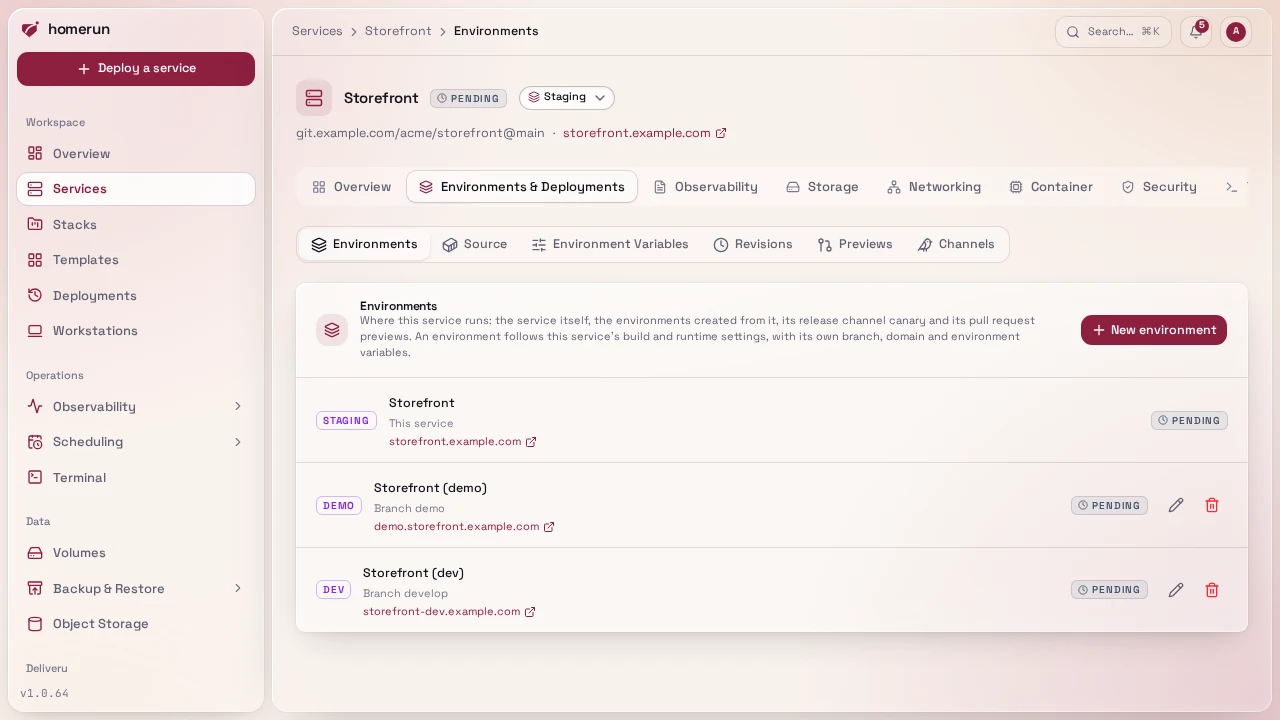
A service's Environments & Deployments tab opens on its Environments:
every place the service runs. That's the service itself (production, unless
its Settings give it another environment name), the environments created from
it, its release channel canary and its
pull request previews. The tab's other sections are
the service's source,
environment variables, revisions,
previews and channels.
#Creating an environment
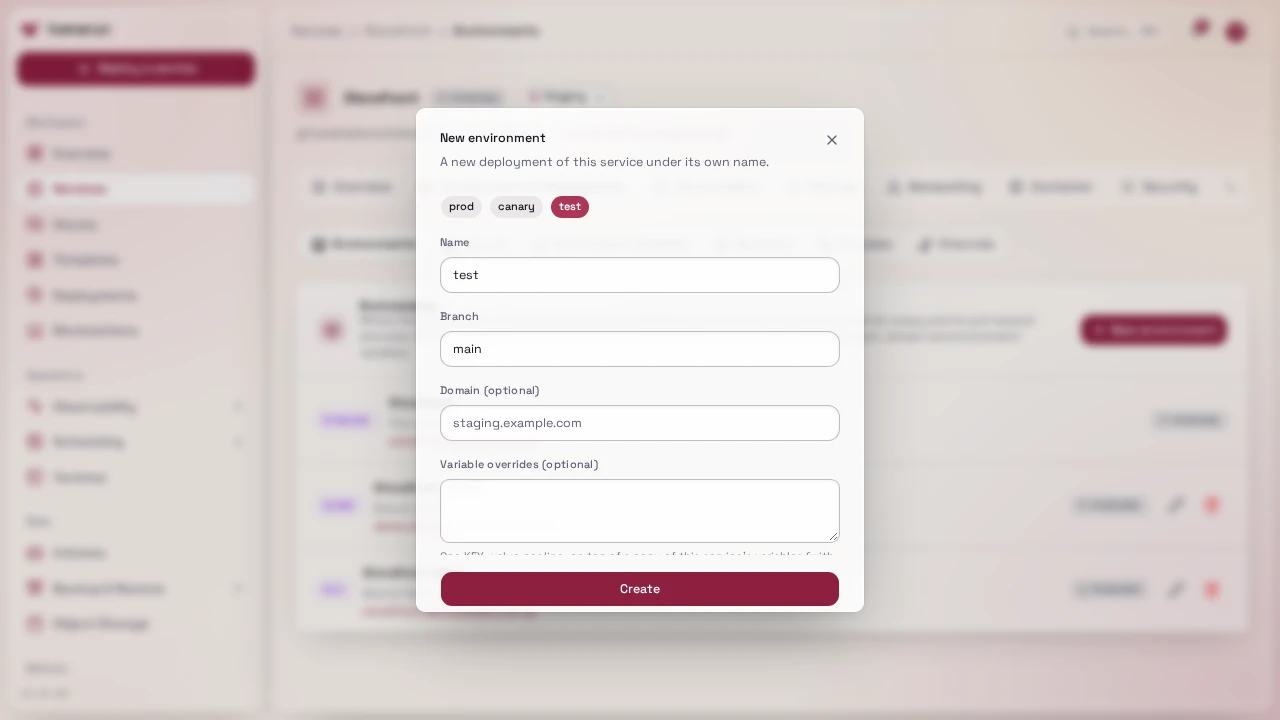
New environment creates another deployment of the service under a name of
its own and, with Deploy it now ticked, deploys it right away (clear it to
set the environment's variables up first). Pick a preset (prod, staging,
canary, test, dev or demo, those the service doesn't use yet) or
type any name of up to 32 lowercase letters, digits and dashes. preview is
reserved, and canary is too while the service's release channels are on, since
their canary uses it.
- Branch (a service built from git) or Image tag (an image service): what the environment runs. It starts as the service's own.
- Domain: an extra hostname for it. It always gets its default one,
<service-slug>-<name>under the instance's base domain. A domain something else already routes (another service, a redirect, a workstation, or Homerun's own hosts such as the dashboard) is refused. - Variable overrides:
KEY=valuelines set on top of a copy of the service's environment variables, in which the service's own hostnames point at the environment instead.
An environment is a service of its own, listed under the service it came from, with its own page, logs and deployments. It starts with a copy of the service's build and runtime settings (build method, resources, healthcheck, port, registry, login wall) and is independent from then on: change any of them, and its environment variables, on its own tabs, and the service's later changes don't reach it.
A git environment deploys on its own when its branch gets a push (through the service's webhook, or by polling when there's none), if the service deploys on push.
#Switching between environments
The dropdown next to a service's name, on every tab of its page, switches the whole page to another of its environments: production, each named environment and the canary. You stay on the same tab, and everything on it (settings, env vars, domains, logs, deploys) is that environment's own, since each one is a service of its own copied from production when it was created.
#Editing and deleting
The pencil changes an environment's branch or tag and domain, and sets more variable overrides. Saving doesn't redeploy it: deploy it from its own page. The bin deletes it, container, domains and DNS records included, leaving the service and its other environments alone. Deleting the service deletes its environments too.
#Reporting deployments to GitHub
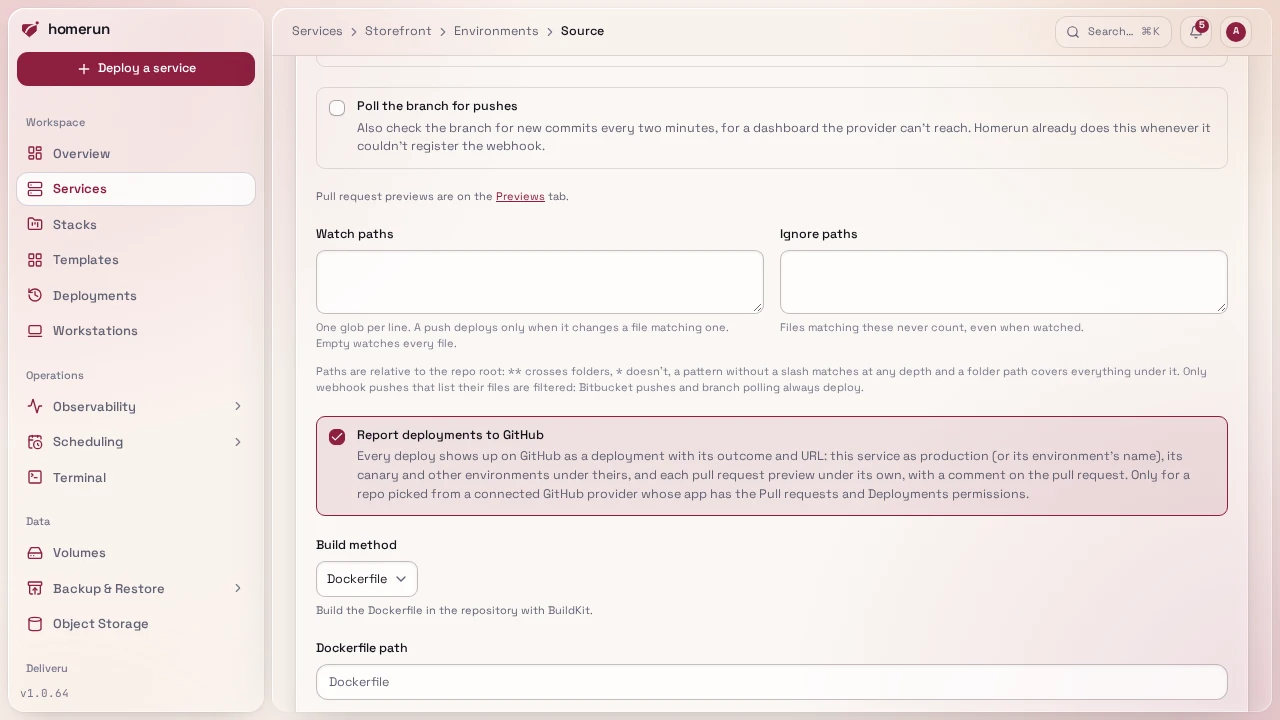
With Report deployments to GitHub ticked (the default, under Environments
& Deployments → Source) and a repo picked from a connected GitHub provider,
every deploy shows up on GitHub as a deployment with its outcome, URL and log
link, posted as the service's owner: the service itself under production
(marked as GitHub's production environment) or its environment name, its canary
under canary, and each environment under its name. Pull request previews also
get a comment, see
Reporting back to GitHub.
It needs the GitHub app's Pull requests and Deployments permissions
(Read and write), see Connecting a git provider. A report
that fails is logged and never holds up the deploy. Other providers get none.
This guide lives in the project repo: edit it there, and this page follows within a day.