Storage volumes
A storage volume (/storage, Volumes under Storage in the sidebar)
is a named source you define once, then mount into one or more services from
each service's Storage tab:
- Bind mount, an absolute path on the host filesystem.
- Docker-managed volume, a named Docker volume, created/managed by Docker itself.
Docker's own bind-vs-named-volume syntax is what tells the two apart under the hood; you just pick a kind and a source when creating one. A volume becomes "shared" simply by being mounted into more than one service, there's no separate "shared volume" concept to configure.
Each volume shows how much it holds on disk, on /storage and next to every
mount on a service's Storage tab. Homerun measures it with du in a throwaway
read-only container, the same way for both kinds, and keeps the number for ten
minutes: measuring a large volume reads its whole tree. Hover the size for the
error when a volume couldn't be measured.
/storage has a search box, Kind and Backups filters, a list/card view toggle,
and a pager once you have more than a page's worth, same toolkit as the
services list, searched/paginated server-side
the same way.
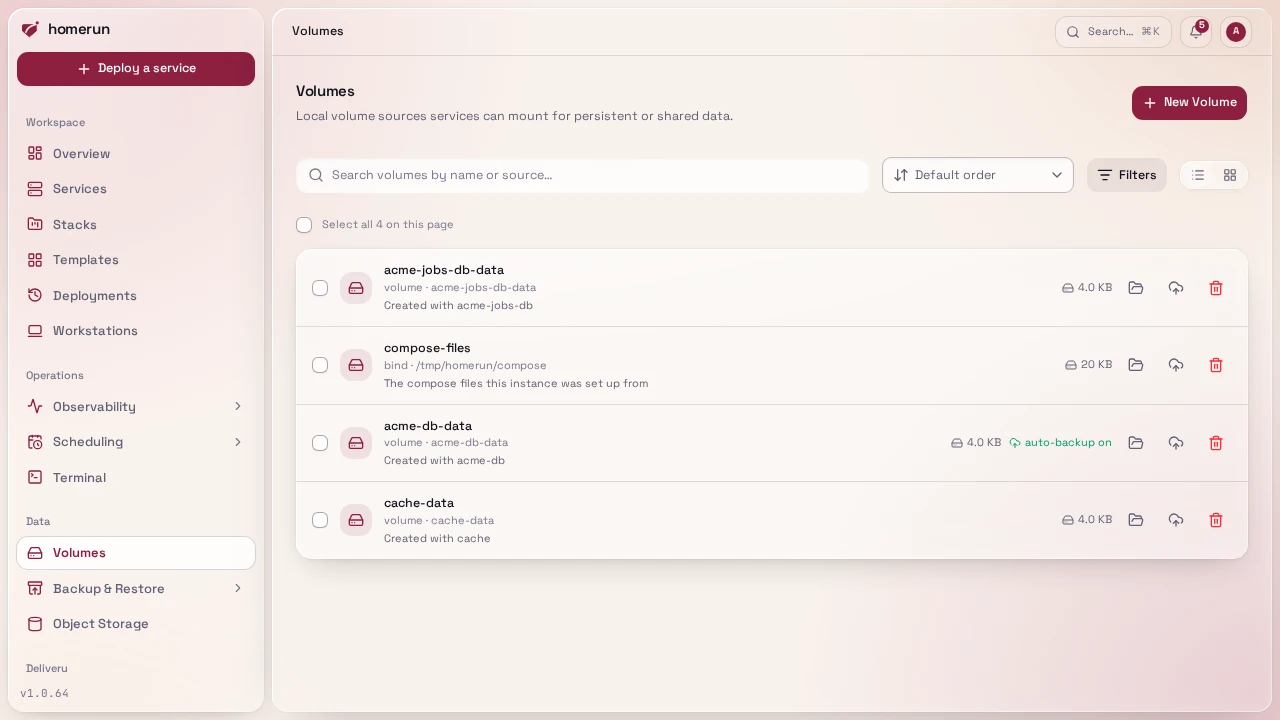
Tick volumes (or the select-all box above the list, which covers the current page) to bring up a bottom bar with bulk Enable backups, Disable backups and Delete. Enabling only turns backups on for volumes that already have a schedule and a backup destination set on their backup settings page; the rest are skipped and counted in the result. Bulk delete asks for confirmation first, and services mounting a deleted volume need a redeploy.
#A database's data volume
A new database or cache service gets a Docker volume named <slug>-data mounted
at its engine's data directory when it's created with no volume of its own,
whether from the deploy wizard, a template (its linked containers included) or
the API, so a redeploy doesn't start it empty. The deploy wizard shows it as a
pre-filled row on its Volumes step, remove the row to create the service without
one:
| Engine | Mounted at |
|---|---|
| PostgreSQL (and forks) | /var/lib/postgresql on 18 and later, /var/lib/postgresql/data before |
| MySQL, MariaDB | /var/lib/mysql |
| MongoDB | /data/db |
| Redis, Valkey, Dragonfly, KeyDB, Garnet | /data |
| RabbitMQ | /var/lib/rabbitmq |
Memcached holds nothing worth keeping and gets none. A service that already existed isn't changed: mounting a volume on it later starts it from an empty data directory.
#Browsing and editing files
A volume's Files tab (the Browse button next to it on /storage and on
a service's Storage tab opens it directly) browses what's inside it and edits
text files in the browser, for config files you'd otherwise need a shell for (an
nginx default.conf, an app's config.yaml). Folders open by clicking them; a
text file up to 1 MB opens in an editor, and Save writes it in place,
keeping its owner and permissions. A volume that is a single bound file, the way
Dokploy file mounts are imported, shows that one file. Binary files can be
browsed but not edited. The editor highlights syntax for common config and code
files, picked from the file's extension (.yaml, .json, .conf, .env,
Dockerfile, …).
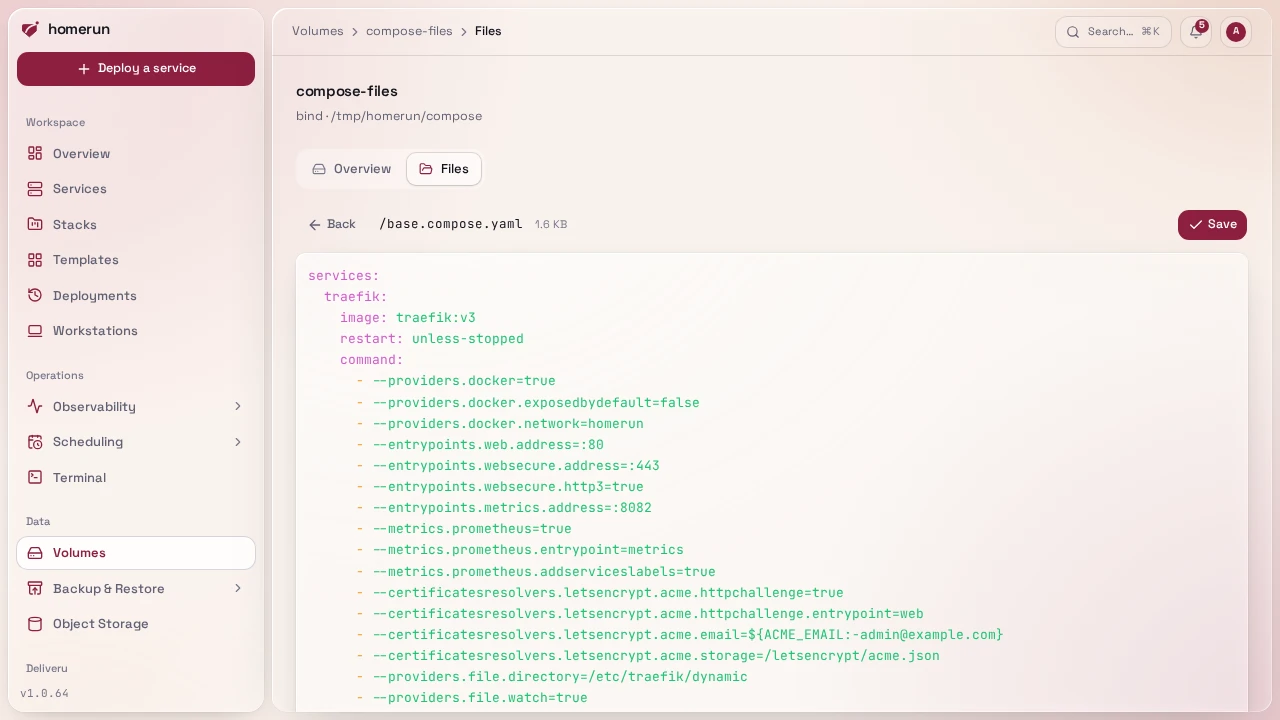
New file and New folder create an empty file (opened straight in the
editor) or a folder in the folder you're looking at. Right-click an entry for
Change permissions, which takes an octal mode like 644 or 0755, and
Delete, which asks first and removes a folder with everything in it.
Each action runs a short-lived Alpine container with the volume mounted (read-only, except while saving, creating, deleting or changing permissions), so it works the same for bind mounts and Docker volumes and needs nothing installed on the host. A saved file is picked up the next time the services using it read it; most apps only read their config at start, so restart them after saving.
#The Storage tab
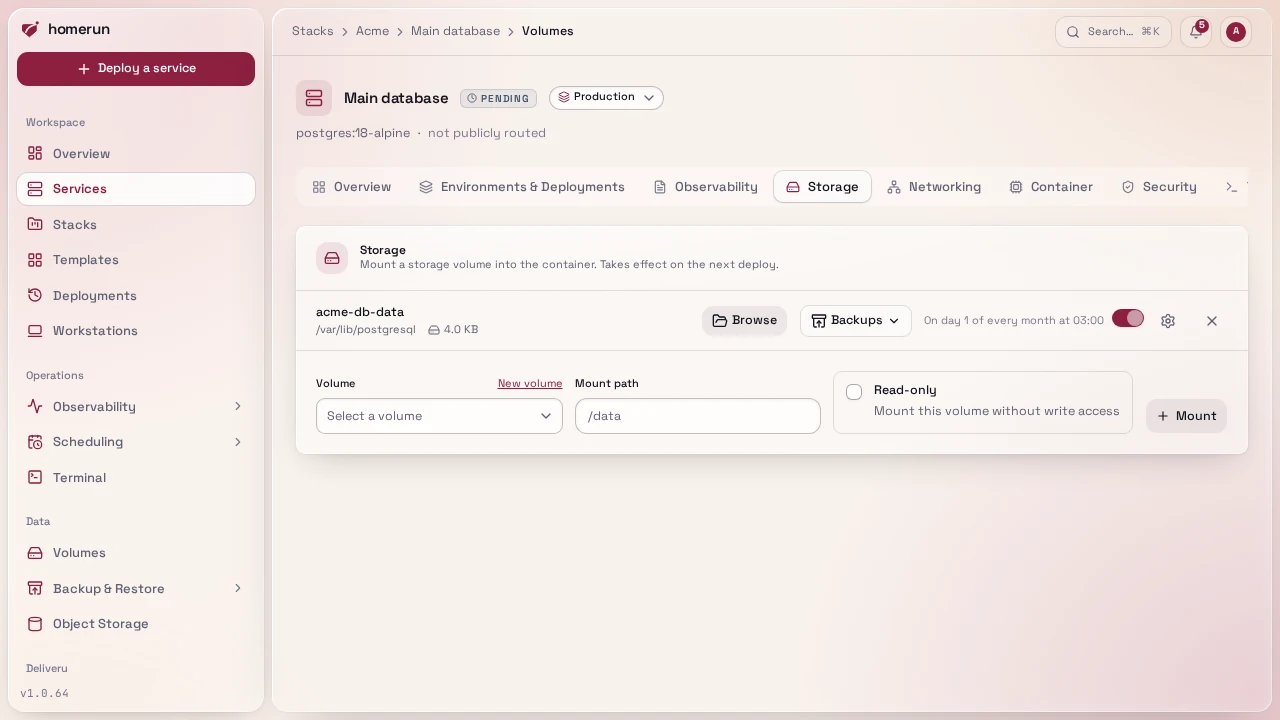
Mount a storage volume into the container path of your choice, read-write or read-only, from a service's Storage tab, including creating a brand-new volume inline without leaving the page.
#Restoring a backup
Each mounted volume with backups set up has a Backups button listing its backups in the bucket, newest first, each with a Restore button. Restoring asks how, then for the volume's name to be typed, since it can overwrite the data the service runs on:
- Replace directly unpacks the backup over the current data (optionally wiping the volume first, and stopping the services using it meanwhile). Whatever it replaces is gone.
- Back up the current data first takes a backup of the volume as it is now, and only restores once that backup succeeded. If it fails, the restore is cancelled and nothing is touched.
- Deploy as a revision leaves the current volume alone: the backup is
restored into a new Docker volume (
<name>-restored-<date>, with the same backup destination and schedule), then the service is redeployed with it mounted in the old one's place. That's a new revision under Environments & Deployments → Revisions, and deploying the previous one with Also restore env vars, resources, networking and volumes puts the old volume back. The old volume's scheduled backups are turned off, since the new one is the live copy; delete it once you don't need to go back. Only for Docker volumes, a host path can't be cloned. If the restore fails, the redeploy is cancelled and the service keeps running on the old volume.
Every restore shows up in the run log like a backup, and can be cancelled from there.
This guide lives in the project repo: edit it there, and this page follows within a day.