Notifications
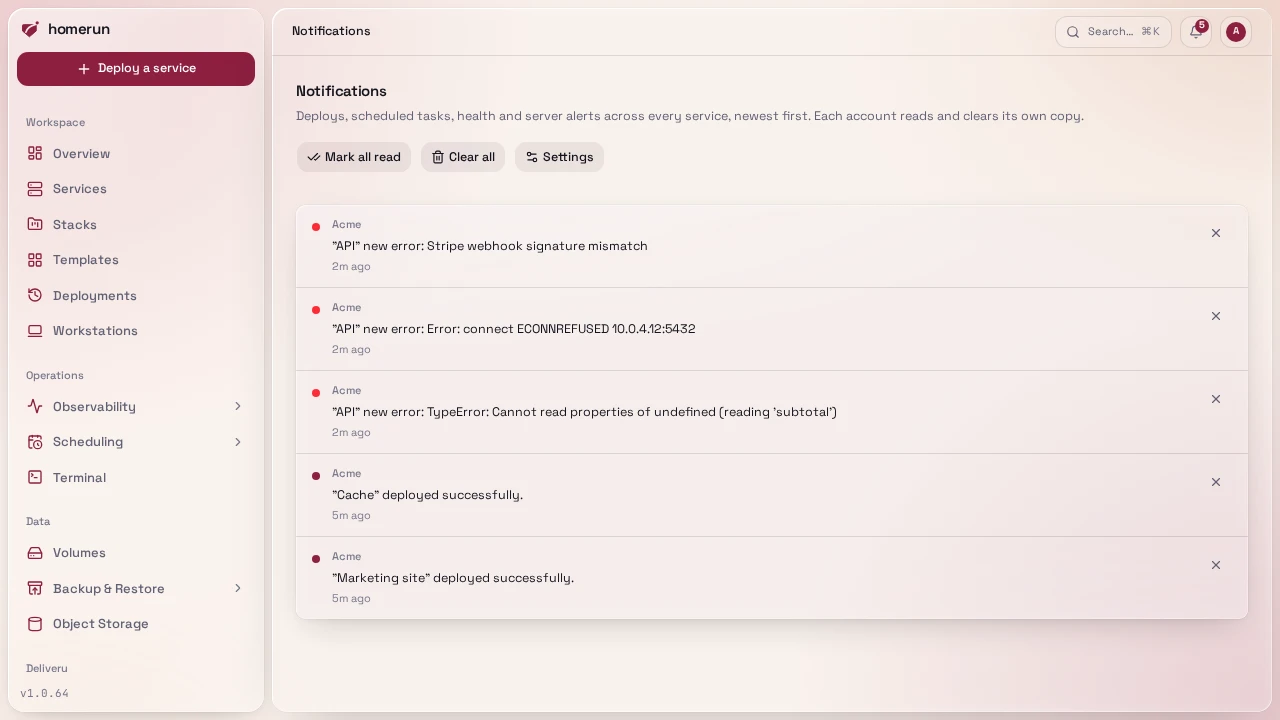
The bell in the header opens Notifications, a per-account feed of lifecycle
events on every service, whoever created it (each account gets its own copy to
read and clear): deploy succeeded or failed, a build stopped by status checks,
an unhealthy or rolled back revision, service created, started, stopped, an
image scan finding a critical vulnerability, and runtime errors attributed to a
service, plus the server crossing a resource limit. The bell shows how many are
unread. Click an entry to jump to its service and mark it read, use Mark all
read, drop one with its x, or Clear all.
Scheduled work reports once per run in the feed too: the outcomes of cron
redeploys, scheduled backups and cron jobs are held like the channel summary
below, then show up as one Scheduled tasks: 14 ok entry listing every outcome
by event, failures first with their errors, which opens Scheduling. A run
with a single outcome keeps that outcome's own entry.
Browser notifications: click Turn on browser notifications on the
Notifications page, in the dashboard summary or under Notifications →
Settings, and allow them. That browser is added as a Browser notification
channel and gets notifications through its push service and Homerun's service
worker, so they show up even with every Homerun tab closed (the browser itself
has to be running). Each browser you turn it on in is its own channel, named
after it (Firefox on Linux), with its own events in the matrix below; the
matrix only ever shows the browser you're viewing it from, so each browser's
events are set from that browser and other devices' columns stay hidden; it
starts with the channel defaults plus Build started, Build succeeded and
Deploy failed, so a git build announces itself and then replaces that
notification with how it ended. Clicking one opens what it's about. Turn off
on this browser removes its channel. While a browser has push on, an open
Homerun tab no longer pops up the feed's own entries, so nothing shows twice. If
the browser drops its subscription, the channel disables itself and says so;
turn it on again from that browser. Push needs the dashboard served over HTTPS
(or localhost). A Chromium build without Google's push service (Helium,
ungoogled-chromium) refuses the subscription: Homerun then turns on
notifications for that browser only while a Homerun tab is open (the feed's
entries, checked every 30 seconds), adds no channel, and says so.
It's deliberately a short curated list, not a log: everything Homerun logs at warn or error level is persisted separately and shown on the relevant service's Observability → Events. Old notifications are trimmed automatically, so the feed doesn't grow without bound.
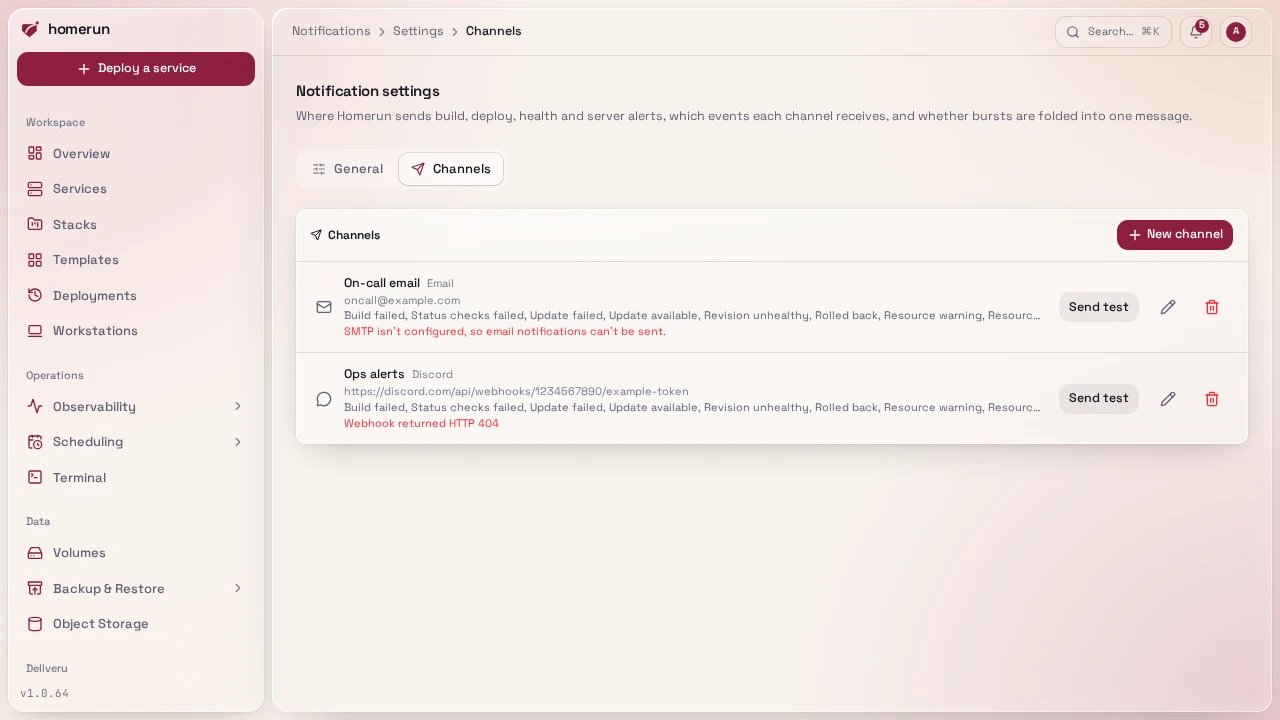
Notification channels send the same kind of events outside the dashboard. Add a Discord webhook, a Slack incoming webhook, a Telegram bot, a generic webhook, or an email address with New channel under Notifications → Settings → Channels (the Settings button on the Notifications page), or a browser (see above), then pick which events each one gets on that page's General tab: a git build or a deploy started (not sent for scheduled runs), build succeeded/failed, a build stopped by failing status checks, scheduled update succeeded/failed, an update available for a service watching for one, manual deploy succeeded/failed, a new revision found unhealthy or rolled back, an image scan finding critical vulnerabilities, a service going down or recovering (from its uptime probe), the server crossing a resource limit or recovering from one, a new or regressed error issue, a volume backup succeeding or failing (after its retry), a backup destination running low on space, a cron job run succeeding or failing, and an address banned for hitting blocked paths. A new channel starts subscribed to build and update failures, available updates, status checks failures, unhealthy revisions, rollbacks, both resource alerts, new and regressed errors, backup failures, low backup storage, and cron job failures; turn on the rest you want from that matrix.
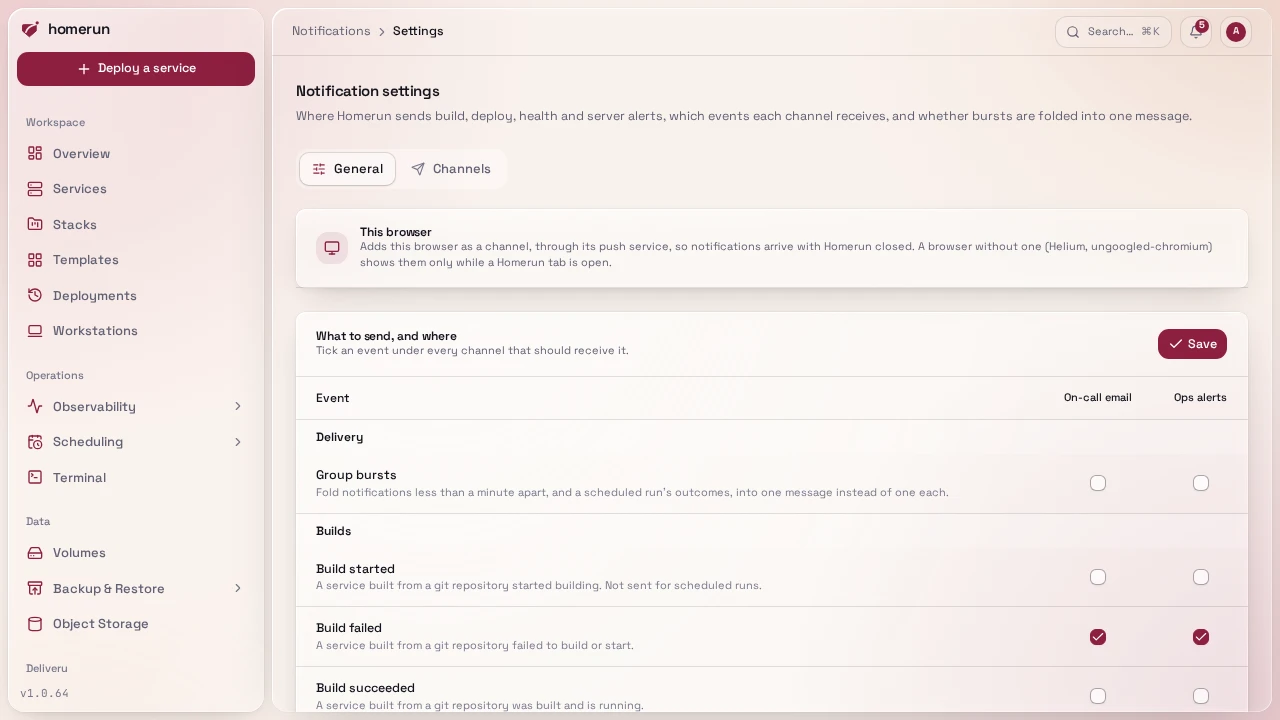
Each notification goes out to a channel as it happens, unless you tick Group
bursts under that channel in the same matrix (off for every channel by
default). A grouping channel gets notifications close together as one message
instead of one by one: the first one goes out straight away; any that follow
within a minute of the previous one are held and sent as a single message once a
minute passes with nothing new (five minutes at most), titled like
3 notifications: 2 ok, 1 failed, with a section per event (failures first),
each listing its notifications one per line, and the error of each failure. The
outcomes of scheduled work (cron redeploys, scheduled backups and cron jobs) are
always held until every scheduled job still queued or running has finished,
retries included, then sent as one Scheduled tasks: … summary, so a nightly
run reports once (after an hour at most). A channel only ever gets the events it
subscribes to: when only one of a group's is left for it, it gets that
notification unchanged. Held notifications live in memory, so a restart while
they wait drops them. The feed's Scheduled tasks entry is held the same way
whatever the channels are set to.
A Send test button on each channel fires a sample notification so you can check the destination actually works before relying on it. A delivery failure is shown right on the channel rather than failing silently, and retried in the background through the job queue: first after 30 seconds, then after 20, 40 and 80 more, four tries in all, visible as Notification jobs in the Scheduling page's job queue. A retry is dropped once the channel is removed, disabled or unsubscribed from that event, and a successful one clears the error. The test button isn't retried. Email channels need SMTP configured first, see Configuration.
The pencil button on a channel edits its name and destination, and turns it off or back on: a disabled channel keeps its settings but gets nothing until it's enabled again. Saving clears the channel's last delivery error. Its kind can't change; remove it and add a new one instead. A Telegram channel's bot token field starts blank: leave it blank to keep the stored token.
- Slack: create an
incoming webhook for the channel
and paste its
https://hooks.slack.com/services/…URL. - Telegram: create a bot with @BotFather, add it to the group or channel,
then enter the bot token and the chat id (a number like
-1001234567890, or a public channel's@name). The token is stored with the channel but never shown again, the list only shows the chat.
This guide lives in the project repo: edit it there, and this page follows within a day.