Mobile app
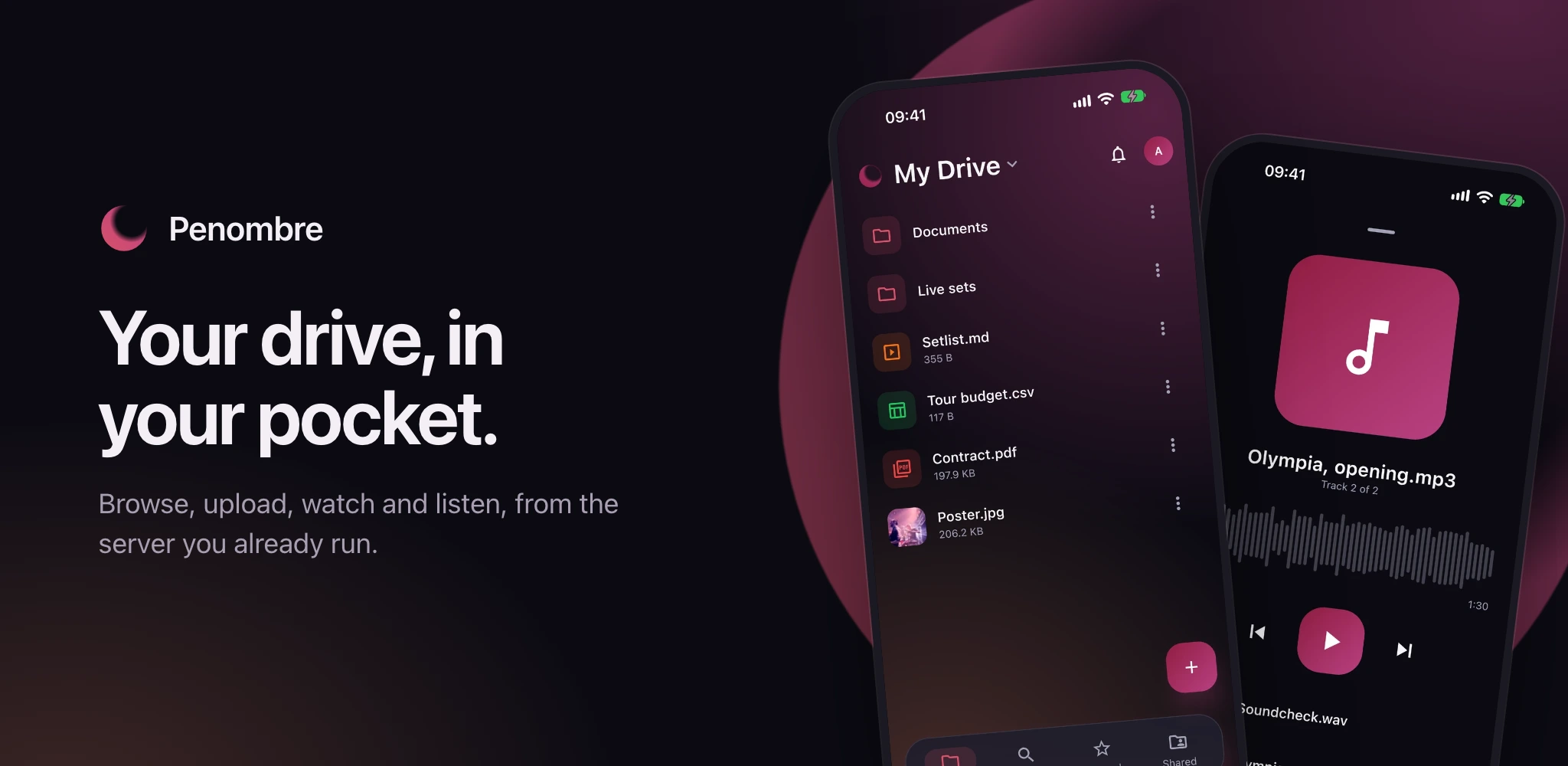
The Penombre app for Android and iOS is at an early stage: it signs in, browses your drive and shared drives, shows pictures, plays music and video, and opens the rest in the instance's own web interface. Google Play lists it for testers only for now; everyone else installs it from GitHub.
#Getting the app
In the web interface, open your profile menu (top right) and choose Get the apps: it links the builds that match your server's version. On a phone's browser a banner offers the same, once per session. The files are attached to every release:
- Android:
penombre-android.apk. Open it on the phone and allow your browser to install apps when Android asks. Each release installs over the last, keeping you signed in. - iPhone and iPad:
penombre-ios-unsigned.ipa. It is not signed, which iOS requires, so it has to go through a tool that signs it with your own Apple account, such as AltStore. A free account's signature lasts a week.
penombre-android.aab is the same app as the bundle the Play Store takes.
Connect the mobile app (below) links the same places for a phone that does not have the app yet: Get it on Google Play (hidden on an iPhone) and Get it from GitHub, which opens the release matching your server.
#Signing in
Scan the code. In the web interface, open your profile menu (top right),
choose Get the apps, then Connect the mobile app: it shows a QR code. In
the app, tap Scan the code and point the phone at it, or scan it with the
phone's own camera, which opens the app. The app asks Sign in to
<your server>?; tap Connect and you are in, as the account that showed
the code. There is no address to type and nothing to sign in to again.
Opened on the phone itself, which cannot scan its own screen, the dialog also shows Open in the app on this device: it opens the app with the code already in it, and the app asks the same question.
The code works once and is replaced every two minutes. Anyone who scans it while it is on screen is signed in as you, so show it only to your own phone.
Or type the address. Enter the server address instead reveals the address field. Tap Sign in: your phone's browser opens Penombre, you sign in the way you usually do (passkeys and OAuth included, since it is the real browser), and approve Sign in Penombre on your phone. The browser hands the app a one-time code and closes. A device with no camera starts here.
Or have a code mailed. Where the administrator allows signing in with an emailed code (see sign-in methods), Email me a code under the address field asks for your email address and sends a code there; type it in and you are in, with no browser. An account with two-factor authentication is then asked for the code from its authenticator app, or one of its backup codes. A server that does not allow emailed codes says so, and the browser sign-in above still works.
Every way, the app holds an ordinary session, the same kind a browser gets. It
shows under Account → Sessions as Penombre mobile · <model>; revoking it
there signs the phone out on its next request. Sign out in the app revokes
it too.
The server needs no configuration for this. Instances older than the release that added the app answer the sign-in page with a 404: update the server.
#What it does today
A bottom bar, present on every screen:
- Home: your drive, folders natively, with paging for large folders. Its title is a menu: tap My Drive to switch to Recent, Starred, Trash, a shared drive, a mounted volume, something shared with you, or a category (Music, Documents, Images and so on). Tapping Home again returns to your own drive's root.
- Search: files and folders by name, everywhere you have access. The page shows the search field and your recent searches, kept on the phone. From two letters on, results come as you type, in place of the recent searches; the last ones stay on screen until the next are in. Searching from the keyboard opens the results on their own page, and Back returns to the field as you left it; opening a result or searching keeps it among the recent ones, and a tap on one runs it again. Tap Search in the bar once more to bring up the keyboard.
- Starred: the same list as on the web.
- Shared: My links (the public links you made, to copy or revoke), Shared with me, and your shared drives, each with its own trash. New shared drive creates one.
At the top right of every tab, the bell shows your notifications, with the number unread; opening them marks them read. Your initials open Account:
- My profile: Account details (name, address, downloading your files or your account data, deleting the account; the address shows whether it is verified, and is verified or changed with emailed codes, as on the web), Security (password, the sign-in method offered first, two-factor authentication, passkeys and API keys), Sessions (every device signed in, each one a tap from signed out) and Activity.
- Settings: General (language, and where each kind of notification reaches you: in the app, by email, on your phone), Appearance (light or dark, accent, font, corners, how files are sorted, and the web interface's layout options) and Storage (what your drive holds, by kind, and the server's disk).
- Sign out, and the app's version.
Everything the web interface's settings pages hold can be changed from the app, except adding a passkey, which opens the Security page in your browser: a passkey belongs to the server's web address and not to an app.
The accent, font and corners are your account's, so a change in the app shows on the web and the other way round. Light or dark is this phone's own choice.
#Language
The app speaks the web interface's thirteen languages. Settings → General → Language lists them, each in its own name, under Automatic (phone's language), which follows the phone and falls back to English for a language Penombre does not have. A choice takes effect at once, without restarting the app, and is saved to your account, so the web interface follows it too, and the other way round: a language picked on the web is the app's the next time it opens. The web pages the app shows (an editor, a folder opened from a search) open in the same language. On iOS the system's own sheets and prompts follow it from the next launch.
#Notifications on the phone
Settings → General → On this phone has the app check for new notifications now and then while it is closed and show them as the phone's own. Android checks about every fifteen minutes; iOS decides when, depending on how often the app is used. The first time, the phone asks whether the app may notify you. Nothing is sent through Google or Apple: the phone asks your server directly, which is why it is not instant. The grid under it chooses, for each kind of notification (comments and notes, shares, signatures), whether it reaches the phone at all; it is the same grid as the web's notification settings, and the phone only shows what also stays in the app's bell.
Pull any list down to load it again.
The + button on Home and in a shared drive adds to the folder on screen: Choose files from the device or another app, Take a photo, or Scan a document, which uploads the pages as one PDF. A phone without a camera is offered files only, and scanning on Android needs Google Play services. Files over 200 MB are refused for now.
New folder is in the same menu. Search looks by name everywhere you have access: your drive, every shared drive and every mounted volume. Each result names the place and folder it is in.
The three dots on a row offer what the web interface's right-click does: Download (into Downloads on Android, through the share sheet on iOS), Versions (playing, downloading or restoring one), Star, Rename, Move to…, Duplicate, Copy to… another folder or a shared drive, and Move to trash. On a drive you can only read, the ones that change it are absent.
#Opening a file
Tapping a file opens a preview in a drawer at the bottom of the screen:
- A picture shows there; Full screen opens the viewer, where you swipe between the folder's pictures and pinch or double-tap to zoom. Pictures load in steps: a preview first, and Original in the viewer fetches the file itself.
- A video starts playing in the drawer, with play and pause, ten seconds back or forward and a scrubber. Full screen carries on from the same moment; there the controls fade while it plays and a tap brings them back. Played to its end, Play starts it over. The label at the end of the scrubber is the quality: tap it for 720p or 480p on a slow connection.
- A video the phone cannot play (an AVI, for one) says so instead of showing a black screen, and Convert and play has the server render a version that does.
- A PDF shows its first page; Open shows every page, scrolling, with pinch to zoom. Where you can edit the file, you can also mark it up, fill it in and sign it: see PDFs.
- A document, sheet, deck or Office file opens in the web app's editor, inside a screen of the app's own: its header and Back, its colours, light or dark as the app is. Back saves what you typed first, and asks before leaving if it could not.
- Any other file shows its thumbnail when the server has one, and Open shows the raw file.
A track with earlier versions shows its version number beside its duration, v3 for the third. Tap it for the list, where each version plays like any track.
A track does not open a drawer: it starts playing in the mini player above the bottom bar, along with the folder's other tracks. Tap the mini player, or slide it up, for the full player: waveform scrubber, previous and next, and the queue. Playback continues while you browse. A video takes over from a track.
A folder opened from Recent, Starred or a category opens in the web interface. Everything the web interface shows inside the app is already signed in.
#PDFs
A PDF you can edit has tools along the bottom of its screen. Nothing changes the file until you tap Save; leaving with something unsaved asks first.
- Scroll moves through the pages and leaves the fields free to fill in. With any other tool, one finger draws and two fingers still zoom.
- Highlight marks a rectangle you drag over, in yellow, green or pink.
- Pen draws freehand in four colours and three thicknesses. Eraser removes strokes not saved yet, Undo the last thing added.
- Note drops a sticky note where you tap, with the text you type.
- Signature opens a pad: sign with a finger, then drag the signature into place and its corner to size it. Tapping a form's signature field puts it in that field's box.
Form fields (text, checkboxes, radio buttons, drop-down lists) show as inputs over the page. Highlights, ink and notes are saved as real PDF annotations, so other PDF readers show and edit them; form values go into the form itself; signatures are drawn into the page. Where versioning is on, the PDF as it was before each save is kept as a version. If someone else saved the PDF while you had it open, saving refuses and offers to reload it.
A PDF on a read-only share or mounted volume opens without the tools. A password-protected or damaged PDF opens read-only too.
#Signature requests
When someone asks you to sign a document and your account is the address they asked, the request is in your notifications. Tapping it opens the document in the app: read it, tick the consent, tap Sign and sign with a finger. Decline to sign closes the request.
A signing link opened in a phone's browser offers Sign in the Penombre app, which does the same in the app, signed in or not.
#Plain HTTP
The app allows plain http:// addresses, since a self-hosted instance is often
reached on a LAN before it has a certificate. Passkeys still need the domain
they were created on: a passkey made for https://files.example.com cannot sign
in to http://192.168.1.20:3000.
This guide lives in the project repo: edit it there, and this page follows with the next release.