Desktop sync
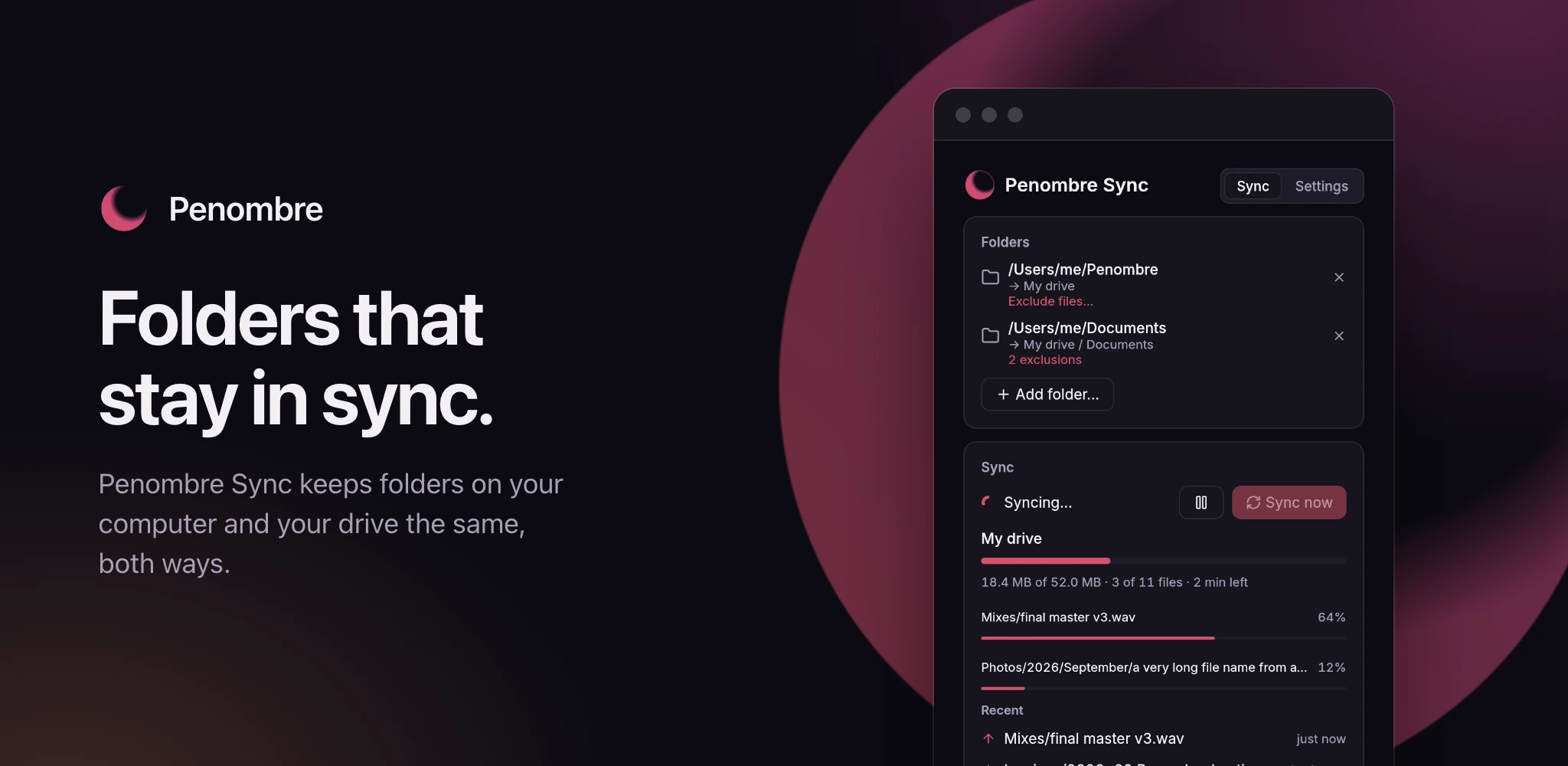
Penombre Sync is a small tray app for macOS, Linux and Windows that keeps folders on your computer in two-way sync with Penombre. It is built on WebDAV and rclone: it does the setup that page describes for you, then runs the sync on its own.
#What it does
- Several folders, each to its own place. Pair any local folder with your
drive, a shared drive or a volume, whole or one folder in it:
~/Penombrewith all of My drive,~/DocumentswithMy drive / Documents. A folder synced by one pair is left out of any pair containing it, so nothing downloads twice. Removing a pair stops syncing it; nothing is deleted. - Browser sign-in. Enter your server's address; your browser opens Penombre, you check the code matches and approve. The app then creates its own API key, named after your computer, and keeps it in the system credential store (Keychain, Credential Manager or Secret Service). Your password never reaches it. Sign out forgets the key on this computer; revoke it under Settings → API keys to cut the device off.
- rclone bisync underneath. Each pair is an
rclone bisyncrun, at start, every few minutes, on Sync now and shortly after local changes settle. The key reaches rclone through its environment only, never a configuration file. - Junk stays local.
.DS_Store,._*,Thumbs.db,desktop.iniand similar system files are never uploaded. - You choose what stays out. Under each folder, Exclude files… takes a
folder picked inside it, or a pattern:
*.bakfor files anywhere,node_modules/for folders of that name anywhere,/Renders/for one folder at the top. Excluded files are left where they are, on both sides: nothing is deleted, they just stop syncing. Changing the list makes the next sync of that folder a full comparison, which takes longer once. - It shows what is happening. While a folder syncs, the window shows its progress, the files moving and their own progress. Afterwards it lists the files synced recently, in which direction, and the files that failed with the reason.
- Failures are retried. A file that fails is tried again a minute later. If it fails again you get one notification naming it; you are not told again until it has synced and broken anew. A folder pair that fails before any file does (a refused key, a rate limit, a missing folder) notifies the same way: once, on its second failed sync in a row.
- It notices when the server is gone. Before each sync the app checks the server answers. If it doesn't, nothing is synced, a banner says since when and why, and the app asks again every 30 seconds, syncing as soon as the server is back; Retry now asks at once. An outage lasting past the second check sends one notification; a server restarting in a few seconds does not.
- Pause. Pause syncing, in the tray menu or the window, stops syncing and interrupts a sync in progress. The app remembers it across restarts; Resume syncing catches up at once with what changed meanwhile.
Closing the window keeps the app running in the tray; quit from its menu. On macOS the app sits in the menu bar only: it leaves the Dock with its window, and started at login it opens no window at all. Only one copy runs at a time: opening it again brings the running one forward.
#Settings
The Settings view, beside Sync at the top of the window, holds:
- Account. The server, the key's name, Sign out, and Change server, which signs out and signs in to another one.
- Start at login. A switch, using the system's own mechanism (a login item
on macOS, a startup entry on Linux, the registry on Windows). When
brew servicesalready starts the app it says so and stays locked, so two copies never run;brew services stop penombre-synchands it back. - Updates. The version running and its release channel: Stable for
releases, Canary for every merge before it ships (and the stable releases
after them). The app checks GitHub every six hours and when the channel
changes, and notifies once per new version. Install and restart downloads
that version for your system, checks it against its published SHA-256,
replaces the app in place and relaunches it; the folder holding the app must
be writable by you. A Homebrew install is updated by Homebrew instead, and the
card shows the
brewcommand. It starts on the channel it was released on, and a build from source never checks. - Permissions. Whether notifications can be shown, whether each synced folder can be read, where rclone is, and whether the key can be read from the credential store, each with a button to the right system setting when one exists. macOS protects Documents, Desktop and Downloads: syncing one needs access under Privacy & Security → Files and Folders or Full Disk Access.
On macOS the app from the .dmg asks once whether it may notify you, has its
own entry in System Settings → Notifications, and Permissions shows your
answer. A Homebrew install is a bare program, which macOS lets show
notifications only through Script Editor; allow those.
#Good to know
- Pairing an empty folder is safe: the first sync downloads what the server holds into it and deletes nothing on the server. The app says so before you add it. Emptying a folder that already synced is another matter: rclone refuses a sync that would delete more than half of a side.
- A file that keeps failing makes each later sync of its folder a full comparison until it goes through. Fix the cause, a file too large for your reverse proxy for example (see Reverse proxy), and it settles.
- Folders sync one after another, so a large one delays the next.
- A folder copied or mirrored off a Penombre server (Syncthing, for example) can
hold the server's own
.versions,.thumbnailsand.tmpfolders. They are never synced: they mean nothing to another server. File versions do not carry over between servers.
#Requirements
- A Penombre server reachable over HTTPS (or plain HTTP on your own network).
- rclone. The app does not bundle it; Homebrew installs it for you.
#Get it from your server
Get the apps in your profile menu (top right) offers the build that matches the server's own version (a canary server offers the canary build), picks your system, shows the Homebrew command, and has the server address to paste into the app.
#Install with Homebrew
On macOS (Apple silicon or Intel) and Linux (x86_64):
brew install orochibraru/tap/penombre-sync
brew services start penombre-syncbrew services start launches it now and at every login. Quit it from the tray
and it stays quit until the next login; if it crashes it is restarted. Its log
is $(brew --prefix)/var/log/penombre-sync.log. brew upgrade brings each new
stable release.
Canary builds are their own formula, updated on every merge:
brew install orochibraru/tap/penombre-sync-canary
brew services start penombre-sync-canaryThe two conflict: uninstall one before installing the other. Switching the channel in Settings shows the exact command.
#Download
Every Penombre release on
GitHub carries the app, with
a .sha256 checksum beside each file:
| System | Download |
|---|---|
| macOS, Apple silicon | penombre-sync-aarch64-apple-darwin.dmg |
| macOS, Intel | penombre-sync-x86_64-apple-darwin.dmg |
| Linux, x86_64 (glibc) | penombre-sync-x86_64.AppImage |
| Windows, x86_64 | penombre-sync-x86_64-pc-windows-msvc.exe |
Stable releases are vX.Y.Z; vX.Y.Z-canary.N pre-releases carry every merge
before it ships. On macOS, open the .dmg and drag Penombre Sync to
Applications. On Linux, make the AppImage executable
(chmod +x penombre-sync-x86_64.AppImage) and run it. On Windows, run the
.exe. Each updates itself in place from Settings. rclone must be on your
PATH in every case.
The same releases also carry plain archives (.tar.gz, .zip on Windows)
holding the bare binary, which is what the in-app updater and Homebrew use.
The builds are not signed by Apple or Microsoft. The macOS one carries the project's own signature, which its notifications need. Apple does not know that signature, so after each update macOS asks once more for the keychain entry holding the key (choose Always Allow), and the first launch is refused: open System Settings → Privacy & Security and choose Open Anyway, or clear the quarantine flag:
xattr -dr com.apple.quarantine "/Applications/Penombre Sync.app"Windows SmartScreen asks once; choose More info → Run anyway.
On Linux the tray needs a StatusNotifier host (KDE, and GNOME with the AppIndicator extension), and the key store needs a Secret Service provider such as GNOME Keyring or KWallet.
#Build from source
You need Rust 1.98 or newer (rustup) and a C toolchain: the
Xcode command-line tools on macOS, the MSVC build tools on Windows, gcc on
Linux. Linux needs no other development package: X11, Wayland and OpenGL are
loaded at run time, and D-Bus is spoken in Rust.
git clone https://github.com/orochibraru/penombre.git
cd penombre/desktop
cargo build --release --lockedThe binary lands in desktop/target/release/penombre-sync (penombre-sync.exe
on Windows). A source build reports the version in desktop/Cargo.toml; release
builds carry the release's own.
This guide lives in the project repo: edit it there, and this page follows within a day.