OpenCount
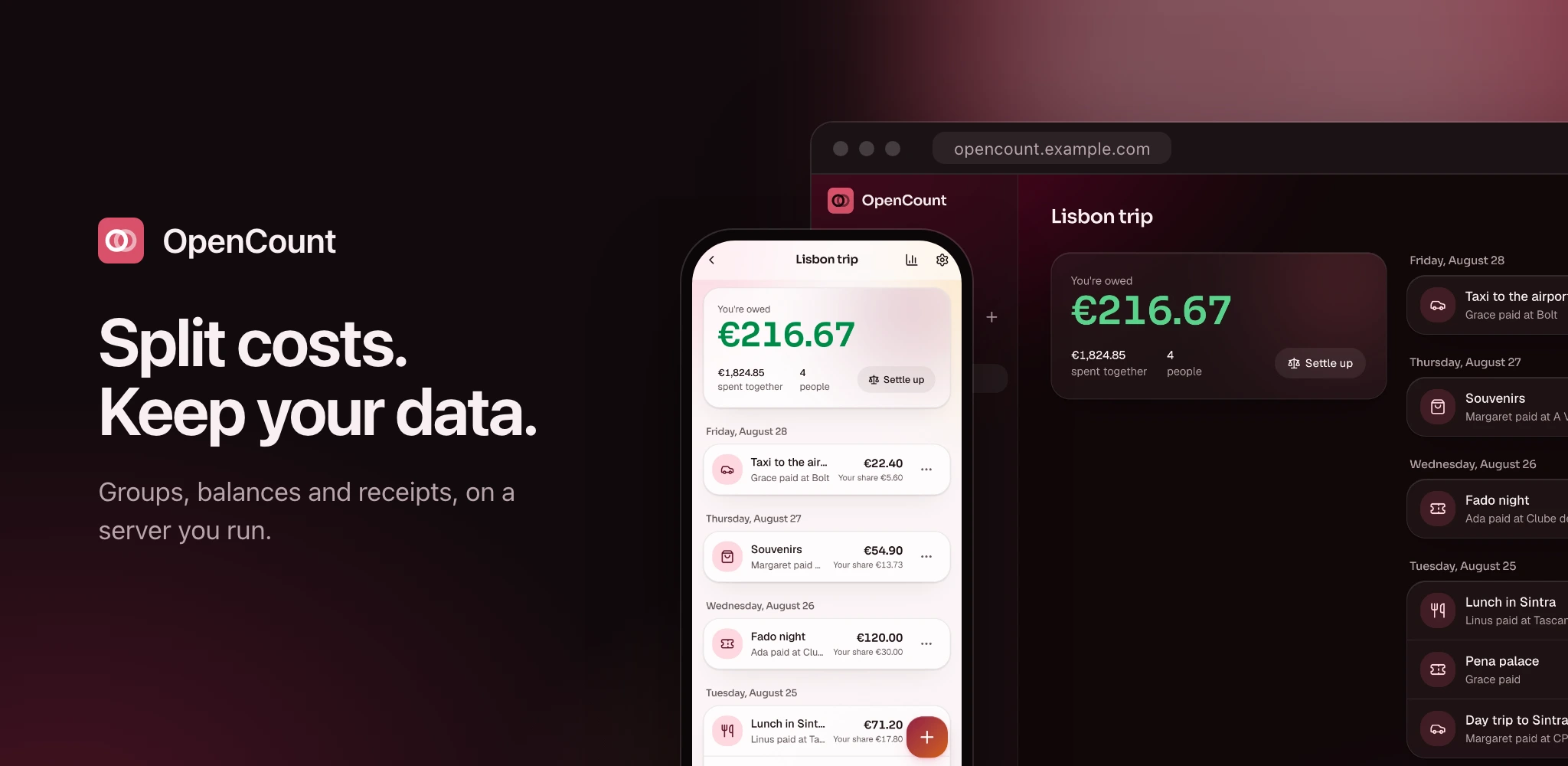
Split expenses with friends, see who owes whom, settle up. A self-hosted, open-source alternative to Tricount that installs on your phone like an app.



See every screen, on a desktop and a phone
#Features
- Groups for a trip, a flat or a dinner, in one of twelve currencies. Add people by name before they have an account; they claim their name with That's me, or pick it when they open the group's invite link.
- Other currencies: an expense paid in dollars counts in the group's currency at the day's European Central Bank rate, or the one you type, frozen on the expense.
- Expenses split equally, by shares or by exact amounts, between everyone or only some. Amounts are whole cents, so a split always adds up.
- Balances and settle-up: everyone's balance, and the fewest payments that bring the group back to zero. Record a payment in one tap.
- Repeating expenses: rent and subscriptions every week, month or year, anchored to their day of the month, with pause and resume.
- Less typing: categories guessed from the description in English and French and from the group's own categories, merchants remembered per group, custom categories per group.
- Receipt reading, optional and local: a photo or a PDF fills in the amount, the date and the merchant. Read on your server with Tesseract, never stored, never sent anywhere.
- Personal ledger: a private list of your own expenses that only your account sees, each in any currency, with this month's totals by category. Split in a group adds one to a group, paid by you and split equally, converted at the day's rate when the currencies differ. Folders group expenses into projects, each with its own totals.
- Bank sync, optional: link your bank through Enable Banking (most European banks, Revolut included) and booked debits land in your personal ledger every day, categorized. Each person sets up their own Enable Banking keys under Account, Bank sync.
- Search and filter: find an expense by description or merchant, or filter a group's list by category. Lists load 50 at a time.
- Insights by period, category, merchant and payer, and over time.
- Archiving: hide a finished group from your own list without touching anyone else's.
- Import and export: bring a Tricount over from its share link, with its
expenses, splits, categories and dates, after a preview. Export a group as a
CSV spreadsheet or a PDF summary (Latin, Greek and Cyrillic names print; CJK
and emoji print as
?). - Feels native: an installable PWA with a bottom tab bar, sheets, pull to refresh and haptics on phones, a full layout with a sidebar on desktop. Pages you already opened reopen offline, and expenses added offline are kept on the device and sync once you're back, never twice. Per-account accent colour, light, dark or AMOLED theme, font and corners.
- Invite-only by default, administered from the app: invites, sign-ups once email works, required authenticator apps or passkeys, password and passkey sign-in on or off, and single sign-on through any OpenID Connect provider. Password reset by email, accounts that change their own email and password or delete themselves, and database backups and restores from the admin area.
#Documentation
The full documentation lives in docs/ and is published at
https://orochibraru.com/opencount: install and configuration, every screen,
the admin area, backups and upgrades, troubleshooting.
#Install
OpenCount is one container and one SQLite file. The image,
docker.io/orochibraru/opencount,
is built for linux/amd64 and linux/arm64.
Download the compose file into an empty directory:
mkdir opencount && cd opencount
curl -fsSLO https://raw.githubusercontent.com/orochibraru/opencount/main/compose.prod.yamlservices:
opencount:
image: docker.io/orochibraru/opencount:latest
restart: unless-stopped
ports:
- 3000:3000
volumes:
- opencount:/data
environment:
AUTH_SECRET: ${AUTH_SECRET:?set AUTH_SECRET, e.g. openssl rand -base64 32}
# The URL people open, like https://opencount.example.com.
ORIGIN: ${ORIGIN:-}
volumes:
opencount: {}Write a .env next to it with a fresh secret and your public URL, then start
it:
cat > .env <<EOF
AUTH_SECRET=$(openssl rand -base64 32)
ORIGIN=https://opencount.example.com
EOF
docker compose -f compose.prod.yaml up -dKeep AUTH_SECRET with your backups: it signs sessions and encrypts the secrets
stored in the database. Changing it signs everyone out and loses them.
#Configuration
| Variable | Default | What it does |
|---|---|---|
AUTH_SECRET | none, required | Signs sessions and encrypts stored secrets; 32 characters or more |
ORIGIN | from the proxy headers | The public URL; required on plain HTTP with no proxy |
DATABASE_PATH | /data/opencount.sqlite | The SQLite file, on the /data volume |
PORT | 3000 | The HTTP port |
LOG_LEVEL | info | trace, debug, info, warn or error |
LOG_FORMAT | console | json or console |
Put it behind an HTTPS reverse proxy that sets X-Forwarded-Proto and
X-Forwarded-Host: passkeys and installing the app both need HTTPS. On plain
HTTP with no proxy, ORIGIN must be the exact URL you open (like
http://192.168.1.10:3000), or every form is refused as cross-site.
Every other variable, from the background worker to traces and error reporting, is in Configuration. Sign-ups, sign-in methods, email and receipt reading are set in the app's admin area.
#First run
A fresh instance has no account, and every page sends you to the setup screen. It asks for a code only the server's log shows, so nobody who stumbles on the URL can claim the instance:
docker compose -f compose.prod.yaml logs opencountLook for the line starting with Setup code: six digits, valid 15 minutes.
Enter it, then your email, name and password. That first account is the admin.
From the admin area, set up email, secure your account with an authenticator app
or a passkey, and invite people.
On a phone, use Add to Home Screen to install it.
Step by step, with what each screen does: First run.
#Upgrades and backups
docker compose -f compose.prod.yaml pull
docker compose -f compose.prod.yaml up -dMigrations run at boot. Your data is the opencount volume: back it up, with
AUTH_SECRET, or download a backup from the admin area's Backup tab. See
Backups and upgrades.
#Contributing
See CONTRIBUTING.md.
#License
This guide lives in the project repo: edit it there, and this page follows within a day.